Crosshair
R2026bCrosshair region of interest
Description
A Crosshair object specifies the position of an axes-based
crosshair region of interest (ROI). You can customize the appearance and interactive behavior
of the ROI.
Axes-based ROIs enable you to draw and edit regions of interest
on images displayed using imshow or in MATLAB® axes. Axes-based ROIs offer maximum customization of appearance and behavior,
including line width, marker style, and edge color. Use axes-based ROIs for fine-grained control
over ROI appearance, integration with existing axes-based apps, or access to the assisted
freehand, crosshair, or cuboid ROI types. For a comparison of axes-based ROIs with other ROIs,
see Choose Approach to Annotate ROIs in Images.
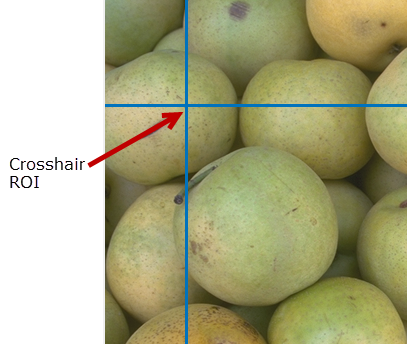
For more information about using this ROI, including keyboard shortcuts, see Tips.
Creation
There are two ways to create a Crosshair object. For more information,
see Create Axes-Based ROIs.
Use the
drawcrosshairfunction. Use this function when you want to create the ROI and set the appearance in a single command. You can specify the position of the ROI interactively by drawing the ROI over an image using the mouse, or programmatically by using name-value arguments.Use the
images.roi.Crosshairfunction described here. Use this function when you want to specify the appearance and behavior of the ROI before you specify the position of the ROI. After creating the object, you can specify the position interactively by using thedrawfunction or programmatically by modifying properties of the object.
Syntax
Description
roi = images.roi.CrosshairCrosshair object with default properties.
roi = images.roi.Crosshair(ax)ax.
roi = images.roi.Crosshair(___,PropertyName=Value)
Example: images.roi.Crosshair(Color="y") creates a yellow colored
Crosshair object.
Input Arguments
Properties
Shape and Position
Position of the ROI, specified as a 1-by-2 numeric vector of the form [x
y]. The values x and y specify the
x- and y-coordinates of the location where the
horizontal line crosses the vertical line in the crosshair ROI. This value changes
automatically when you draw or move the ROI.
Color and Styling
ROI color, specified as an RGB triplet, a hexadecimal color code, a color name, or a short color name.
For a custom color, specify an RGB triplet or a hexadecimal color code.
An RGB triplet is a three-element row vector whose elements specify the intensities of the red, green, and blue components of the color. The intensities must be in the range
[0,1], for example,[0.4 0.6 0.7].A hexadecimal color code is a string scalar or character vector that starts with a hash symbol (
#) followed by three or six hexadecimal digits, which can range from0toF. The values are not case sensitive. Therefore, the color codes"#FF8800","#ff8800","#F80", and"#f80"are equivalent.
Alternatively, you can specify some common colors by name. This table lists the named color options, the equivalent RGB triplets, and the hexadecimal color codes.
| Color Name | Short Name | RGB Triplet | Hexadecimal Color Code | Appearance |
|---|---|---|---|---|
"red" | "r" | [1 0 0] | "#FF0000" |
|
"green" | "g" | [0 1 0] | "#00FF00" |
|
"blue" | "b" | [0 0 1] | "#0000FF" |
|
"cyan"
| "c" | [0 1 1] | "#00FFFF" |
|
"magenta" | "m" | [1 0 1] | "#FF00FF" |
|
"yellow" | "y" | [1 1 0] | "#FFFF00" |
|
"black" | "k" | [0 0 0] | "#000000" |
|
"white" | "w" | [1 1 1] | "#FFFFFF" |
|








This table lists the default color palettes for plots in the light and dark themes.
| Palette | Palette Colors |
|---|---|
Before R2025a: Most plots use these colors by default. |
|
|
|


You can get the RGB triplets and hexadecimal color codes for these palettes using the
orderedcolors
and rgb2hex
functions. For example, get the RGB triplets for the "gem" palette and
convert them to hexadecimal color
codes.
RGB = orderedcolors("gem");
H = rgb2hex(RGB);
Example: Color="r"
Example: Color="green"
Example: Color=[0 0.4470 0.7410]
Example: Color="#00FFFF"
Width of the ROI border, specified as a positive number in points. The default value is three times the number of points per screen pixel, such that the border is three pixels wide.
Color of the ROI when selected, specified as an RGB triplet, a hexadecimal color code,
a color name, a short color name, or "none". If you specify
"none", then the value of Color defines the
color of the ROI for all states, selected or not.
For a custom color, specify an RGB triplet or a hexadecimal color code.
An RGB triplet is a three-element row vector whose elements specify the intensities of the red, green, and blue components of the color. The intensities must be in the range
[0,1], for example,[0.4 0.6 0.7].A hexadecimal color code is a string scalar or character vector that starts with a hash symbol (
#) followed by three or six hexadecimal digits, which can range from0toF. The values are not case sensitive. Therefore, the color codes"#FF8800","#ff8800","#F80", and"#f80"are equivalent.
Alternatively, you can specify some common colors by name. This table lists the named color options, the equivalent RGB triplets, and the hexadecimal color codes.
| Color Name | Short Name | RGB Triplet | Hexadecimal Color Code | Appearance |
|---|---|---|---|---|
"red" | "r" | [1 0 0] | "#FF0000" |
|
"green" | "g" | [0 1 0] | "#00FF00" |
|
"blue" | "b" | [0 0 1] | "#0000FF" |
|
"cyan"
| "c" | [0 1 1] | "#00FFFF" |
|
"magenta" | "m" | [1 0 1] | "#FF00FF" |
|
"yellow" | "y" | [1 1 0] | "#FFFF00" |
|
"black" | "k" | [0 0 0] | "#000000" |
|
"white" | "w" | [1 1 1] | "#FFFFFF" |
|
This table lists the default color palettes for plots in the light and dark themes.
| Palette | Palette Colors |
|---|---|
Before R2025a: Most plots use these colors by default. |
|
|
|
You can get the RGB triplets and hexadecimal color codes for these palettes using the
orderedcolors
and rgb2hex
functions. For example, get the RGB triplets for the "gem" palette and
convert them to hexadecimal color
codes.
RGB = orderedcolors("gem");
H = rgb2hex(RGB);
Example: SelectedColor="r"
Example: SelectedColor="green"
Example: SelectedColor=[0 0.4470 0.7410]
Example: SelectedColor="#00FFFF"
Color of the ROI stripe, specified as an RGB triplet, a hexadecimal color code, a
color name, a short color name, or "none". If you specify
"none", then the ROI edge is a solid color specified by
Color. Otherwise, the edge of the ROI is striped, with colors
alternating between the colors specified by Color and
StripeColor.
For a custom color, specify an RGB triplet or a hexadecimal color code.
An RGB triplet is a three-element row vector whose elements specify the intensities of the red, green, and blue components of the color. The intensities must be in the range
[0,1], for example,[0.4 0.6 0.7].A hexadecimal color code is a string scalar or character vector that starts with a hash symbol (
#) followed by three or six hexadecimal digits, which can range from0toF. The values are not case sensitive. Therefore, the color codes"#FF8800","#ff8800","#F80", and"#f80"are equivalent.
Alternatively, you can specify some common colors by name. This table lists the named color options, the equivalent RGB triplets, and the hexadecimal color codes.
| Color Name | Short Name | RGB Triplet | Hexadecimal Color Code | Appearance |
|---|---|---|---|---|
"red" | "r" | [1 0 0] | "#FF0000" |
|
"green" | "g" | [0 1 0] | "#00FF00" |
|
"blue" | "b" | [0 0 1] | "#0000FF" |
|
"cyan"
| "c" | [0 1 1] | "#00FFFF" |
|
"magenta" | "m" | [1 0 1] | "#FF00FF" |
|
"yellow" | "y" | [1 1 0] | "#FFFF00" |
|
"black" | "k" | [0 0 0] | "#000000" |
|
"white" | "w" | [1 1 1] | "#FFFFFF" |
|
This table lists the default color palettes for plots in the light and dark themes.
| Palette | Palette Colors |
|---|---|
Before R2025a: Most plots use these colors by default. |
|
|
|
You can get the RGB triplets and hexadecimal color codes for these palettes using the
orderedcolors
and rgb2hex
functions. For example, get the RGB triplets for the "gem" palette and
convert them to hexadecimal color
codes.
RGB = orderedcolors("gem");
H = rgb2hex(RGB);
Example: StripeColor="r"
Example: StripeColor="green"
Example: StripeColor=[0 0.4470 0.7410]
Example: StripeColor="#00FFFF"
ROI visibility, specified as "on" or "off", or as
. A value of "on" is equivalent to
true, and "off" is equivalent to
false. The value is stored as an on/off logical value of type
OnOffSwitchState.
| Value | Description |
|---|---|
"on" | Display the ROI. |
"off" | Hide the ROI without deleting it. You can still access the properties of an invisible ROI. |
Labels
ROI label, specified as a character vector or string scalar. By default, the ROI has no label
('').
Transparency of the text background, specified as a number in the range [0, 1]. When
set to 1, the text background is completely opaque. When set to
0, the text background is completely transparent.
Label text color, specified as an RGB triplet, a hexadecimal color code, a color name, or a short color name.
For a custom color, specify an RGB triplet or a hexadecimal color code.
An RGB triplet is a three-element row vector whose elements specify the intensities of the red, green, and blue components of the color. The intensities must be in the range
[0,1], for example,[0.4 0.6 0.7].A hexadecimal color code is a string scalar or character vector that starts with a hash symbol (
#) followed by three or six hexadecimal digits, which can range from0toF. The values are not case sensitive. Therefore, the color codes"#FF8800","#ff8800","#F80", and"#f80"are equivalent.
Alternatively, you can specify some common colors by name. This table lists the named color options, the equivalent RGB triplets, and the hexadecimal color codes.
| Color Name | Short Name | RGB Triplet | Hexadecimal Color Code | Appearance |
|---|---|---|---|---|
"red" | "r" | [1 0 0] | "#FF0000" |
|
"green" | "g" | [0 1 0] | "#00FF00" |
|
"blue" | "b" | [0 0 1] | "#0000FF" |
|
"cyan"
| "c" | [0 1 1] | "#00FFFF" |
|
"magenta" | "m" | [1 0 1] | "#FF00FF" |
|
"yellow" | "y" | [1 1 0] | "#FFFF00" |
|
"black" | "k" | [0 0 0] | "#000000" |
|
"white" | "w" | [1 1 1] | "#FFFFFF" |
|
This table lists the default color palettes for plots in the light and dark themes.
| Palette | Palette Colors |
|---|---|
Before R2025a: Most plots use these colors by default. |
|
|
|
You can get the RGB triplets and hexadecimal color codes for these palettes using the
orderedcolors
and rgb2hex
functions. For example, get the RGB triplets for the "gem" palette and
convert them to hexadecimal color
codes.
RGB = orderedcolors("gem");
H = rgb2hex(RGB);
Example: LabelTextColor="r"
Example: LabelTextColor="green"
Example: LabelTextColor=[0 0.4470 0.7410]
Example: LabelTextColor="#00FFFF"
Label visibility, specified as one of these values.
| Value | Description |
|---|---|
"on" | Label is visible when the ROI is visible. |
"hover" | Label is visible only when the mouse is hovering over the ROI. |
"off" | Label is not visible. |
Interactivity
Context menu that displays when you right-click the ROI, specified as a
ContextMenu object. You can create a custom context menu by using
the uicontextmenu function and then
configuring context menu properties.
Context menu provides an option to delete the ROI, specified as . When the value is true, you can delete the ROI
interactively using the context menu. When the value is false, the
context menu option to delete the ROI is disabled.
In both cases, you can delete the ROI outside of the context menu by using the
delete function.
Area of the axes in which you can interactively place the ROI, specified as one of the values in this table.
| Value | Description |
|---|---|
"auto" | The drawing area is the current axes limits (default). |
"unlimited" | The drawing area has no boundary and ROIs can be drawn or dragged to extend beyond the axes limits. |
[x,y,w,h] | The drawing area is restricted to a rectangular region beginning at (x,y), and extending to width w and height h. |
Interactivity of the ROI, specified as one of the values in this table.
| Value | Description |
|---|---|
"all" | The ROI is fully interactable. |
"none" | The ROI is not interactable, and no drag points are visible. |
Selection state of the ROI, specified as "off" or
"on", or as . A value of "off" is equivalent to
false, and "on" is equivalent to
true.
You can also set this property interactively. For example, clicking on the ROI selects
the ROI and sets this property to true. Similarly, pressing the
Ctrl key and clicking the ROI deselects the ROI and sets the value
of this property to false.
Parent/Child
Visibility of the ROI handle in the Children property of the parent,
specified as one of the values in this table.
| Value | Description |
|---|---|
"on" | The object handle is always visible (default). |
"off" | The object handle is hidden at all times. |
"callback" | The object handle is visible from within callbacks or functions invoked by callbacks, but not from within functions invoked from the command line. |
ROI parent, specified as an Axes or UIAxes
object.
Identifiers
Tag to associate with the ROI, specified as a character vector or
string scalar. Use the tag value to find the ROI object in a
hierarchy of objects using the findobj
function.
Data to associate with the ROI, specified as any MATLAB data. For example, you can specify a scalar, vector, matrix, cell array,
string, character array, table, or structure. The Crosshair object
does not use this data.
Object Functions
addlistener | Create event listener bound to event source |
beginDrawingFromPoint | Begin drawing ROI from specified point |
bringToFront | Bring ROI to front of Axes stacking order |
draw | Begin drawing ROI interactively |
wait | Block MATLAB command line until ROI operation is finished |
Examples
Read an image into the workspace and display it.
I = imread('baby.jpg');
figure;
imshow(I)
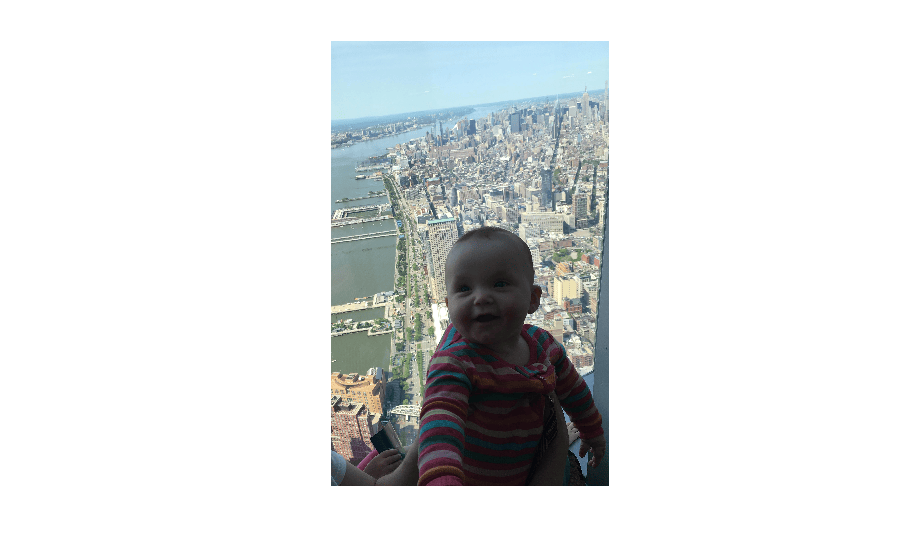
Place a crosshair ROI on the image programmatically. When you specify the position of the ROI, you must specify the axes.
h = images.roi.Crosshair(gca,'Position',[100,100]);

Read an image into the workspace.
img = imread("coins.png");Display the image in a figure.
figure
hAx = gca;
imObj = imshow(img,Parent=hAx);
imObj.Parent.Visible = "on";
Create a crosshair ROI associated with the image. The crosshair does not have a position yet and therefore does not display on the image.
h = images.roi.Crosshair(Parent=hAx,LineWidth=1,Color="y");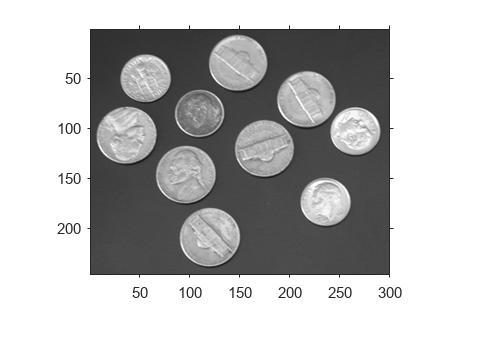
Set up a listener to get notification when the ROI moves over the image. Because the code displays the value of the pixel under the crosshair, you must pass the image as an argument to the listener.
addlistener(h,MovingROI=@(src,data)displayInfo(src,data,hAx,img));
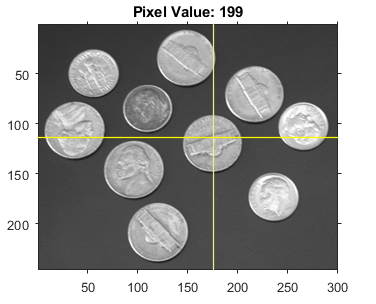
Begin drawing the ROI interactively. After you place the crosshair, you can then drag the crosshair to a new position. The title of the figure updates with the value of the pixel under the center of the crosshair.
draw(h)
This figure shows a sample appearance of the image with title during interactive movement of the crosshair ROI.
Define the displayInfo function called by the listener when a MovingROI event occurs.
function displayInfo(~,data,hAx,img)
    pos = ceil(data.CurrentPosition);
    title(hAx,"Pixel Value: "+num2str(img(pos(2),pos(1))))
end
More About
Tips
To draw the ROI interactively using the
drawordrawcrosshairfunction, position the cursor over the image and click the mouse to draw the ROI.The ROI supports the following interactivity, including keyboard shortcuts.
Task Description Cancel drawing operation. Press Esc. The function returns a valid ROI object with an empty Positionproperty.Move the ROI. Position the cursor over the center of the crosshair ROI (where the two lines cross) and click and drag the crosshair. Another way to move the crosshair ROI is to position the cursor anywhere on one of the two lines and click. The other line in the crosshair jumps to the new crosshair center position. Delete the ROI. Position the cursor over the ROI, right-click, and then choose Delete Crosshair from the context menu. You can also delete the ROI programmatically by using the deletefunction.

