sim
R2026bRun and script programmatic simulations of Simulink models
Syntax
Description
Simulink.SimulationInput Object Syntax
runs one or more simulations of a Simulink® model according to the properties defined on one or more out = sim(simin)Simulink.SimulationInput
objects.
If
siminis a scalarSimulink.SimulationInputobject, thenoutis a scalarSimulink.SimulationOutputobject.If
siminis a vector, matrix, or array ofSimulink.SimulationInputobjects, thenoutis a vector, matrix, or array ofSimulink.SimulationOutputobjects with the same dimensions assimin.
You can use a Simulink.SimulationInput object to configure options and
inputs for simulations, including:
The model to simulate
Source variables or files for external input data
Block parameter values to use for the simulation
Model configuration parameter values to use for the simulation
When a property of the Simulink.SimulationInput object modifies a model
or block parameter value, the value is modified during simulation and reverted
at the end of the simulation.
When you configure programmatic simulations using
Simulink.SimulationInput objects, you can transition from
using the sim function to using other functions, such as
parsim and batchsim.
For more information, see Run Simulations Programmatically.
runs the simulations with additional options specified using one or more
name-value arguments.out = sim(simin,Name=Value)
For a list of name-value arguments supported by the
Simulink.SimulationInput syntax, see Simulink.SimulationInput Object Syntax.
Model Syntax
simulates the model out = sim(mdl)mdl using the current configuration
parameter and block parameter values specified in the model.
If the model has the Single simulation output parameter or fast restart enabled,
outis aSimulink.SimulationOutputobject.If the model does not have Single simulation output or fast restart enabled,
outis a vector that contains the simulation times. For more information, see Syntaxes that return multiple output arguments are not recommended.
simulates the model
with options specified using one or more name-value arguments. For example, you
can modify a model configuration parameter value for the simulation by
specifying the parameter name and value as a name-value argument.out =
sim(mdl,Name=Value)
When you modify model configuration parameters by providing inputs to the
sim function, the changes are applied during simulation
and reverted at the end of the simulation.
For a list of name-value arguments supported for the model syntax, see Model Syntax.
Examples
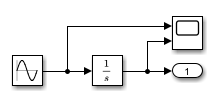
Suppose you have a model named
IntegrateSine that integrates the output of a Sine
Wave block and logs the result using an Outport
block. A Scope block displays the sine wave input and the
integrated output. You open the model and want to simulate the model using the
parameter values saved in the model.
Simulate the model by specifying the name of the model as input to the
sim function.
out = sim(mdl);
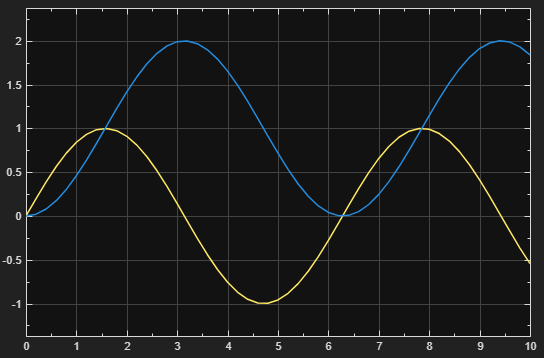
The simulation runs using the current model configuration parameters and block parameters specified in the model. In this case, the model has a stop time of 10 seconds, and the amplitude of the Sine Wave block is 1.
To modify parameters in a model for simulation without dirtying the
model, use a Simulink.SimulationInput object to configure the
simulation. When you configure simulations using
Simulink.SimulationInput objects, you can configure model
configuration parameter, block parameter, and variable values. The
sim function applies the configuration specified on the
Simulink.SimulationInput object during the simulation and
reverts changes to the model when the simulation completes.
Suppose you want to simulate the model IntegrateSine
described in Run Simulations Using Current Parameter Values for
different amplitudes of the sine wave input.

To parameterize the model, specify the value of the Sine Wave block Amplitude parameter as a variable. Open the model. Then, define the variable in the base workspace and specify the value of the block parameter in the model as the variable.
mdl = "IntegrateSine"; open_system(mdl) a = 1; set_param(mdl + "/Sine Wave",Amplitude="a")
Create a Simulink.SimulationInput object to store the
simulation configuration. Specify parameter and variable values on the
Simulink.SimulationInput object to configure a
simulation that:
Uses the solver
ode45Runs through a stop time of 20 seconds
Sets the amplitude of the simulated sine wave input to 2
mdl = "IntegrateSine"; simin = Simulink.SimulationInput(mdl); simin = setModelParameter(simin,Solver="ode45",StopTime="20"); simin = setVariable(simin,"a",2);
Simulate the model by specifying the
Simulink.SimulationInput object as input to the
sim function.
out = sim(simin);
The model simulates for 20 seconds, using the solver
ode45 and a sine wave amplitude of 2.
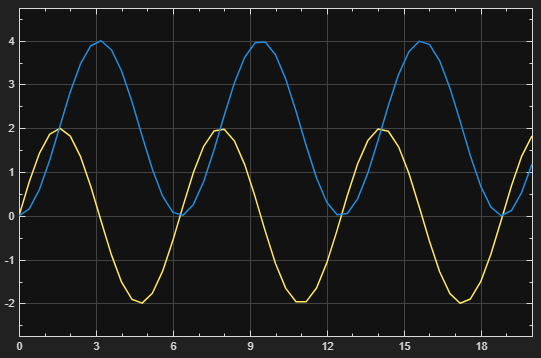
After the simulation completes, the variable in the workspace, the solver parameter, and the stop time parameter revert to their original values.
Fast restart speeds up parameter sweeps by compiling the model only once,
before the execution phase of the first simulation. Each subsequent simulation
reinitializes the model with specified parameter values without recompiling the
model, which can significantly reduce the overall time required to run the
parameter sweep. To enable fast restart for parameter sweeps run using a single
call to the sim function, specify the
UseFastRestart name-value argument as
"on".
Suppose you want to simulate the model IntegrateSine
described in Run Simulations Using Current Parameter Values for
different amplitudes of the sine wave input.

To parameterize the model, specify the value of the Sine Wave block Amplitude parameter as a variable. Open the model. Then, define the variable in the base workspace and specify the value of the block parameter in the model as the variable.
mdl = "IntegrateSine"; open_system(mdl) a = 1; set_param(mdl + "/Sine Wave",Amplitude="a")
Create a vector of the parameter values you want to simulate. Then, create
an array of Simulink.SimulationInput objects that represent
the configuration for each simulation in the parameter sweep. In a
for loop, specify the value of the variable that
defines the parameter on each Simulink.SimulationInput
object.
mdl = "IntegrateSine"; amps = [1 2 3 4 5 6]; n = length(amps); simin(1:n) = Simulink.SimulationInput(mdl); for k = n:-1:1 simin(k) = setVariable(simin(k),"a",amps(k)); end
Run the parameter sweep using a single call to the
sim function that enables fast restart by
specifying the UseFastRestart name-value argument as
"on".
out = sim(simin,UseFastRestart="on");[14-Apr-2026 17:31:23] Running simulations... [14-Apr-2026 17:31:24] Completed 1 of 6 simulation runs [14-Apr-2026 17:31:25] Completed 2 of 6 simulation runs [14-Apr-2026 17:31:25] Completed 3 of 6 simulation runs [14-Apr-2026 17:31:25] Completed 4 of 6 simulation runs [14-Apr-2026 17:31:26] Completed 5 of 6 simulation runs [14-Apr-2026 17:31:26] Completed 6 of 6 simulation runs
The sim function returns the simulation results as an
array of Simulink.SimulationOutput objects. Each
Simulink.SimulationOutput object in the array contains
the results for the simulation configured using the
Simulink.SimulationInput object with the same index in
the input array. For example, the Simulink.SimulationOutput
object at index 1 in the output array contains the results for the
simulation run using the Simulink.SimulationInput object at
index 1 in the input array.
Access the output data logged in the first simulation, which used an amplitude of 1.
yout1 = out(1).yout
yout1 =
Simulink.SimulationData.Dataset 'yout' with 1 element
Name BlockPath
______ _____________________
1 [1x1 Signal] output IntegrateSine/Outport
- Use braces { } to access, modify, or add elements using index.
To suppress the progress messages, specify the
ShowProgress name-value argument as
"off". To monitor progress using the Simulation
Manager, specify the ShowSimulationManager
name-value argument as "on". For more information, see
Simulation Manager.
To configure simulations without dirtying the model, you can
specify one or more name-value arguments. The sim function
modifies the parameters during simulation and reverts changes to the model when
the simulation completes. Name-value arguments can specify only model
configuration parameters. To configure additional parameters, such as variable
and block parameter values, use a Simulink.SimulationInput
object instead.
Suppose you want to simulate the model IntegrateSine,
described in Run Simulations Using Current Parameter Values, for
20 seconds using the solver ode45.

Simulate the model. Specify the Stop time and Solver parameters for the simulation using name-value arguments.
mdl = "IntegrateSine"; out = sim(mdl,StopTime="20",Solver="ode45");
To see the parameter values used in the simulation, check the simulation metadata returned with the simulation results.
slvr = out.SimulationMetadata.ModelInfo.SolverInfo.Solver
slvr =
'ode45'tstop = out.SimulationMetadata.ModelInfo.StopTime
tstop =
20To configure simulations without dirtying the model, you can
specify a structure that defines the name and value of each parameter you want
to modify. The sim function modifies the specified
parameters during simulation and reverts changes to the model when the
simulation completes. The structure can specify only model configuration
parameters. To configure additional parameters, such as variable and block
parameter values, use a Simulink.SimulationInput object
instead.
Suppose you want to simulate the model IntegrateSine,
described in Run Simulations Using Current Parameter Values, for
20 seconds using the solver ode45.

Create a structure that contains the fields Solver and
StopTime.
simconfig.Solver = "ode45"; simconfig.StopTime = "20";
Simulate the model using the parameter values specified in the structure.
mdl = "IntegrateSine";
out = sim(mdl,simconfig);To see the parameter values used in the simulation, check the simulation metadata returned with the simulation results.
slvr = out.SimulationMetadata.ModelInfo.SolverInfo.Solver
slvr =
'ode45'tstop = out.SimulationMetadata.ModelInfo.StopTime
tstop =
20To apply a configuration set to a simulation without dirtying
the model, configure the simulation using a Simulink.ConfigSet
object. The sim function applies the configuration set to
the model during simulation and reverts the change when the simulation
completes. A configuration set specifies only model configuration parameter
values. To specify additional values, such as variable and block parameter
values, use a Simulink.SimulationInput object instead.
Suppose you want to simulate the model IntegrateSine,
described in Run Simulations Using Current Parameter Values, for
20 seconds using the solver ode45.

To specify the parameter values to use in the simulation, create and configure a
Simulink.ConfigSet object. Open the model and get the
current configuration set. Then, create a copy of the configuration set and
specify the stop time and solver on the copy.
mdl = "IntegrateSine"; open_system(mdl) mdlconfig = getActiveConfigSet(mdl); simconfig = copy(mdlconfig); set_param(simconfig,StopTime="20"); set_param(simconfig,Solver="ode45");
Simulate the model using the configuration set
simconfig.
out = sim(mdl,simconfig);
To see the parameter values used in the simulation, check the simulation metadata returned with the simulation results.
slvr = out.SimulationMetadata.ModelInfo.SolverInfo.Solver
slvr =
'ode45'tstop = out.SimulationMetadata.ModelInfo.StopTime
tstop =
20Input Arguments
Simulation inputs and configuration, specified as a Simulink.SimulationInput
object or an array of Simulink.SimulationInput objects. The
properties of the Simulink.SimulationInput object specify
options and parameter values to use in the simulation, including:
The model to simulate
Source variables or files for external input data
Block parameter values to use for the simulation
Model configuration parameter values to use for the simulation
The values defined in the properties of the Simulink.SimulationInput
object are applied to the model for the simulation and reverted at the end
of simulation.
Model to simulate, specified as a string or a character vector that defines the name of the model or as a model handle (since R2024a).
Example: out = sim("vdp") simulates the model named
vdp using the parameter values currently configured
in the model.
Data Types: char | string
Model parameter values to use in simulation, specified as a structure. To specify a parameter value, add a field to the structure that matches the programmatic name of the model parameter. For example, to specify a start time of 5 seconds and a stop time of 10 seconds, create this structure:
params.StartTime = "5"; params.StopTime = "10";
Data Types: struct
Configuration set to use in simulation, specified as a Simulink.ConfigSet
object.
Name-Value Arguments
Specify optional pairs of arguments as
Name1=Value1,...,NameN=ValueN, where Name is
the argument name and Value is the corresponding value.
Name-value arguments must appear after other arguments, but the order of the
pairs does not matter.
Example: out = sim(simin,UseFastRestart="on") runs a set of simulations
using fast restart.
Example: out = sim(mdl,FastRestart="on") enables fast restart and runs a
simulation of the model mdl.
Note
The sim function supports different name-value arguments
depending on whether you specify the first input as one or more
Simulink.SimulationInput objects or as the name or handle
of the model to simulate.
Simulink.SimulationInput Object Syntax
Option to enable fast restart, specified as "off" or
"on". Fast restart reduces the time required to
run a set of simulations by compiling the model only once, before the
execution phase of the first simulation. For more information, see How Fast Restart Improves Iterative Simulations.
Consider using fast restart when you run multiple simulations of a model by specifying
an array of Simulink.SimulationInput objects. For more
information, see Script Iterative or Batch Simulations Using Fast Restart.
This argument is supported only when you specify the first input to the
sim function as one or more
Simulink.SimulationInput objects.
This argument has no effect when you specify a scalar
Simulink.SimulationInput object. To enable fast
restart, specify the FastRestart parameter on the
Simulink.SimulationInput object using the setModelParameter
function. When you enable fast restart using a scalar
Simulink.SimulationInput object, fast restart
remains enabled in the model after the simulation completes.
Example: out =
sim(simin,UseFastRestart="on");
Data Types: char | string
Option to skip subsequent simulations if simulation error occurs, specified as
"off" or "on".
"off"— If a simulation error occurs, the software captures the error in the simulation output and continues to run any subsequent simulations.For example, suppose you run five simulations using an array of
Simulink.SimulationInputobjects. An error occurs during the second simulation. Thesimfunction captures the error in the output for the second simulation and continues to run the third, fourth, and fifth simulations."on"— If a simulation error occurs, the software captures the error in the simulation output and does not run any subsequent simulations.For example, suppose you run five simulations using an array of five
Simulink.SimulationInputobjects. An error occurs during the second simulation. The software captures the error in the output for the second simulation and does not run the third, fourth, and fifth simulations. Thesimfunction returns an emptySimulink.SimulationOutputobject for each simulation that does not run.
This argument has no effect when you specify the
first input to the sim function as a scalar
Simulink.SimulationInput object. (since R2024a)
This argument is supported only when you specify the first input to the
sim function as one or more
Simulink.SimulationInput objects.
Example: out = sim(simin,StopOnError="on");
Tips
When the first input is an array of
Simulink.SimulationInputobjects, thesimfunction always enablesCaptureErrorsfor each simulation.View information about captured errors in the simulation output and metadata.
The
simfunction captures the error in theErrorMessageproperty of theSimulink.SimulationOutputobject.msg = out.ErrorMessage;
To view the error message in the Diagnostic Viewer, use the
sldiagviewer.reportSimulationMetadataDiagnosticsfunction.sldiagviewer.reportSimulationMetadataDiagnostics(out)
The
Simulink.SimulationMetadataobject returned by the simulation contains additional information about the error, such as the simulation phase in which the error occurred. The error information is stored in theErrorDiagnosticfield of theExecutionInfoproperty.e = out.SimulationMetadata.ExecutionInfo.ErrorDiagnostic;
Data Types: char | string
Option to indicate simulation progress, specified as "off" or
"on".
"off"— Simulations run without displaying progress messages."on"— Progress updates are displayed as simulations run.
The default value for this parameter depends on the dimensions of the first input to the
sim function:
When the first input is a scalar
Simulink.SimulationInputobject, the default value is"off".When the first input is an array of
Simulink.SimulationInputobjects, the default value is"on".
This argument is supported only when you specify the first input to the
sim function as one or more
Simulink.SimulationInput objects.
Example: out = sim(simin,ShowProgress="on");
Option to monitor progress using Simulation Manager, specified as "off" or
"on". Consider using the Simulation
Manager when you run multiple simulations using a single call
to the sim function.
This argument is supported only when you specify the first input to
the sim function as one or more
Simulink.SimulationInput objects.
Example: out =
sim(simin,ShowSimulationManager="on");
Model Syntax
Model configuration parameter value to use in simulation, specified as a name-value argument that consists of the programmatic name of the configuration parameter and the parameter value.
For example, to configure the Stop time
parameter, specify the name-value argument using the name
StopTime and the parameter value. These commands
run a 100-second simulation of a model named
MyModel.
mdl = "MyModel"; out = sim(mdl,StopTime="100");
You can use a name-value argument to specify the value for any model
configuration parameter in simulations you run using the
sim function. The configuration parameter
values you specify are applied for the simulation and revert when the
simulation ends. When you simulate a model hierarchy, the configuration
parameter values you specify apply to the top model.
Specifying model configuration parameter values as name-value
arguments is supported only when you specify the first input to the
sim function as the name or handle of the model
to simulate.
Example: out =
sim("MyModel",SaveOutput="on");
Tips
To specify configuration parameter values on a
Simulink.SimulationInputobject, use thesetModelParameterfunction.simin = Simulink.SimulationInput("MyModel"); simin = setModelParameter(simin,StopTime="100");
To get a list of model configuration parameters, use the
getActiveConfigSetfunction and theget_paramfunction.configSet = getActiveConfigSet("vdp"); configSetNames = get_param(configSet,"ObjectParameters")
The
get_paramfunction returns a list of all the model configuration parameters, such asStopTime,SaveTime,SaveState,SaveOutput, andSignalLogging.
Option to enable fast restart for individual simulations, specified as
"on" or "off". Fast restart
saves time in iterative simulation workflows by skipping compilation and
termination after compiling the model for the first simulation you run
after enabling fast restart.
"on"— The simulation enables theFastRestartparameter in the model and runs using fast restart. After the simulation ends, theFastRestartparameter remains enabled in the model.If the model is not already initialized in fast restart, the software compiles the model before running the simulation. At the end of the simulation, the model remains initialized in fast restart. To terminate the simulation, disable fast restart. For more information, see Script Iterative or Batch Simulations Using Fast Restart.
"off"— The simulation disables theFastRestartparameter in the model and runs without using fast restart. The model compiles for each simulation.If the model is already initialized in fast restart, the
simfunction terminates the previous simulation before compiling the model.
By default, fast restart is disabled in models, and simulations you
run using the sim function do not enable fast
restart. If you do not specify this argument, the
sim function uses the value of the parameter in
the model.
This argument is supported only when you specify the first input to the
sim function as a model name or handle.
Example: out = sim("MyModel",FastRestart="on");
Tips
To specify this parameter on a
Simulink.SimulationInputobject, use thesetModelParameterfunction. (since R2024a)simin = Simulink.SimulationInput("MyModel"); simin = setModelParameter(simin,FastRestart="on");
To run a set of simulations using fast restart, specify the first input argument as an array of
Simulink.SimulationInputobjects and use theUseFastRestartname-value argument instead.If you enable fast restart using the Simulink Editor or the
set_paramfunction, simulations you run using thesimfunction use fast restart even if you do not specify this argument.Fast restart simulations return results as a single
Simulink.SimulationOutputobject, even if the Single simulation output configuration parameter is disabled.
Data Types: char | string
Simulation mode, specified as "normal",
"accelerator", or
"rapid-accelerator". If you do not specify this
argument, the simulation uses the simulation mode specified in the
model.
| Value | Description |
|---|---|
"normal" | Run simulation using normal mode. Normal mode simulations use the full model representation and provide the best support for interacting with the model during simulation. Use normal mode for workflows that involve modifying the structure of your model between simulations. For best results, use normal mode for debugging simulations. |
"accelerator" | Run simulation using accelerator mode. Accelerator mode simulations generate an optimized representation of the model, called a simulation target, to use in simulation. The optimizations that improve the simulation performance can reduce the ability to interact with the model during simulation. Modifying the model between accelerator mode simulations can require regenerating the simulation target. Use accelerator mode to speed up simulations in workflows that do not involve making structural changes to the model between simulations. |
"rapid-accelerator" | Run simulation using rapid accelerator mode. Rapid accelerator mode simulations generate a simulation target to use for simulation. The simulation target provides minimal support for interacting with the model during simulation. Modifying the model between rapid accelerator simulations can require rebuilding the simulation target. Use rapid accelerator mode for the fastest simulation execution when you modify the model between simulations only by tuning variable and parameter values. Tuning certain parameter values can require rebuilding the simulation target. |
For more information, see Choosing a Simulation Mode and Code Regeneration in Accelerated Models.
This argument is supported only when you specify the first input to the
sim function as a model name or handle.
Example: out =
sim("MyModel",SimulationMode="accelerator");
Tips
To specify the simulation mode on a
Simulink.SimulationInputobject, use thesetModelParameterfunction.simin = Simulink.SimulationInput("MyModel"); simin = setModelParameter(simin,SimulationMode="accelerator");
Visualization blocks update during simulation when you run simulations from a UI, such as the Simulink Editor, but do not update during simulation when you run rapid accelerator simulations programmatically.
To prevent rebuilding the simulation target, you can disable the rapid accelerator up-to-date check by specifying the
RapidAcceleratorUpToDateCheckparameter value as"off". With the up-to-date check disabled, changes you make that would require rebuilding the simulation target are ignored.To simulate using rapid accelerator mode, you can specify
"rapid"as a partial match for"rapid-accelerator". For more information about name-value arguments in MATLAB®, see Validate Name-Value Arguments.
Data Types: char | string
Option to capture errors and return simulation output if simulation
error occurs, specified as "off" or
"on".
| Behavior | CaptureErrors="off"
(default) | CaptureErrors="on" |
|---|---|---|
| Issuing exceptions for simulation errors | The software issues exceptions for simulation errors. The exception stops both the simulation in which the error occurred and the script or function that invoked the simulation, if applicable. | The software does not issue exceptions for simulation errors. If a script or another function invoked the simulation, the error stops the simulation but does not stop the execution of the script or function. |
| Error reporting | Errors that occur during simulation are reported in the MATLAB Command Window. | Information about the simulation errors, including the message and the simulation phase in which the error occurred, is captured in the simulation output. |
| Simulation results | Issuing an exception stops the simulation
immediately. The | The |
This argument is supported only when you specify the first input to the
sim function as a model name or handle.
Example: out = sim("MyModel",CaptureErrors="on");
Tips
This option is not supported for software-in-the-loop (SIL) and processor-in-the-loop (PIL) simulations.
To specify this parameter on a
Simulink.SimulationInputobject, use thesetModelParameterfunction. (since R2024a)simin = Simulink.SimulationInput("MyModel"); simin = setModelParameter(simin,CaptureErrors="on");
View information about captured errors in the simulation output and metadata.
The
simfunction captures the error in theErrorMessageproperty of theSimulink.SimulationOutputobject.msg = out.ErrorMessage;
To view the error message in the Diagnostic Viewer, use the
sldiagviewer.reportSimulationMetadataDiagnosticsfunction.sldiagviewer.reportSimulationMetadataDiagnostics(out)
The
Simulink.SimulationMetadataobject returned by the simulation contains additional information about the error, such as the simulation phase in which the error occurred. The error information is stored in theErrorDiagnosticfield of theExecutionInfoproperty.e = out.SimulationMetadata.ExecutionInfo.ErrorDiagnostic;
Data Types: char | string
Option to start programmatic simulation debugging session, specified
as "off" or "on".
This argument is supported only when you specify the first input to the
sim function as a model name or handle.
Example: out = sim("MyModel",Debug="on");
Data Types: char | string
Option to disable rebuilding rapid accelerator target, specified as
"on" or "off".
"on"— Before each simulation, the software checks whether any changes to the model require rebuilding the rapid accelerator target. If a change requires rebuilding the rapid accelerator target, the software rebuilds the target before running the simulation."off"— The software does not check whether changes to the model require rebuilding the rapid accelerator target and always runs the simulation without rebuilding the target. Changes to the model that require rebuilding the rapid accelerator target are ignored and are not reflected in the simulation.
This argument is supported only when you specify the first input to the
sim function as a model name or handle.
Example: out =
sim("MyModel",RapidAcceleratorUpToDateCheck="off");
Tips
To specify this option on a Simulink.SimulationInput object, use the
setModelParameter
function.
simin = Simulink.SimulationInput("MyModel"); simin = setModelParameter(simin,RapidAcceleratorUpToDateCheck="off");
Data Types: char | string
Maximum simulation run time, specified as a positive scalar. Specify the time, in
seconds, to allow the simulation to run. If the simulation runs for
longer than the value you specify, the software issues a warning and
stops the simulation. For example, if you specify
Timeout as 30, the software
stops the simulation and issues a warning if computing simulation
results takes more than 30 seconds.
The Timeout parameter specifies a limit on the
amount of clock time for a simulation to run. To specify the maximum
time value to simulate, use the Stop time
parameter.
This argument is supported only when you specify the first input to the
sim function as a model name or handle.
Example: out = sim("MyModel",Timeout=60); runs a simulation with a
60-second timeout.
Tips
Consider specifying a timeout when you use a variable-step solver. If simulation conditions constrain the step size, the solver starts taking very small time steps, which slows down the simulation.
To specify this option on a
Simulink.SimulationInputobject, use thesetModelParameterfunction.simin = Simulink.SimulationInput("MyModel"); simin = setModelParameter(simin,Timeout=60);
Option to display summary of parameters before starting simulation,
specified as "siminfo".
This argument is supported only when you specify the first input to
the sim function as a model name or handle.
Example: out =
sim("MyModel",Trace="siminfo");
Data Types: char | string
Output Arguments
Simulation results and metadata, returned as a Simulink.SimulationOutput
object, an array of Simulink.SimulationOutput objects, or a
vector. The Simulink.SimulationOutput object contains all
data logged from simulation and metadata, such as timing information and
diagnostics.
To ensure sim returns results in a consistent format for any syntax,
save the model with the Single simulation
output configuration parameter enabled.
The sim function returns a vector of the simulation
time steps if all of these conditions are met:
The only input argument is the name of the model.
The Single simulation output parameter is disabled.
Fast restart is disabled.
Tips
To return results in the same format for every syntax, save the model with the Single simulation output parameter enabled. Returning all simulation data and metadata in a single object facilitates analyzing results from multiple simulations.
To control execution and tune parameter values during scripted simulations, use the
Simulationobject. (since R2024a) For more information, see Run Simulations Programmatically.To interact with simulations using both the MATLAB Command Window and the Simulink Editor, issue simulation commands using the
set_paramfunction. For more information, see Run Simulations Programmatically.When you run a simulation using the
simfunction, the simulation runs until an error occurs or the simulation reaches the specified stop time.When you simulate a model with infinite stop time, stop the simulation from the MATLAB Command Window by pressing Ctrl+C. The simulation stops, and simulation results are not saved in the MATLAB workspace.
Results of programmatic simulations are not available when the
StopFcnmodel callback executes. To process simulation results, use thePostSimFcncallback of theSimulink.SimulationInputobject instead.Configure logging for time, states, and outputs using the Configuration Parameters dialog box. On the Modeling tab, under Setup, click Model Settings. Then, in the Configuration Parameters dialog box, select Data Import/Export.
To log signals throughout a model, use signal logging or logging blocks, such as the To Workspace block or the Record block. For more information, see Save Signal Data Using Signal Logging.
Version History
Introduced before R2006aWhen you run normal or accelerator mode simulations using the sim
function and the model is open, the status bar at the bottom of the Simulink
Editor window for the model updates to show the current simulation time
during simulation.
In prior releases, the sim function overwrote the
CaptureErrors parameter for a single simulation if you
specified one or more name-value arguments in addition to the scalar
Simulink.SimulationInput object, including the
StopOnError name-value argument. Now, the
sim function has consistent default behavior and options,
summarized in the table.
Simulink.SimulationInput Dimensions | CaptureErrors | StopOnError | Behavior Change |
|---|---|---|---|
| scalar |
To enable this parameter,
specify the parameter on the
| This name-value argument has no effect when you run a single simulation. | Some calls to the |
| vector, matrix, array | Always "on". |
Specify
this name-value argument as | No change. |
You can configure a Simulink.SimulationInput object to
enable fast restart for an individual simulation you run using the sim function and a scalar
Simulink.SimulationInput object. Fast restart saves time in
iterative simulation workflows by compiling the model only once, for the first
simulation that has fast restart enabled. When you enable fast restart for an
individual simulation using the sim function, at the end of the
simulation, the FastRestart parameter remains enabled in the
model and the model is initialized in fast restart.
The FastRestart parameter applies for only individual simulations you
run one at a time. To use fast restart for multiple simulations you run together
using an array of Simulink.SimulationInput objects, use the
UseFastRestart name-value argument.
For more information, see How Fast Restart Improves Iterative Simulations.
The Code
Analyzer warns about calls to the sim function that
return multiple output arguments. Since R2009b, the single simulation output
syntaxes have been recommended, and the multiple output syntaxes have been
discouraged.
Support for syntaxes that return multiple output arguments will be removed in a future release.
The Single simulation output
parameter is enabled by default for new models. When you simulate a model that has
the Single simulation output parameter enabled, the simulation
always returns simulation results as a single Simulink.SimulationOutput
object.
Single simulation output syntaxes of the sim function have
been recommended since R2009b. To ensure that the sim function
always returns simulation results in a consistent format, save your models with the
Single simulation output parameter enabled.
The sim function has new syntaxes to support configuring simulations
using one or more Simulink.SimulationInput objects. The
Simulink.SimulationInput object represents a specification for
the simulation that includes the initial state or operating point, external inputs,
model parameter values, block parameter values, and variable values to use in the
simulation. The values on the Simulink.SimulationInput object
override values saved in the model for the simulation but do not modify or dirty the
model.
The Simulink.SimulationInput object provides improved support and is
recommended for parallel simulations along with the new parsim function.
Using the new single-output syntaxes, you can return all simulation results and
metadata as a single output argument. The single simulation output is a Simulink.SimulationOutput object
that contains all data logged in the simulation as well as simulation metadata.
Returning a single output argument provides better support for parallel simulations
and facilitates analyzing results from multiple simulations.
To always return simulation results as a single output, save your model with the Single simulation output parameter enabled.
The sim function provides enhanced compatibility with
parallel computing, including an option to simplify data and variable management by
returning results as a single output. Syntaxes that return more than one output
argument are not recommended.
To return results as a single output object, enable the Single simulation output configuration parameter in the model.
To simulate a model programmatically in R2009a and earlier, use this syntax.
[T,X,Y1,Y2,Yn] = sim('model',Timespan,Options,UT);Only the model argument is required.
If you do not specify other arguments, the simulation uses values in the model.
If you specify additional arguments, those arguments override the values in the model.
If you specify an argument as
[], the simulation uses the value in the model.
The tables describe the input and output arguments and provide information about how to update your code to use syntaxes recommended for R2009b and later.
Input Argument Descriptions and Replacements
| Input Argument | Argument Purpose and Value for R2009a and Earlier | Replacement |
|---|---|---|
model | Name of model to simulate, specified as a character vector. | No change required. Starting in R2017a, you can specify the model to
simulate using a |
Timespan | Simulation start and stop times, specified as a scalar or a vector.
| Configure these options by specifying model configuration parameters as name-value arguments:
Starting in R2017a, you can configure these
options using a |
Options | One or more simulation parameters, specified as a structure. | Specify model configuration parameters using name-value arguments. Starting in R2017a, you can configure
simulation options using a
|
UT | External input data for root-level input ports. | Specify input data for root-level input ports using the Input parameter. Specify the parameter as a name-value argument. Starting in R2017a, you can specify
external inputs using a
|
Output Argument Descriptions and Replacements
| Output Argument | Argument Purpose and Value for R2009a and Earlier | Replacement |
|---|---|---|
T | Simulation times, returned as a vector. | Access time, states, and output data through the tout = out.tout; Use the model configuration parameters to specify data to log and the variables names for the logged data. |
X | Logged states, returned as an array or a structure. | |
Y1,Y2,...,YN | Logged outputs, returned as one or more vectors. |
Starting in R2009b, the SrcWorkspace name-value argument is not
recommended. Specifying this argument can lead to transparency violations for
parallel simulations. Instead of using values defined in a workspace, specify values
for simulation as inputs to the sim function.
Before R2017a, specify parameter values for simulation using a structure that contains fields with names that match the parameter names and values that indicate the value to use for the parameter.
Starting in R2017a, configure model parameter, block parameter, and variable values using a
Simulink.SimulationInputobject.
See Also
Functions
Objects
Model Settings
MATLAB Command
You clicked a link that corresponds to this MATLAB command:
Run the command by entering it in the MATLAB Command Window. Web browsers do not support MATLAB commands.
Website auswählen
Wählen Sie eine Website aus, um übersetzte Inhalte (sofern verfügbar) sowie lokale Veranstaltungen und Angebote anzuzeigen. Auf der Grundlage Ihres Standorts empfehlen wir Ihnen die folgende Auswahl: .
Sie können auch eine Website aus der folgenden Liste auswählen:
So erhalten Sie die bestmögliche Leistung auf der Website
Wählen Sie für die bestmögliche Website-Leistung die Website für China (auf Chinesisch oder Englisch). Andere landesspezifische Websites von MathWorks sind für Besuche von Ihrem Standort aus nicht optimiert.
Amerika
- América Latina (Español)
- Canada (English)
- United States (English)
Europa
- Belgium (English)
- Denmark (English)
- Deutschland (Deutsch)
- España (Español)
- Finland (English)
- France (Français)
- Ireland (English)
- Italia (Italiano)
- Luxembourg (English)
- Netherlands (English)
- Norway (English)
- Österreich (Deutsch)
- Portugal (English)
- Sweden (English)
- Switzerland
- United Kingdom (English)