Model and Control Autonomous Vehicle in Offroad Scenario
This example shows how to integrate planners and controllers designed to enable a haul truck to navigate between points of interest in an open pit mine into Simulink® and Stateflow®. It visualizes navigation on a simple map or in Unreal Engine®. This example builds on the processes introduced in these examples:
Create Autonomous Planning Stack
Set up the maps and vehicle parameters using the exampleHelperCreateBehaviorModelInputs and exampleHelperPrepMPCInputs helper functions.
addpath(genpath("Helpers"),genpath("SimModels"))
exampleHelperCreateBehaviorModelInputs
exampleHelperPrepMPCInputs
Define a start location, goal location, and initial translation and rotation for the haul truck. The start location and goal locations are given in 2-D space as [x, y, theta]. The initial translation of the truck is a 3-D xyz-coordinate, adjusting for the map center and terrain elevation. The initial rotation of the truck is a 3-D rotation as [yaw, pitch, roll].
startPose = [267.5 441.5 -pi/2]; % [x,y,theta]
goalPose  = [443.5 90 -pi/6]; % [x,y,theta]
initialTranslationTruck = [(startPose(1:2)-mapSize/2) mapHeight.getMapData(startPose(1:2))-zOffset+8];
initialRotationTruck = [startPose(3) 0 0];
Open the top-level Simulink model.
model = "IntegratedBehaviorModule";
open_system(model)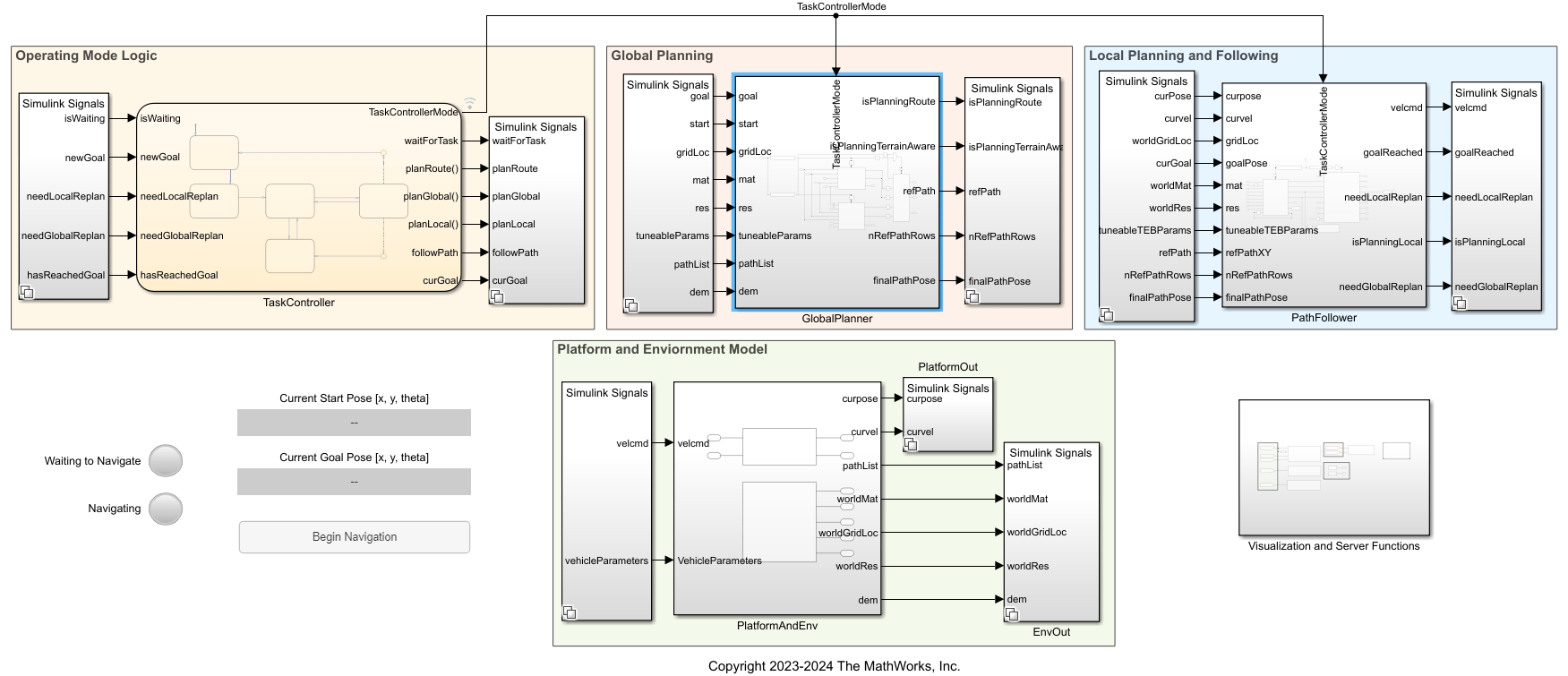
The model has five primary components:
Operating Mode Logic — This component is the scheduler. It controls which planning algorithms are active, based on user input and the current location of the vehicle.
Global Planning — This component includes the algorithms where the vehicle determines an overall path to get from the
startPoseto thegoalPose. It includes the route planner developed in the Create Route Planner for Offroad Navigation Using Digital Elevation Data example, and the terrain-aware planners developed in the Create Onramp and Terrain-Aware Global Planners for Offroad Navigation example. The route planner plans along the road network and the terrain-aware planners plan in free space outside the road network.Local Planning — This component includes the algorithms that help the vehicle plan an obstacle-free local path along the reference path while conforming to the kinematic and geometric constraints of the haul truck. It includes the local planner developed in the Navigate Global Path Through Offroad Terrain Using Local Planner example.
Path Following — This component includes the algorithms that help the vehicle navigate along the local paths planned in the previous component. It uses the MPC-based path follower developed in the Create Path Following Model Predictive Controller example.
Plant Model — This component includes the physics model for the truck, as well as information about the environment. For fast low-fidelity simulations, this component uses the bicycle kinematics model. For higher fidelity simulations, this component uses Unreal Engine®. You can specify the simulation type in the Specify Simulation Options section.
binMap = binaryOccupancyMap(~imSlope); %Define the mapConfigure Simulation Options
Before running the simulation, you can configure additional options specific to the upcoming run. The exampleHelperCreateBehaviorModelInputs helper function sets default values for these parameters, but you can set them using the UI controls in this section.
Use the vssPhysModel drop-down menu to specify the platform and environment model to use for the truck.
Simple — Use the Bicycle Kinematic Model block to represent the mining truck. Visualize the motion of the truck using the figure created in the previous section.
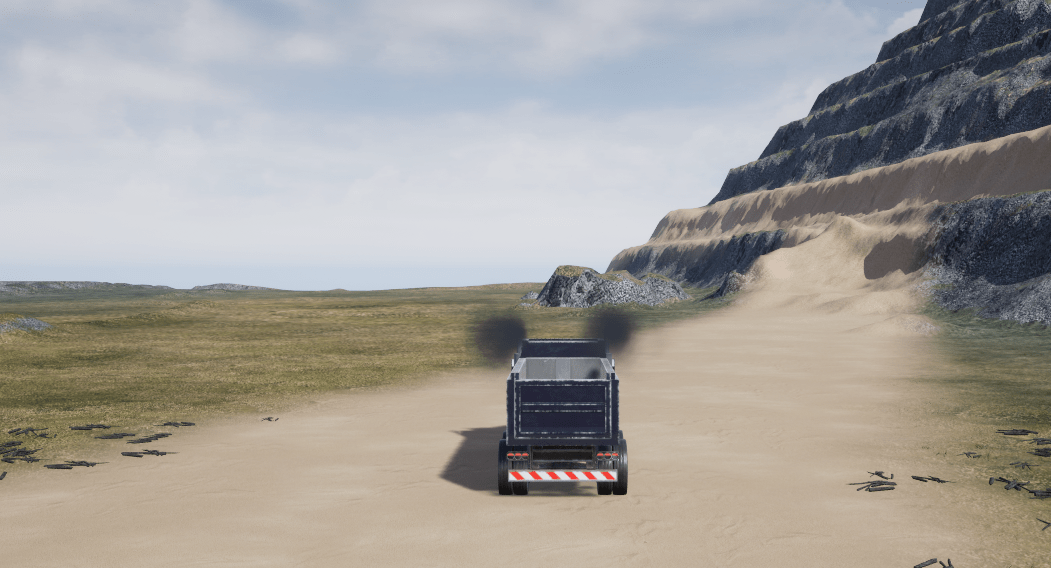
Unreal — Use the Simulation 3D Physics Dump Truck block to represent the mining truck. Visualize the motion of the truck in Unreal Engine® in addition to the figure created in the previous section.
vssPhysModel ="Simple"; set_param(model + "/Plant Model", 'LabelModeActiveChoice', vssPhysModel)
Use the sliders below to change any of the vehicle's local planner parameters.
% Vehicle minimum turning radius (m) tuneableControllerParamsCpp.MinTurningRadius =14.2; % Maximum-allowed linear velocity (m/s) tuneableControllerParamsCpp.MaxVelocity(1) =
16; % Maximum-allowed angular velocity (rad/s) tuneableControllerParamsCpp.MaxVelocity(2) =
0.93; % Maximum-allowed linear reverse velocity (m/s) tuneableControllerParamsCpp.MaxReverseVelocity =
8; % Maximum-allowed linear acceleration (m/s^2) tuneableControllerParamsCpp.MaxAcceleration(1) =
0.6; % Maximum-allowed angular acceleration (rad/s^2) tuneableControllerParamsCpp.MaxAcceleration(2) =
0.1; % Safety distance between vehicle and obstacles (m) tuneableControllerParamsCpp.ObstacleSafetyMargin =
1; % Time steps that the controller generates velocity commands for (s) tuneableControllerParamsCpp.LookaheadTime =
6;
Use these sliders to change the cost function optimization weights of the local planner.
% Number of Trajectories — Higher values result in a more thorough search of
% the trajectory space and potentially a better solution, at the cost of increased computations.
tuneableControllerParamsCpp.NumTrajectory =160;

% Path Following Cost — Higher values result in output trajectory trying to
% reach look ahead end pose quickly.
tuneableControllerParamsCpp.PathFollowingCost = 1;

% Path Alignment Cost — Higher values result in output trajectory trying to
% closely follow the reference path.
tuneableControllerParamsCpp.PathAlignmentCost = 1.3;
Use the drop-down menu to choose a map visualization for the simulation.
Signed Distance Field — Map shows distances to obstacles. Points on the map return positive values if they lie outside an occupied region of space. Points on the map return negative values if they lie inside an occupied region of space. For more information about signed distance maps, see the
signedDistanceMap3D(Navigation Toolbox) object.Binary Occupancy Map — Map shows occupied status of regions. Black cells are occupied, and white cells are unoccupied. For more information about binary occupancy maps, see the
binaryOccupancyMap(Navigation Toolbox) object.Occupancy Map — Map shows the probability that a region is occupied. Values close to 1 (black) represent a high probability that the cell contains an obstacle. Values close to 0 (white) represent a high probability that the cell is not occupied and obstacle free. For more information about binary occupancy maps, see the
occupancyMap(Navigation Toolbox) object.
maptype ='Bin'; set_param(model + "/Visualization Functions/Map Visualization","MapType",maptype);
You can also change parameters like plotting colors, widths, and styles on the system object blocks in the Visualization Functions subsystem. By default, the map uses a binary occupancy map.
Simulate Autonomous Haul Truck
Run the model by clicking Run on the Simulation tab of the Simulink toolstrip.
You can also run the simulation programmatically by running this code.
% Start the simulation.
sm = simulation(model);
start(sm);
% Create a figure for visualizing the map, planned paths, and the vehicle progress throughout the simulation.
% Note that the simulation updates the figure as the simulation runs.
f = figure;
f.Visible = "on";
title("Haul Truck Simulation")
legend % Display the label for the different paths generated
pause(1);
% If the goal has been reached, end the simulation.
pause(sm);
% Continue simulation till goalReached is false.
while sm.SimulationOutput.logsout{1}.Values.goalReached.Data(end) == false
    t = sm.Time;
step(sm,"PauseTime",t+10); % Checks currently active state every 10 seconds of simulation time.
end

stop(sm);
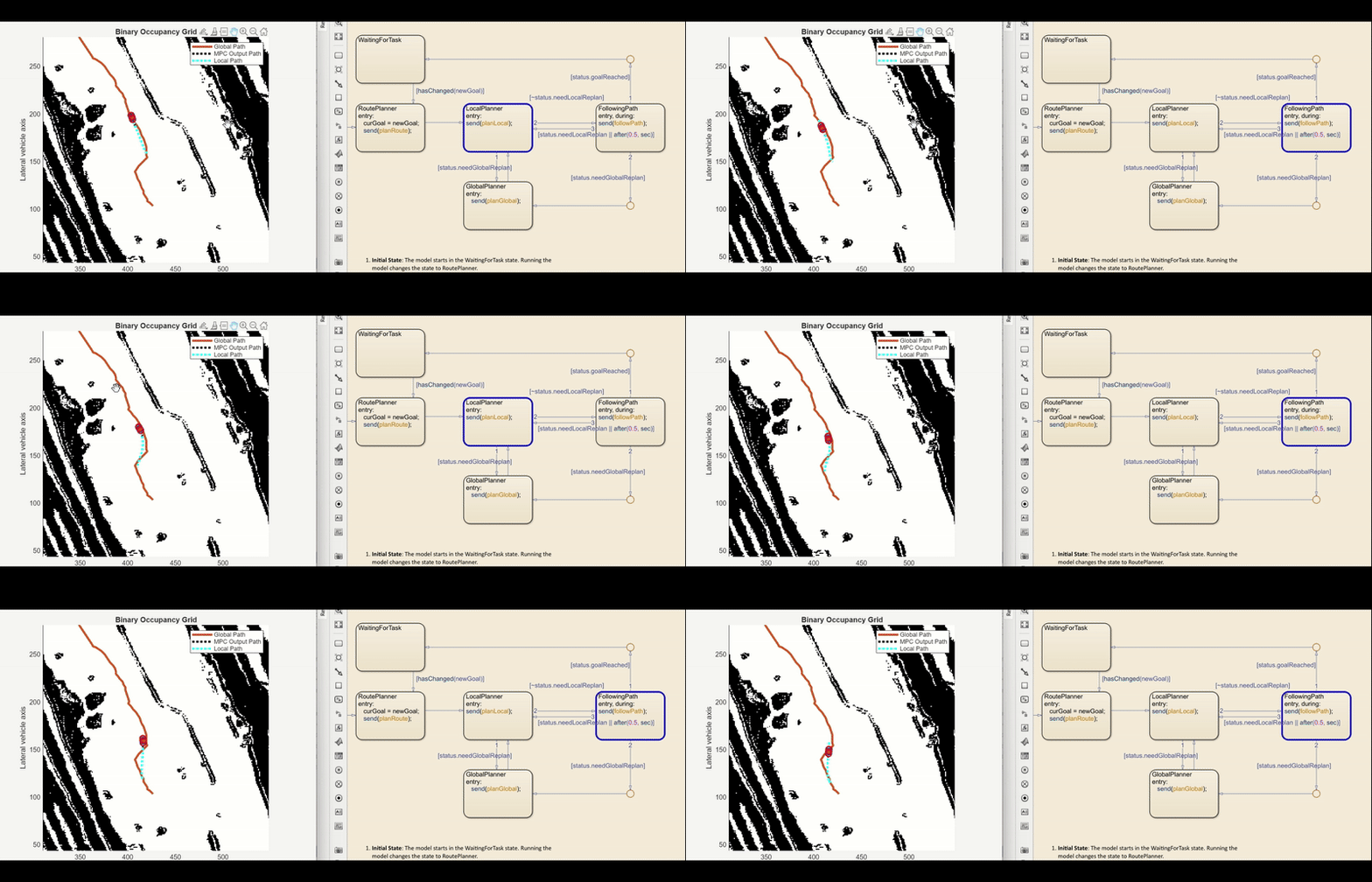
Results
This example demonstrates an end-to-end offroad autonomy workflow for a haul truck using MATLAB®, Simulink, and Stateflow. A Stateflow-based scheduler coordinates global planning, local planning, and path following. The haul truck is simulated with a bicycle kinematic model and visualized on a simple 2D map and in Unreal Engine. Key parameters across the vehicle model, global planner, local planner, and controller are configurable to balance performance and fidelity. Overall, the model serves as a template for modeling, validating, and tuning autonomous haul-truck behavior in unstructured terrain.
For further information on the states in the Stateflow chart and which parts of the model they trigger, see the following table. The table also shows which of the previous examples align with each operational state.
Operational State | Subsystem | Logic/Description | Modules/Functionality | Source Example |
|---|---|---|---|---|
| N/A | Waits for the user to provide a new | N/A | N/A |
|
| Whenever a new | Constructs the Once found, | Create Route Planner for Offroad Navigation Using Digital Elevation Data |
|
| In this example, the 1) As a backup planner in the event that the 2) As a planner used to transition the vehicle from the end of the Similar to | The Similar to | Create Onramp and Terrain-Aware Global Planners for Offroad Navigation |
|
| This subsystem takes in the reference path produced by either the This command sequence is forwarded to | This subsystem contains two modules: 1) A block responsible for extracting a local map from the global map. 2) A local planner variant subsystem block which can be switched between The agent forwards time-stamped control sequences and optimized path to the | Navigate Global Path Through Offroad Terrain Using Local Planner |
|
| The The controller is also responsible for determining whether a new local plan should be requested, and checks whether the vehicle has either reached the end of the reference-path, or reached the goal. If the agent has reached the end of the reference path, which corresponds to | This subsystem takes in the local path from the 1) 2) |
See Also
Topics
- Offroad Navigation for Autonomous Haul Trucks in Open Pit Mine
- Simulate Earth Moving with Autonomous Excavator in Construction Site

