Model Linearizer
Linearize Simulink models
Description
Model Linearizer lets you perform linear analysis of nonlinear Simulink® models.
Using this app, you can:
Interactively linearize models at different operating points
Interactively obtain operating points by trimming or simulating models
Perform exact linearization of nonlinear models
Perform frequency response estimation of nonlinear models
Batch linearize models for varying parameter values
Generate MATLAB® code for performing linearization tasks
Generate MATLAB code for computing operating points
Limitations
Linearization is not supported for model hierarchies that contain referenced models configured to use a local solver.
Linearization is not supported for Simscape™ networks configured to use a local solver.

Open the Model Linearizer App
Simulink Toolstrip: On the Apps tab, under Control Systems, click Model Linearizer.
Simulink Toolstrip: On the Apps tab, under Control Systems, click Frequency Response Estimator.
Simulink Toolstrip: On the Linearization tab, click Model Linearizer.
Simulink Toolstrip: On the Linearization tab, click Frequency Response Estimator.
Simulink Toolstrip: On the Linearization tab, click Linearize Block.
Examples
To export your linearization or estimation result to the MATLAB workspace, on the Plots and Results tab, click Export Result.
Alternatively, to export a model, in the data browser, in the Linear Analysis Workspace right-click the model and select Export to MATLAB Workspace.
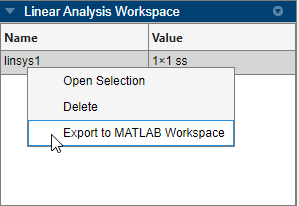
You can export your batch linearization results as either a linear parameter-varying (LPV) or linear time-varying (LTV) model.
Configure a batch linearization by specifying either of these settings for your linearization:
Parameter grid (for LPV models) — For more information on specifying a parameter grid, see Batch Linearize Model for Parameter Value Variations Using Model Linearizer.
Snapshot times (for LTV models) — In this case, you must specify a vector of snapshot times using Operating Point > Linearize At and not an array of operating points computed from snapshot times.
On the Linear Analysis tab, select Prepare for LTV/LPV.
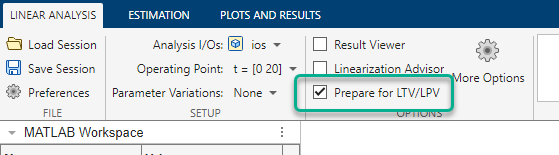
Linearize the model.
On the Plots and Results tab, click Export as LTV/LPV.
In the Export LTV/LPV Model dialog box, select a linearization result in the table.
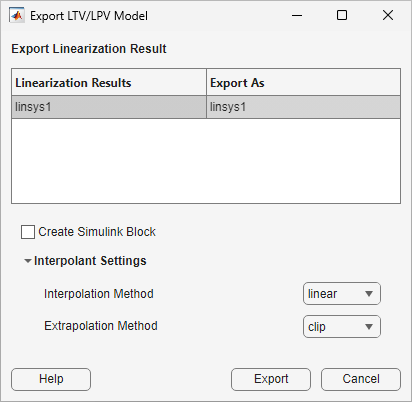
In the Export As column, specify a name for the variable in the MATLAB workspace.
To create a model that contains an LPV System or LTV System block that uses the exported model, select Create Simulink Block.
Under Interpolation Method, select one of these methods for interpolating between linear models.
linearnearestnextpreviouspchipcubicsplinemakima
When creating a Simulink model for your linearization result, you can specify the interpolation method as
linear,nearest, orflat.Under Extrapolation Method, select one of these methods for extrapolating beyond the available linear models. For more information on interpolation and extrapolation methods, see
griddedInterpolantandscatteredInterpolant.cliplinearnearestnextpreviouspchipcubicsplinemakima
When creating a Simulink model for your linearization result, you can specify the interpolation method as
cliporlinear.Click Export.
Related Examples
- Linearize Simulink Model at Model Operating Point
- Linearize at Trimmed Operating Point
- Linearize at Simulation Snapshot
- Estimate Frequency Response Using Model Linearizer
- Specify Portion of Model to Linearize in Model Linearizer
- Analyze Results Using Model Linearizer Response Plots
- View Linearized Model Equations Using Model Linearizer
- Batch Linearize Model for Parameter Value Variations Using Model Linearizer
Parameters
Linear Analysis Tab
Linearization inputs, outputs, and loop openings. The currently active I/O set is displayed. To change the I/O set, select one of the following:
Model I/Os— Use the inputs, outputs, and loop openings specified in the Simulink model. For more information on specifying analysis points in your model, see Specify Portion of Model to Linearize in Simulink Model.Root Level Inports and Outports— Use the root level inputs and outputs of the Simulink model.Linearize the Currently Selected Block— Use the input and output ports of the currently selected block in the Simulink model.Create New Linearization I/Os— Specify inputs, outputs, and loop openings. For more information, see Specify Portion of Model to Linearize in Model Linearizer.Existing I/Os— Select a previously created I/O set.View/Edit— View or edit the currently selected operating point. For more information, see Edit Analysis Points.
Linearization operating point. The current operating point is displayed. To change the operating point, select one of the following:
Model Initial Condition— Use the initial conditions defined in the Simulink.Linearize At— Simulate the model using the model initial conditions, and use the simulation snapshot at the specified time as the operating point. For more information, see Linearize at Simulation Snapshot.Linearize at Multiple Points— Select multiple previously created operating points.Existing Operating points— Select a previously created operating point.Trim Model— Compute a steady-state operating point. For more information, see Compute Steady-State Operating Points.Take Simulation Snapshot— Simulate the model using the model initial conditions, and compute an operating point at the specified simulation snapshot times. For more information, see Find Operating Points at Simulation Snapshots.View/Edit— View or edit the currently selected operating point.
To vary parameters for batch linearization, in the
drop-down list, click Select parameters
to vary. On the Parameter
Variations tab, specify the parameters
to vary.
Parameter variation is not supported when linearizing your model using numerical perturbation.
For more information, see Specify Parameter Samples for Batch Linearization.
Select to display result details after linearization. For more information, see View Linearized Model Equations Using Model Linearizer.
Select to collect diagnostic information during linearization and open an Advisor tab for interactive troubleshooting of linearization problems. For more information, see Troubleshoot Linearization Results in Model Linearizer.
Note
Model Linearizer only collects diagnostic information when you select Linearization Advisor before linearizing the model.
To generate a linear time-varying (LTV) or linear parameter-varying (LPV) model from your batch linearization results, you must select Prepare for LTV/LPV before linearizing your model.
When you select Prepare for LTV/LPV, Model Linearizer sets the following linearization options.
Sets the Block reduction scope option to
Consistent across models, which ensures that all linearized models in the batch linearization results have a consistent state definition. This setting means that the software removes only the states and delays that do not contribute to the input-output map for all models in the array of linearized models.Selects the Store offsets with linear model option. The software stores any operating point offsets values in the resulting linearized model and exports the offset values with the LPV/LTV model.
If you manually specify these linearization options instead of selecting Prepare for LTV/LPV, you can still export your linearization results as an LTV or LPV model.
Dependencies
This option is available if you define a batch linearization by specifying either a parameter grid (LPV) or a vector of snap shot times (LTV).
Estimation Tab
Estimation input signal. The current input signal is displayed. To change the input signal, select one of the following:
Sinestream— Create an input signal that consists of adjacent sine waves of varying frequencies. For more information, see Sinestream Input Signals.Fixed Sample Time Sinestream— Create a discrete-time sinestream input with a specified sample time.Chirp— Create a swept-frequency cosine input signal. For more information, see Chirp Input Signals.Random— Create a random input signal.PRBS Pseudorandom Binary Sequence— Create a pseudorandom binary sequence (PRBS) input signal. For more information, see PRBS Input Signals.
Linearization inputs, outputs, and loop openings. The currently active I/O set is displayed. To change the I/O set, select one of the following:
Model I/Os— Use the inputs, outputs, and loop openings specified in the Simulink model. For more information on specifying analysis points in your model, see Specify Portion of Model to Linearize in Simulink Model.Root Level Inports and Outports— Use the root level inputs and outputs of the Simulink model.Linearize the Currently Selected Block— Use the input and output ports of the currently selected block in the Simulink model.Create New Linearization I/Os— Specify inputs, outputs, and loop openings. For more information, see Specify Portion of Model to Linearize in Model Linearizer.Existing I/Os— Select a previously created I/O set.View/Edit— View or edit the currently selected operating point. For more information, see Edit Analysis Points.
Linearization operating point. The current operating point is displayed. To change the operating point, select one of the following:
Model Initial Condition— Use the initial conditions defined in the Simulink.Linearize At— Simulate the model using the model initial conditions, and use the simulation snapshot at the specified time as the operating point. For more information, see Linearize at Simulation Snapshot.Linearize at Multiple Points— Select multiple previously created operating points.Existing Operating points— Select a previously created operating point.Trim Model— Compute a steady-state operating point. For more information, see Compute Steady-State Operating Points.Take Simulation Snapshot— Simulate the model using the model initial conditions, and compute an operating point at the specified simulation snapshot times. For more information, see Find Operating Points at Simulation Snapshots.View/Edit— View or edit the currently selected operating point.
Select to display result details about the estimation configuration and input signal used for estimation.
Select to collect diagnostic information that displays after estimation. You can use the diagnostic information to analyze the estimation result and troubleshoot estimation problems. For more information, see Analyze Estimated Frequency Response.
Note
Model Linearizer only collects diagnostic information when Diagnostic Viewer is selected before performing an estimation task.
Version History
Introduced in R2011bYou can now obtain a linear parameter-varying (LPV) and linear time-varying (LTV) models from batch linearization results in the Model Linearizer app. For more information, see Export Batch Linearization Results as LPV or LTV Model.
Starting in R2023b, Model Linearizer is supported in Simulink Online™.
Using Model Linearizer, you can obtain a sparse linear model from a Simulink model that contains a Sparse Second Order or Descriptor State-Space block. For more information, see Linearize Sparse Models.
When creating PRBS input signals for estimating frequency responses in Model Linearizer, you can now automatically determine the signal parameters Number of periods and Signal order based on a frequency range.
When you have an estimated frequency response result with a large number of frequency points, you can use result thinning in Model Linearizer to extract interpolated frequency response data from an estimated frequency response model across a specified frequency range and number of frequency points. For more information, see Analyze Estimated Frequency Response.
The Linear Analysis Tool is now the Model Linearizer app. The features of the app remain the same, only the name has changed.
You can now estimate the frequency response of your Simulink model using pseudorandom binary sequence (PRBS) input signals. For more information, see PRBS Input Signals.
MATLAB Command
You clicked a link that corresponds to this MATLAB command:
Run the command by entering it in the MATLAB Command Window. Web browsers do not support MATLAB commands.
Website auswählen
Wählen Sie eine Website aus, um übersetzte Inhalte (sofern verfügbar) sowie lokale Veranstaltungen und Angebote anzuzeigen. Auf der Grundlage Ihres Standorts empfehlen wir Ihnen die folgende Auswahl: .
Sie können auch eine Website aus der folgenden Liste auswählen:
So erhalten Sie die bestmögliche Leistung auf der Website
Wählen Sie für die bestmögliche Website-Leistung die Website für China (auf Chinesisch oder Englisch). Andere landesspezifische Websites von MathWorks sind für Besuche von Ihrem Standort aus nicht optimiert.
Amerika
- América Latina (Español)
- Canada (English)
- United States (English)
Europa
- Belgium (English)
- Denmark (English)
- Deutschland (Deutsch)
- España (Español)
- Finland (English)
- France (Français)
- Ireland (English)
- Italia (Italiano)
- Luxembourg (English)
- Netherlands (English)
- Norway (English)
- Österreich (Deutsch)
- Portugal (English)
- Sweden (English)
- Switzerland
- United Kingdom (English)