Importieren, Exportieren und Teilen von Simulationsdaten
R2026bSie können Daten aus Dateien oder aus dem MATLAB-Workspace in den Simulation Data Inspector importieren, um sie zusammen mit protokollierten Simulationsergebnissen zu visualisieren, zu vergleichen und zu analysieren. Der Simulation Data Inspector unterstützt den Import aus Dateien wie CSV-Dateien, Microsoft® Excel®-Dateien, MDF-Dateien, MLDATX-Dateien und Parquet-Dateien (seit R2026b). Sie können außerdem benutzerdefinierte Reader für Dateien und den Workspace erstellen, um Daten in weiteren Formaten zu importieren.
Um Ihre Daten und Analyseergebnisse zu speichern und weiterzugeben, exportieren Sie Run-Daten und Signaldaten in MAT-Dateien, Microsoft Excel-Dateien, Parquet-Dateien (seit R2026a), CSV-Dateien (seit R2026b) oder VCD-Dateien (seit R2026b). Sie können außerdem Sitzungen des Simulation Data Inspector speichern und laden, um Ihre Daten und das Aussehen der Diagramme zu erhalten.
Um Ergebnisse mit Kolleginnen und Kollegen zu teilen, die MATLAB nicht besitzen, erstellen Sie einen Simulation-Data-Inspector-Bericht. Zum Ansehen des Berichts genügt ein Webbrowser. Für Vergleichsergebnisse können Sie auch einen interaktiven Vergleichsbericht erstellen, der es Ihnen ermöglicht, den Vergleich auf ähnliche Weise auszuwerten wie im Simulation Data Inspector.
Werkzeuge
Funktionen
Objekte
matlab.io.datastore.MLDATXSignalDatastore | Datastore for data saved in MLDATX file (Seit R2026a) |
mldatx.io.File | Reference to runs in MLDATX file (Seit R2026a) |
mldatx.io.Signal | Reference to signal in MLDATX file (Seit R2026a) |
io.reader | Base class used to define custom variable or file reader for Simulation Data Inspector |
matlab.io.datastore.sdidatastore | Datastore for Simulation Data Inspector signals |
Simulink.sdi.DatasetRef | Access data in Simulation Data Inspector repository |
Simulink.HMI.InstrumentedSignals | Save and restore signal logging specification |
Simulink.sdi.WorkerRun | Access simulation data from parallel workers |
Themen
Importieren von Daten in den Simulation Data Inspector
- Import Data from Workspace or File into Simulation Data Inspector
You can import data into the Simulation Data Inspector from the base workspace or from a file. - Import Data Using Custom File Reader
Write a custom file reader to import data from a file saved using a proprietary data or file format. - Import Workspace Variables Using a Custom Data Reader
Write a custom reader to import workspace data in a proprietary format. - Incrementally Read Data Too Large to Fit into Memory from MLDATX File to Workspace
Read data that is too large to fit into memory from an MLDATX file into the workspace incrementally.
Exportieren von Daten aus dem Simulation Data Inspector
- Save and Share Simulation Data Inspector Data and Views
Share exported data, Simulation Data Inspector sessions and views, and plot images and figures. - Export Data From Simulation Data Inspector to Workspace or File
Export a selection of runs and signals from the Simulation Data Inspector to the workspace or a MAT, Microsoft Excel, Parquet, CSV, or VCD file. - Create Interactive Comparison Reports
Save and share Simulation Data Inspector comparison results in an interactive web report. - Export Data from Simulation Data Inspector to Parquet File
Interactively or programmatically export big data from Simulation Data Inspector to a Parquet file. (Seit R2026a)
Dateiprotokollierungsformate
- Microsoft Excel Import, Export, and Logging Format
Understand the Microsoft Excel file format used by the Simulation Data Inspector, the Record block, and Simulink® Test™. - Parquet File Format for Simulation Data
Format used when importing and exporting simulation data as Parquet files. (Seit R2026a) - CSV File Format for Simulation Data
Format requirements for importing and exporting simulation data as CSV files. (Seit R2026b) - VCD File Format for Exported Simulation Data
How simulation data maps to VCD file structure. (Seit R2026b)
Verwandte Informationen
Enthaltene Beispiele
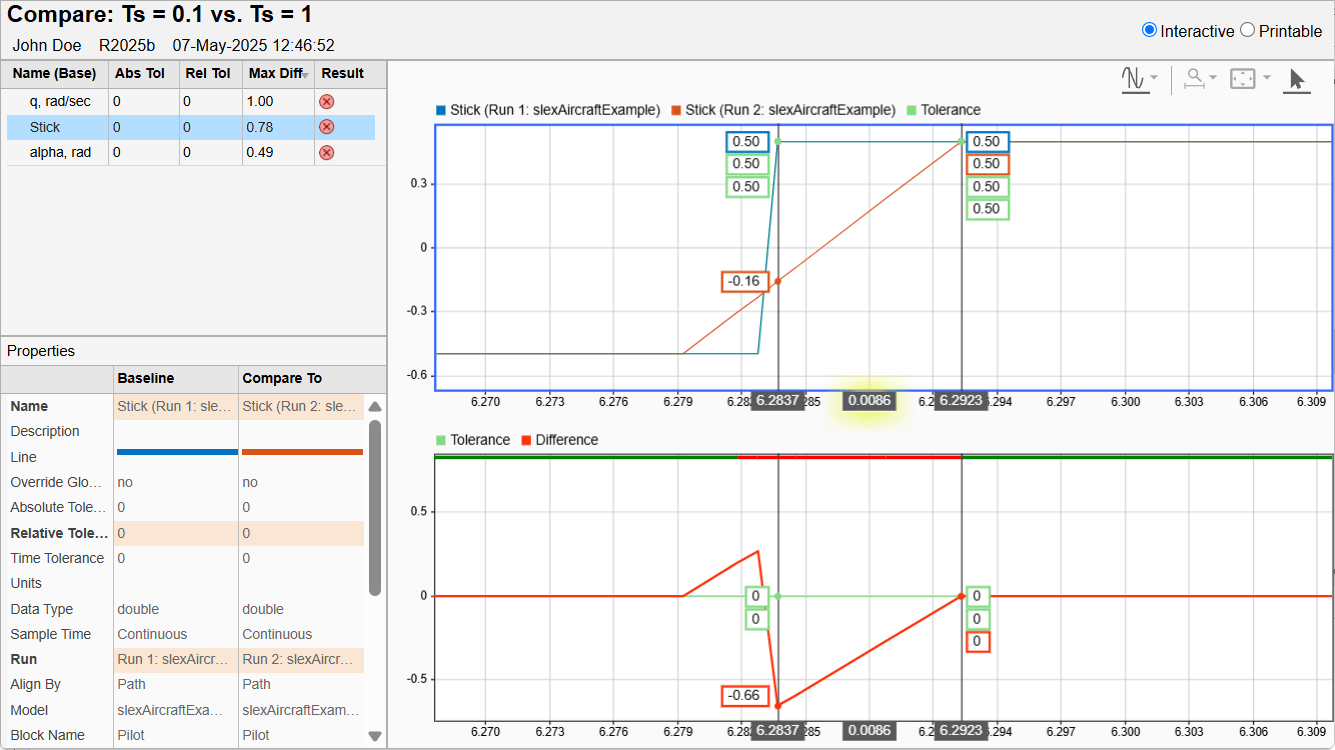
Create Interactive Comparison Reports
Save and share Simulation Data Inspector comparison results in an interactive web report.

