Export Data From Simulation Data Inspector to Workspace or File
R2026bAfter you inspect, analyze, or compare your data in the Simulation Data Inspector, you can export the data to the workspace or to a MAT file, Microsoft® Excel® file, Parquet file (since R2026a), CSV file (since R2026b), or VCD file (since R2026b). You can export a selection of runs and signals, runs in the work area, or all runs in the Inspect pane, including the Archive.
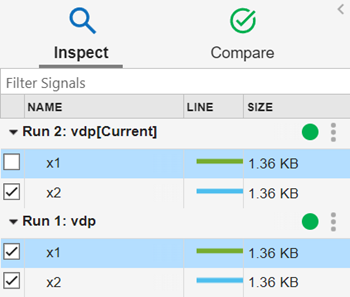
To export a selection of runs and signals, select the data to export before clicking the
export button  . To select multiple signals, hold the
Ctrl key. Selected signals are highlighted in the signal table. The
check box selections for plotting data do not affect whether a signal is exported. In this
example, only the
. To select multiple signals, hold the
Ctrl key. Selected signals are highlighted in the signal table. The
check box selections for plotting data do not affect whether a signal is exported. In this
example, only the x1 signals from Run 1 and Run 2 are exported.
Export Data to Workspace
When you export a single signal from the Simulation Data Inspector to the workspace, the
signal data is stored in a timeseries object. When you export runs
or multiple signals to the workspace, the data is stored in a Simulink.SimulationData.Dataset object.
Export Data to MAT File
MAT files are the native format for saving Simulink data and are convenient when you are working within the MATLAB environment.
To export data to a MAT file, in the Export dialog box, select File
and specify a filename and location. By default, the Simulation Data Inspector exports data
to a MAT file, as indicated by the MATLAB Data File (*.mat) option in the
file extension drop-down list. When you export data to a MAT file, the Simulation Data
Inspector stores a single exported signal as a timeseries object, and
stores runs or multiple signals in a Simulink.SimulationData.Dataset
object.
Export Data to Microsoft Excel File
Export data to a Microsoft Excel file when you have smaller to medium-sized datasets that you want to share as a spreadsheet.
To export data to a Microsoft Excel file, in the Export dialog box, select
File and choose the Excel Workbook (*.xlsx)
extension. Specify a filename and browse to the location where you want to save the exported
file. The data is stored using the format described in Microsoft Excel Import, Export, and Logging Format.
To specify additional settings for the format of the data in the exported Microsoft
Excel file, click the options button  . For example, if the filename you provided already exists,
you can choose to overwrite the entire file or to only overwrite sheets containing data that
corresponds to the exported data. You can also choose which metadata to include and whether
signals with identical time data share a time column in the exported file.
. For example, if the filename you provided already exists,
you can choose to overwrite the entire file or to only overwrite sheets containing data that
corresponds to the exported data. You can also choose which metadata to include and whether
signals with identical time data share a time column in the exported file.
Export Data to Parquet File
Since R2026a
Parquet is an open-source file format with efficient compression and encoding of column-oriented data that is often used when processing big data. Export data to a Parquet file when you are working with big data that requires efficient storage and fast read and write performance.
To export data to a Parquet file, in the Export dialog box, select
File and choose the Parquet (*.parquet) file
extension. Specify a filename and location. Data is stored according to the schema described
in Parquet File Format for Simulation Data.
To specify settings specific to Parquet files, such as the compression style, time
column configuration, and row group options, click the options button
. For more information, see Export Data from Simulation Data Inspector to Parquet File.
Export Data to CSV File
Since R2026b
CSV files are human-readable and compatible with spreadsheet tools, databases, and custom analysis scripts.
To export data to a CSV file, in the Export dialog box, select File
and choose the CSV (*.csv) file extension. To specify the metadata to
save to the file, click the options button . You can choose which metadata to include, such as units, data
types, block paths, interpolation method, and port index, and whether to use shared or
individual time columns. The Simulation Data Inspector can export data of any built-in
numeric type, as well as enumerations, fixed-point data, complex signals, buses, and
multidimensional signals to a CSV file.
For more information about the CSV file format, see CSV File Format for Simulation Data.
Export Data to VCD File
Since R2026b
Value Change Dump (VCD) files are widely used in digital simulation and are compatible with HDL verification tools such as ModelSim, Questa, and GTKWave, enabling you to compare Simulink behavioral models with HDL simulations. When you export data to a VCD file, the Simulation Data Inspector checks out an HDL Verifier™ license when available but does not require one.
To export data to a VCD file, in the Export dialog box, select File
and choose the Value Change Dump (*.vcd) extension. The exported VCD file
organizes signals in a hierarchy that matches block paths and contains only value changes to
minimize file size. For more information, see VCD File Format for Exported Simulation Data.
Export Video Signal to MP4 File
You can export a 2-D or 3-D signal that contains RGB or monochrome video data to an MP4 file using the Simulation Data Inspector. For example, when you log a video signal in a simulation, you can export the data to an MP4 file and view the video using a video player. To export a video signal to an MP4 file:
Select the signal you want to export.
Click Export
in the toolbar on the left, or right-click the signal
and select Export.In the Export dialog box, for Export, select Selected runs and signals. For To, select File.
Specify a filename and the path to the location where you want to save the file.
From the list, select
MP4 video file, then click Export.
For the option to export to an MP4 file to be available:
You must export only one signal at a time.
The selected signal must be 2-D or 3-D and contain RGB or monochrome video data.
The selected signal must be represented in the Simulation Data Inspector as a single signal with multidimensional sample values.
You might need to convert the signal representation before exporting the signal data. For more information, see Analyze Multidimensional Signal Data.
The data type for the signal values must be
double,single, oruint8.
Exporting a video signal to an MP4 file is not supported for Linux® operating systems.

