Nehmen Sie Platz!
In den Diskussionen lernen Sie Ihre Kollegen kennen, bewältigen gemeinsam größere Herausforderungen und haben dabei Spaß.
- Möchten Sie die neuesten Updates sehen? Folgen Sie den Highlights!
- Suchen Sie nach Techniken zur Verbesserung Ihrer MATLAB- oder Simulink-Kenntnisse? Tips & Tricks helfen Ihnen weiter!
- Den perfekten Mathe-Witz, Wortspiel oder Meme teilen? Da sind Sie richtig bei Fun!
- Glauben Sie, wir brauchen einen weiteren Kanal? Erzählen Sie uns mehr in Ideas
Aktualisierte Diskussionen

This Week's Quiz
101 responses

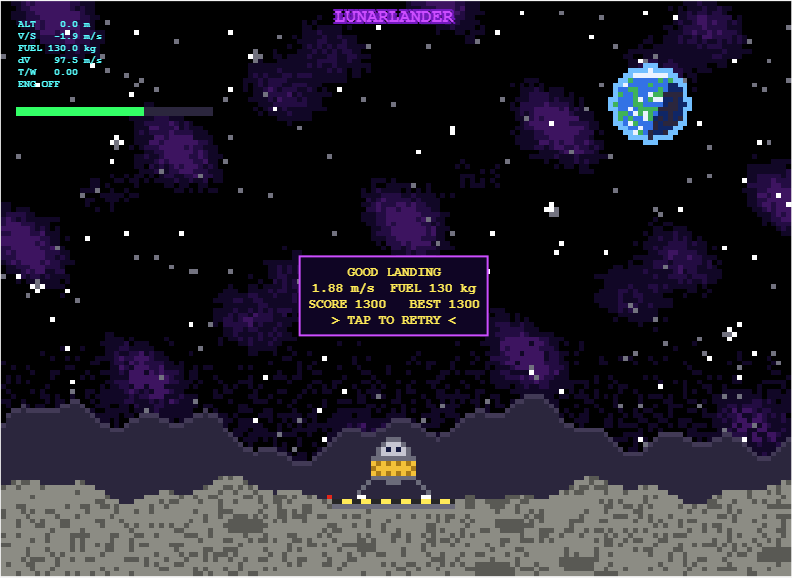
My entry for the one-button game mini hack Lunar Lander - Tap to Burn, is a one-button powered descent. You start 500 m above the surface, falling at 10 m/s, with 200 kg of propellant. One tap turns on the engine, and the next tap stops it.
How scoring works
- Crash: landing at 3 m/s or faster scores 0.
- Abort: rising above 750 m scores 0.
- Safe landing: below 3 m/s scores 10 points per kilogram of fuel remaining.
- Perfect touchdown: below 1 m/s doubles the reward to 20 points per kilogram of fuel remaining.
Physics in the game
- Fuel mass decreases as propellant is burned.
- Gravity continuously accelerates the lander downward.
- The engine does not reach full thrust instantly, so timing matters.
- The display turning red indicates when a full thrust landing burn becomes possible.
Display readouts
- ALT [m]: Height above the surface.
- V/S [m/s]: Vertical speed.
- FUEL [kg]: Remaining propellant.
- dV [m/s]: remaining velocity change the fuel can provide, from the rocket equation Δv=Isp·g₀·ln(m/m_dry).
- T/W: Thrust to weight ratio.
My best so far is 1300. Has anyone managed a sub 1m/s landing?

I started my game for this contest, Stack OverDad, one month before the contest began. Dad tells programming jokes at the dinner table, and you have to laugh at the right moment. I was very happy with it. It had a dog, a little brother with a spoon, a window with a sun that goes down, fifty jokes, and many small animations.
Then the contest started, and I read the rules again. One line said: each entry is limited to 10,000 characters of MATLAB code.
My code had more than 70,000 characters.
So, as you can guess, the next hourse were cut, test, cut, test, cut... In this post, I will tell you what I learned on the way (from my AI friend!). Some of it surprised me.
Step 1: Cut What the Player Does Not Feel
For every part of the game, I asked: "Does the player really feel this?"
The dog: cute, but no. The brother: funny, but no. The sunset: nobody looks at the window when Dad tells a joke. Forty jokes: a game only uses ten anyway.
This was the biggest step, and the hardest, because I liked all of these things. But the game did not get worse. It got clearer. After this, my file had about 9,800 characters. I was done!
Step 2: The Surprise
The contest project has a command to check the game before you submit it:
minihackContest.validate
I ran it, and it said:
Validation failed: game.m exceeds the character limit (16145 / 10000, comments excluded).
16,145? My file had 9,800 characters. I counted again. It still had 9,800.
So I opened the validator to see how it counts. This is the line:
charCount = strlength(char(tree2str(mtree(gameFile, '-file'))));
mtree reads the code into a tree, and this removes the comments. Then tree2str writes the code again, in a clean, standard layout. The validator counts that text, not my file.
And the clean layout is not short at all. For example, this one line of mine:
if p,pr(s.T);end
comes back from tree2str like this:
if p
pr( s.T );
end
Every statement gets its own line. Every line gets indentation. Every f(a,b) becomes f( a, b ), and every [1 2 3] becomes [ 1, 2, 3 ]. My short style was not short anymore.
The good news: now I knew the real rule, so I could play by it.
Step 3: What Is Cheap and What Is Expensive
- Expensive: many statements, deep nesting, and long lists of numbers.
- Cheap: text inside a string. tree2str does not change a string at all.
So the plan was: fewer statements, less nesting, and move numbers into strings.
Example 1: Many Values in One Statement
s.st = 3;
s.t0 = t;
s.la = -1;
becomes one statement with deal:
[s.st, s.t0, s.la] = deal(3, t, -1);
Example 2: A Small if Without if
if n == 1
s.fl = "TEN?!";
end
With logical indexing, it is one line. If the condition is false, nothing changes:
s.fl(n == 1) = "TEN?!";
Example 3: Many Strings in One String
A list like ["PERFECT!", "GOOD!", "TOO LATE..."] pays for every ", ". One string with a separator is cheaper:
B = split("PERFECT!|GOOD!|TOO LATE...", "|");
All fifteen jokes are now one string too.
Example 4: Numbers Inside a String
This was the biggest trick. My scene (the table, the chairs, Dad, the family) is made of rectangles, ellipses, and polygons. That is hundreds of numbers.
So I stored each number as one character in a string. A character is really a number (its code), so I can turn it back:
v = double(char(z))/20 - 1025; % every character of z becomes one number again
I chose codes from a big block of normal, printable characters. They look like Chinese characters, but they are not words. I only use their codes. One small loop reads the string and draws all the shapes with patch. Now the whole scene costs about one character per number.
One warning from my own mistake: use double(char(z)), not double(z). If z is a string, double(z) gives NaN. My first test showed an empty table because of this.
I kept the readable list of shapes in a separate file, and it writes the packed strings for me.
I Had Help
I worked with an AI assistant the whole way. It read the validator with me, tested many small ideas fast, measured which part of the code cost the most, and rewrote code again and again without getting tired.
But the AI did not decide what the game is. It could tell me that the dog costs 1,700 characters. It could not tell me if the dog is worth it. Every "keep" or "cut" was my choice. I think this is the best way to work with AI: let it do the heavy lifting, and keep the decisions for yourself.
The Result
The validator now says 9,936 characters. The game still has Dad, THE LOOK, Mom's warnings, the family walking out, the ranks, and fifteen jokes.
My advice: run minihackContest.validate early. Do not count the characters yourself, because the validator does not count your file. It counts the clean version of your file.
I hope you have found this helpful. Thank you for reading.

Hi everyone,
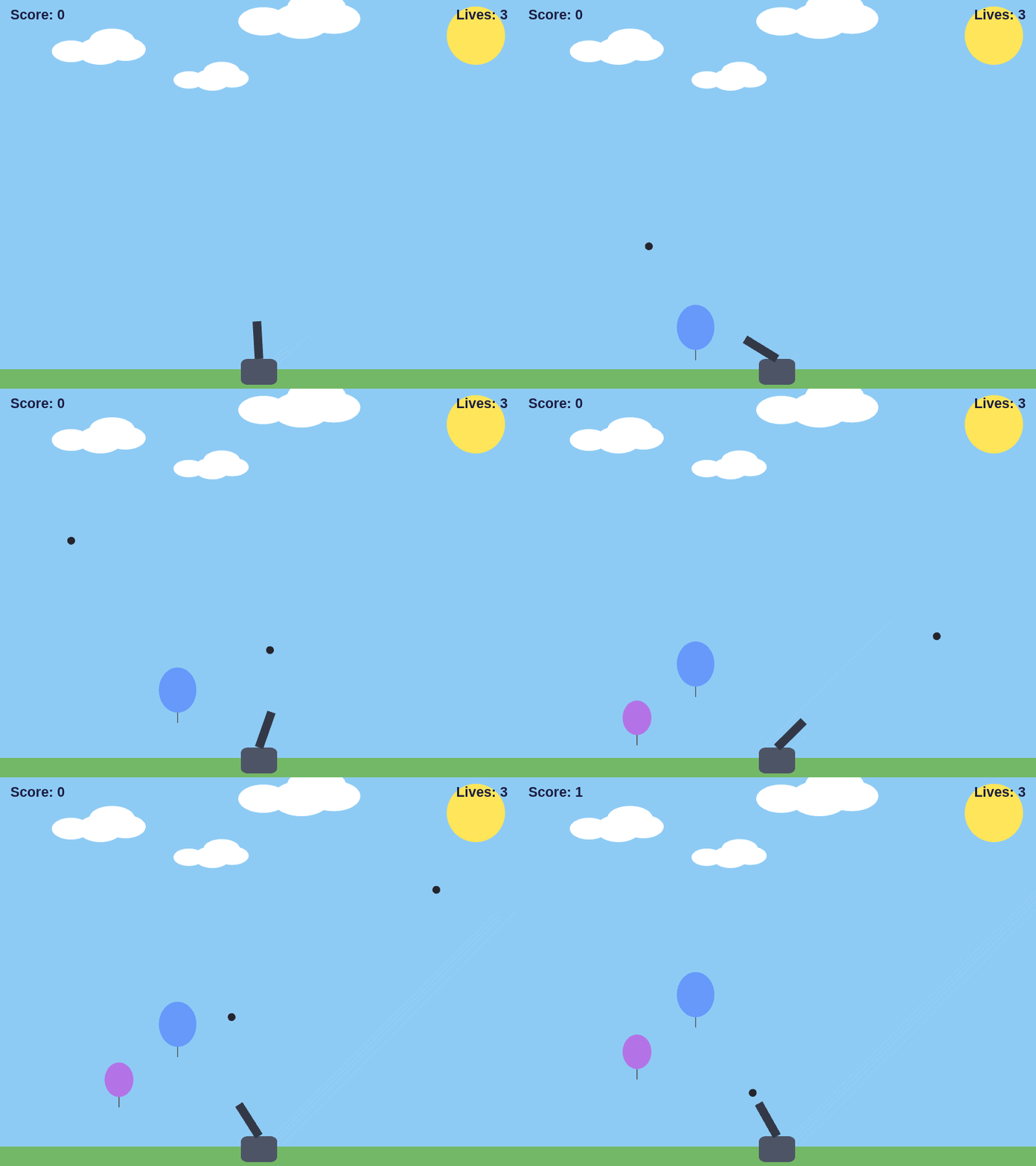
I made Ember Fox: Outrun the Stone Guardian for the One-button Game Mini Hack. A fox runs forward, and a stone guardian rolls behind it and chases it. You must hop over obstacles to stay ahead.
Play it here: https://www.mathworks.com/matlabcentral/communitycontests/contests/10/entries/16448
(Click Play Game, then Run this App.)
The whole game fits in less than 10,000 characters. Below are the main tricks I used. I hope they help you with your own games.
How the game works
- One button does everything: tap to hop, tap again in the air to dive.
- If you hit an obstacle, the stone guardian gets closer. If it catches you, the game ends.
- Diving onto a flying enemy gives bonus points.
- Power-ups give a shield, slow motion, or push the guardian back.
- Passing obstacles builds a combo multiplier.
- The game gets faster the longer you play, and the sky changes from day to night.
Trick 1: Draw pixel-art sprites from text
I draw each sprite as a grid of characters. A # means a filled pixel:
A=['######';'#.##.#';'######';'.####.'];
[X,Y]=spr(A,0.6);
My helper function spr turns each row into rectangles. It uses diff to find where every run of # starts and ends. One run becomes one rectangle, not one rectangle per pixel. This keeps the number of graphics objects low and the code short.
Trick 2: Create graphics once, then only update them
In init I create every patch, line and text object one time. In renderFrame I only change them with set:
set(s.hd,'XData',s.DS{k}+DX,'YData',s.DT{k}+G+s.dy)
Creating new objects every frame makes a game slow. Updating existing ones is much faster. To hide an object, I set its data to NaN instead of deleting it.
Trick 3: Update only what changed
The day and night colours depend on how far you have run. I turn the cycle into a small number of steps and change the colours only when the step changes:
nn=.5-.5*cos(2*pi*s.dist/3200);
q=round(nn*40);
if ~isequal(s.ax.UserData,q)
s.ax.UserData=q; % change all colours here
end
I do the same for text. I only set the text when the new text is different:
if ~strcmp(h.String,t), h.String=t; end
Trick 4: One button, different actions
The game state decides what the button does:
- On the start or game-over screen, it starts the game.
- On the ground, it makes the fox hop.
- In the air, it makes the fox dive down faster.
This gives the player more choices without adding more buttons.
Trick 5: Smooth difficulty and simple collisions
The speed grows quickly at first, then slows down, so the game stays fair:
s.spd=55+90*(1-exp(-s.sc/900));
Collisions are simple rectangle checks. After a hit, the fox is safe for a short time, so one mistake does not cause many hits in a row.
Trick 6: Fit the character limit
- Use short variable names.
- Use loops and shared code instead of repeating lines.
- Run minihackContest.validate often to check the character count.
Known problem: the game runs smoothly in desktop MATLAB, but it can lag in MATLAB Online. For the best experience, run it on your computer with minihackContest.play.
Thank you for reading! If you have questions or ideas to make it better, please write a comment. I would love to see how you solve these problems in your own games.

If you are as excited as me to play these games but somehow something is stopping you from doing just that, you are at the right place. Follow the steps below and you will be playing in no time (maybe some time depending on your browser, network speed, etc.):
- Click on the game you like the look of (let's say, something that is transformative).
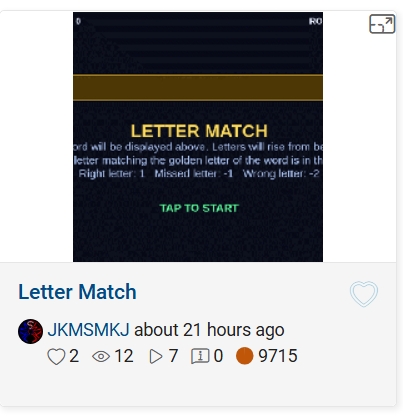
- This will open up its details page with the game code, preview video and the "Play Game" button. Click the video or the button.
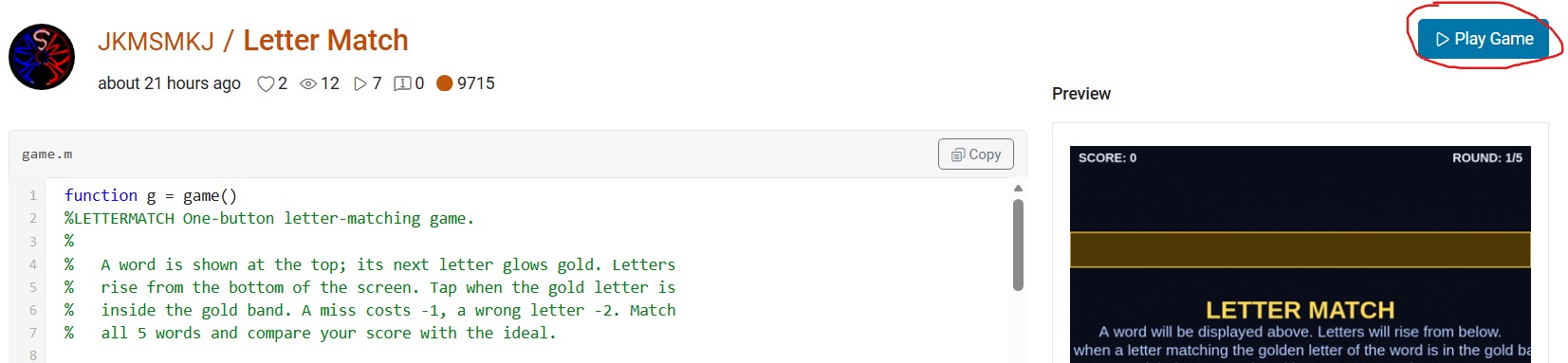
- This will open up "MATLAB Drive" in a new browser window with a preview screenshot of a half-played game and a "Run this App" button. Click this button and nothing will seem to happen at first. And nothing will happen at any other subsequent tries. But don't worry, that's why you're here.
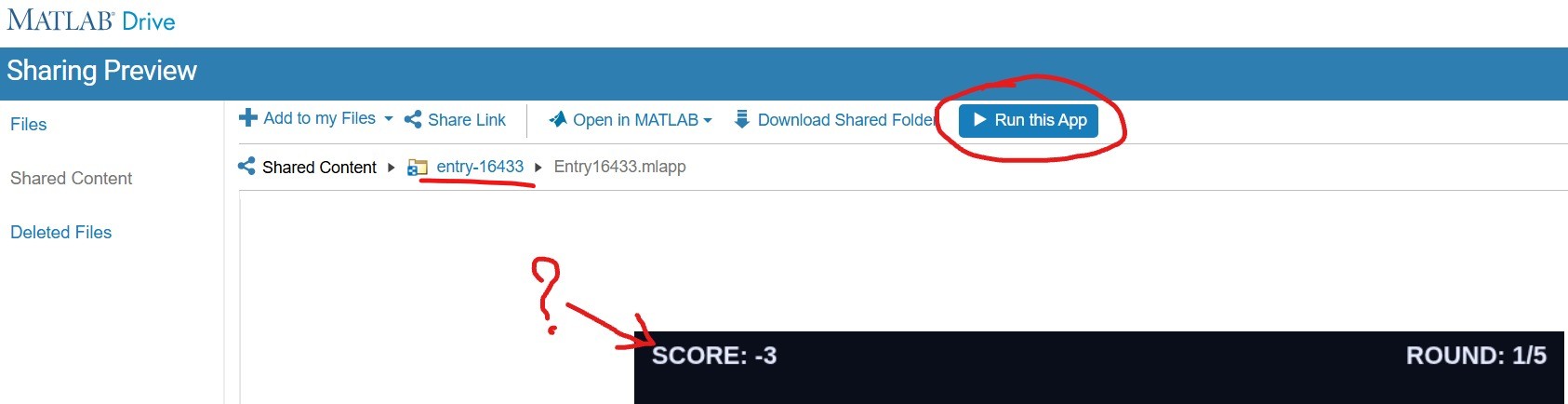
- Click on the "entry-×××××" blue hyperlink just above the preview area (underlined in red above). This will take you to a list of two files but hide the crucial blue button. Click on the "Entry×××××.mlapp" file to resurface the blue button.
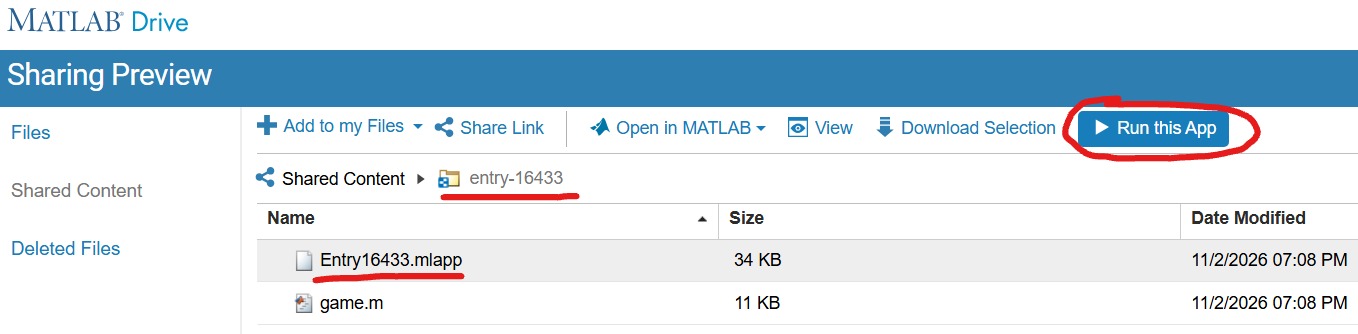
- With expectant hands, click the "Run this App" button. This time it will reload the "MATLAB Drive" and put it in the mode to run your chosen game.
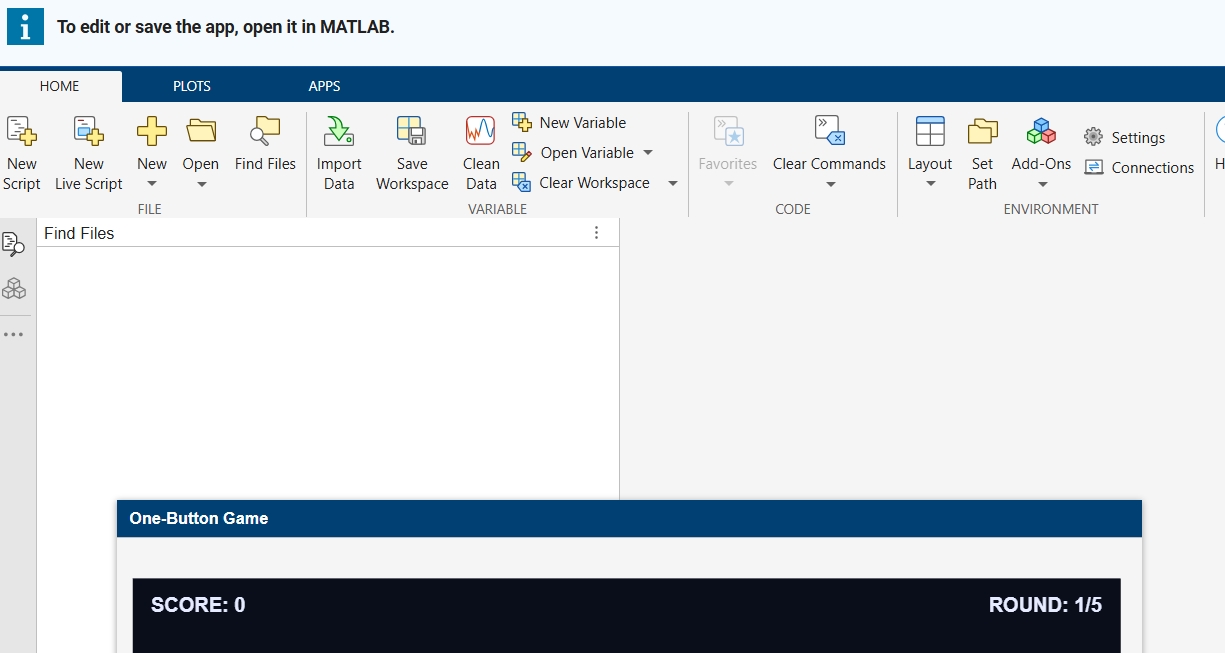
- Finally, you are where you expected to be in the point 3! Enjoy your game.🥳

I have MATLAB R2026b, the MATLAB Agentic Toolkit, and Claude Code installed.
In the first session, I asked Claude (Opus 5.5, High effort) to review the game rules, suggest MATLAB Agentic Toolkit skills, install them inside the project folder, and create a CLAUDE.md file.
In the second session, I asked Claude to create a combat game in which the player controls a simple stick figure wielding a club; clicking makes the figure swing the club. Simple monsters approach the player and drain the player’s health on contact, while hitting a monster with the club eliminates it. The game has an old-school 2D look, with a dark blue, star-filled background and light blue characters.
That's it. You can see result here: CLUB NIGHT
My best score until now is 2060.
Let me know your best score in the comments.

All the graphics objects (patches, lines and text) are created one time, when the game starts. After that, the render function only changes their data with set:
set(s.hd,'XData',s.DS{k}+DX,'YData',s.DT{k}+G+s.dy)
Creating new objects on every frame is a common reason MATLAB games feel slow. Updating objects that already exist is much cheaper. To hide an object, I set its data to NaN instead of deleting it:
set(s.ho(m),'XData',NaN,'YData',NaN)
The day and night colours depend on how far the fox has run. Instead of recolouring everything on every frame, I turn the cycle into a small number of steps and only recolour when the step changes:
nn=.5-.5*cos(2*pi*s.dist/3200);
q=round(nn*40);
if ~isequal(s.ax.UserData,q)
s.ax.UserData=q;
% recolour the background, ground, text and obstacles here
end
The current step is stored in the axes UserData, so the check is cheap. Text works the same way. I only set a text string when the new string is different from the old one:
if ~strcmp(s.sct.String,t), s.sct.String=t; end
Setting properties that have not changed still costs time in every frame, so skipping them helps a lot in a game that redraws many times per second.
Check against your code: the first block is simplified from your renderFrame. Your real code also adds +100*(s.st==2) to q so the colours change on the game-over screen, and I left that out to keep the tip simple. The strcmp line is from your score text. Both matc
The day and night colours depend on how far the fox has run. Instead of recolouring everything on every frame, I turn the cycle into a small number of steps and only recolour when the step changes:
nn=.5-.5*cos(2*pi*s.dist/3200);
q=round(nn*40);
if ~isequal(s.ax.UserData,q)
s.ax.UserData=q;
% recolour the background, ground, text and obstacles here
end
The current step is stored in the axes UserData, so the check is cheap. Text works the same way. I only set a text string when the new string is different from the old one:
if ~strcmp(s.sct.String,t), s.sct.String=t; end
Setting properties that have not changed still costs time in every frame, so skipping them helps a lot in a game that redraws many times per second.
Disclosure: the game code was written with Claude (an AI assistant). I tested the game in MATLAB and checked the details myself.
For the One-button Game Mini Hack, the code limit is 10,000 characters. I made a game called Ember Fox, where a fox runs and a stone guardian chases it, and you have one button. These are the techniques in the code that I found most useful.
Tip 1: Draw pixel-art sprites from text
Each sprite is stored as a grid of characters, where # is a filled pixel and . is empty:
A=['######';'#.##.#';'######';'.####.'];
[X,Y]=spr(A,0.6);
A helper function, spr, turns the grid into rectangles. For each row it uses diff to find where every run of # starts and ends, and each run becomes one rectangle instead of one rectangle per pixel. This keeps the sprite data small and the number of graphics objects low. All the sprites are built once, when the game starts.

Many of us have someone in our lives whose hearing has gradually changed with age. Maybe it's a grandparent who leans in a little closer at the dinner table, or a friend who enjoys a chat more in a quiet cafe than a busy one. For many people, hearing loss over the years becomes part of everyday life.
Behind every hearing instrument is an engineering team trying to help people keep enjoying those conversations.
We'd love to hear from you:
- Has hearing changed the way someone you know enjoys music, conversations or learning?
- If you've worked on audio, hearing aids or wearables, what inspired you, and what made it hard?
Join us at MATLAB Expo Online for the hands-on workshop Designing For Every Ear. Together we will explore the technologies right in MATLAB.
🎸 a whisper becomes a rock concert
20%
🐿️ Wrong frequency mapping
60%
🤐 Signal dropout
0%
🔋 Power regression
20%
5 Stimmen

At the present time, the following problems are known in MATLAB Answers itself:
- Symbolic output is not displaying. The work-around is to disp(char(EXPRESSION)) or pretty(EXPRESSION)
- Symbolic preferences are sometimes set to non-defaults

Want to try an AI coding agent for the One-Button Game Contest? In this post, I'll show you how to connect OpenCode to MATLAB and use it to create your first game. You can get everything set up and start building in less than 20 minutes.
Here's what you'll need:
- Download and install OpenCode (Desktop application or CLI): https://opencode.ai/v2/docs/
- Download and install the MATLAB Agentic Toolkit: https://github.com/matlab/matlab-agentic-toolkit
- The contest starter project from the File Exchange: https://www.mathworks.com/matlabcentral/fileexchange/185098-matlab-one-button-game-minihack-starter-project
- MATLAB R2021a or later
For those who already have local coding agents like Claude or Codex, you can skip a few steps but will still need to ensure the MCP connection to MATLAB and leverage the contest starter project from File Exchange.
Selecting an LLM
Here is a list of OpenCode's cloud-hosted models: https://opencode.ai/v2/docs/console/models#free-models. These can change unexpectedly and your requests may be rate limited, but I haven't run into any issues so far. Starting with a cloud-hosted model means you don't have to install additional tools or download rather large model files.
I'll be using GLM-5.3-Flash. The documentation says "Its provider follows a zero-retention policy and does not use your data for model training" which is nice.
If you'd prefer to use a locally running model, likely for security reasons, and if your hardware supports it, follow the instructions here: https://github.com/matlab/matlab-local-agent-quickstart.
Configuring OpenCode
You've installed the MATLAB MCP server but OpenCode doesn't know about it yet. You'll need to find or create a configuration file to make that connection. The file is named opencode.json and can be found (or created) in the .config directory in your user path:
C:\Users\<username>\.config\opencode\opencode.json
This is an example for a Windows system:
{
"$schema": "https://opencode.ai/config.json",
"mcp": {
"matlab": {
"enabled": true,
"type": "local",
"command": [
"C:\\Users\\<username>\\.matlab\\agentic-toolkits\\bin\\matlab-mcp-server.exe",
"--matlab-root",
"C:\\Program Files\\MATLAB\\R2026a"
]
}
}
}
Note: The path to MATLAB only needs to point to the directory, the executable is appended automatically by the MCP server.
Verify the MCP connection
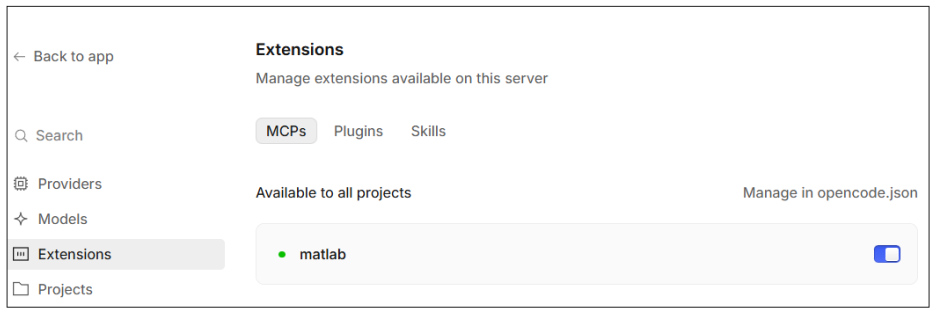
- Restart OpenCode and verify the connection to the MATLAB MCP server is working. MATLAB doesn't have to be running for the connection to work.
- Navigate to File > Settings > Extensions > MCPs. You should see MATLAB listed and toggled 'on'.
Note: Ensure you've selected the model you want. You can do this using the list box below the prompt. The following image shows that GLM-5.3-Flash Free is selected.
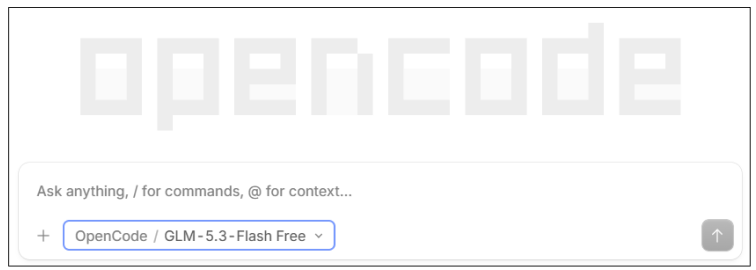
You can now create your first OpenCode session and ask "Can you connect to MATLAB?" or "What tools are available via the MATLAB MCP server?". If it's working you should see the agent response acknowledging it can connect to MATLAB.
Creating a game
In this step, you''ll use OpenCode to create a MATLAB game by simply having a conversation. You'll see MATLAB open and edits being made to the game.m file. At any time you can edit the MATLAB code or simply tell the OpenCode agent what you want changed.
- Download the starter kit from the File Exchange if you haven't already done so. Clicking on the New Entry button in the contest pages also provides the link: https://www.mathworks.com/matlabcentral/fileexchange/185098-matlab-one-button-game-minihack-starter-project
- Extract it to a directory of your choice. Then, open the project (.proj file) in MATLAB. Doing this runs a bootstrap function that installs dependencies.
- Create a new OpenCode project by selecting the Add project link/button, then select the directory for the contest starter kit. OpenCode needs to know where on your system to create the new session.
- Create a new OpenCode session, double check your model choice is visible, and then simply tell OpenCode what you want to do by typing in your request. For example, "I'd like to create a one-button game for the MATLAB Central contest. Can you suggest an idea?".
- OpenCode may ask clarifying questions and spend a few minutes 'thinking' (you can click and expand these UI elements to see what it's doing). It will use MATLAB to iterate on and validate the game code, making sure the tests pass. Once ready, it'll run the game for you. Or, you can start the game by running minihackContest.play in the command window.
That's it! You've created your first game with the help of an AI coding agent and MATLAB.
Once you're happy with your game, you can submit it to the contest by entering minihackContest.submit in the MATLAB Command Window.
Watch me do this on YouTube: https://youtu.be/0R_kYatC_Ag
Reply below and let me know if you found these instructions helpful and if you ran into any issues. Also, I'm interested to know which models you used. Thanks.

In our previous Mini Hack contests, you amazed us with creative images, animations, and videos. This year, we’re trying something new: Let’s make games!
With the help of Agentic AI, you don’t have to write all the code yourself. Bring your idea, and creativity, then work with AI to turn it into a MATLAB game.
New to Agentic AI? No problem!
We’ve created a step-by-step tutorial that can help you set up the MATLAB Agentic AI workflow in about 20 minutes, including a video to walk you through the process. This contest is about learning while having fun. We want you to experience the MATLAB Agentic AI workflow by actually using it to build something.
And don’t just create; share what you learn! Create a Tips & Tricks post to share your Agentic AI experience, discoveries, and useful tips with the community.
So get set up, start experimenting, have fun creating, and win big prizes! 🎁


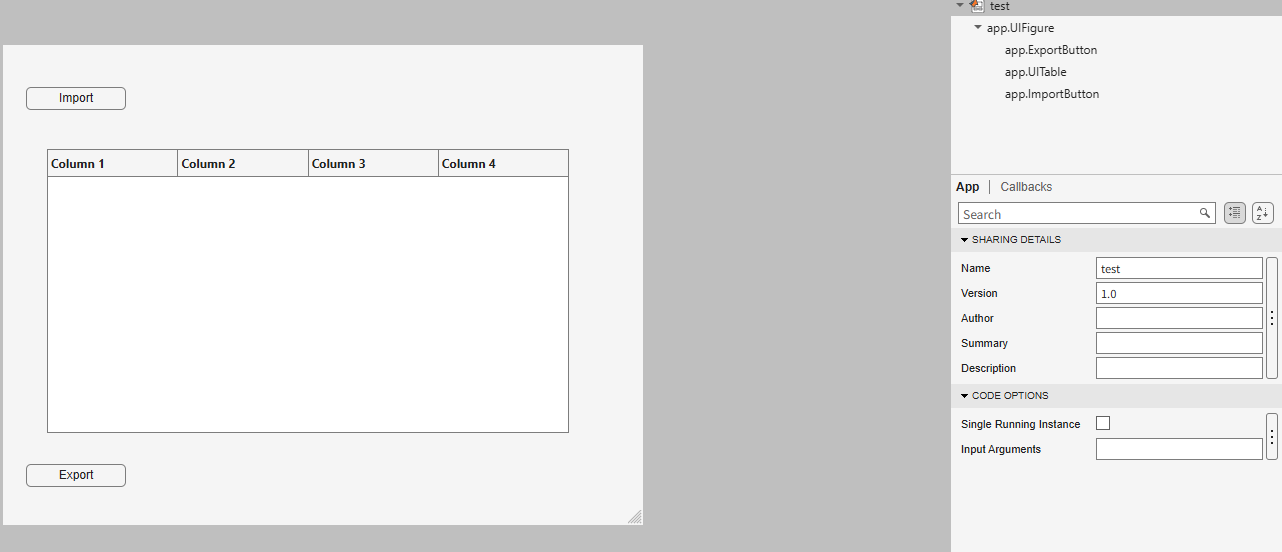
Hello everyone, I am new to Matlab.
I am trying to create an app to export the 5th column into a new sheet in the imported Excel file when I click Export button.
How can I write code in ExportButtonPushed
classdef test < matlab.apps.AppBase
% Properties that correspond to app components
properties (Access = public)
UIFigure matlab.ui.Figure
ExportButton matlab.ui.control.Button
UITable matlab.ui.control.Table
ImportButton matlab.ui.control.Button
end
% Callbacks that handle component events
methods (Access = private)
% Button pushed function: ImportButton
function ImportButtonPushed(app, event)
[file, location] = uigetfile( ...
{'*.xlsx;*.xlsm', 'Excel files'; '*.txt', 'Text files'; '*.*', 'All files'}, ...
'File Selector');
figure(app.UIFigure)
if isequal(file, 0), return, end
fullPath = fullfile(location, file);
try
[~,~,ext] = fileparts(fullPath);
if any(strcmpi(ext, {'.xlsx','.xlsm','.xls'}))
T = readtable(fullPath, 'Sheet', 1, 'VariableNamingRule', 'preserve');
else
T = readtable(fullPath, 'VariableNamingRule', 'preserve');
end
catch ME
uialert(app.UIFigure, ME.message, 'Read error');
return
end
if width(T) < 5
uialert(app.UIFigure, 'The file needs at least 5 columns.', 'Import error');
return
end
app.UITable.Data = T;
app.UITable.ColumnName = T.Properties.VariableNames;
lengthlist = T{:,5};
end
% Button pushed function: ExportButton
function ExportButtonPushed(app, event)

Recently, I encountered an issue where solve returned no solution for a system of equations, even though the system obviously has solutions. This can be easy to overlook.
For example:
syms a b c x
equs = [a*x^2+b*x+c==0;
a==1];
St = solve(equs,x)
St is returned as an empty set, suggesting that there is no solution???
However, since a is constrained by the equation a == 1, the correct way is:
S = solve(equs,[x,a])
disp(S.x)
disp(S.a)
Here, a must also be included in the list of variables to solve for. Only then will solve treat a as an unknown, apply the constraint a == 1, and substitute it into the equation during the solving process.
symvar(equs)
Based on the output of the symvar function, a is already identified as one of the symbolic variables (unknowns) in the system of equations. However, the actual behavior of solve appears to contradict this expectation. In practice, a must still be explicitly included in the variable list passed to solve; otherwise, it is treated as a symbolic parameter rather than a variable to be solved for.
Takeaway: When using solve for a system of equations, any symbol that appears in the equations and is constrained by additional equations (such as a == 1) should generally be included in the variable list. Otherwise, solve may treat it as a symbolic parameter rather than an unknown, which can lead to an empty solution set or unexpected results.
Am I missing something here? I'd love to hear your thoughts.

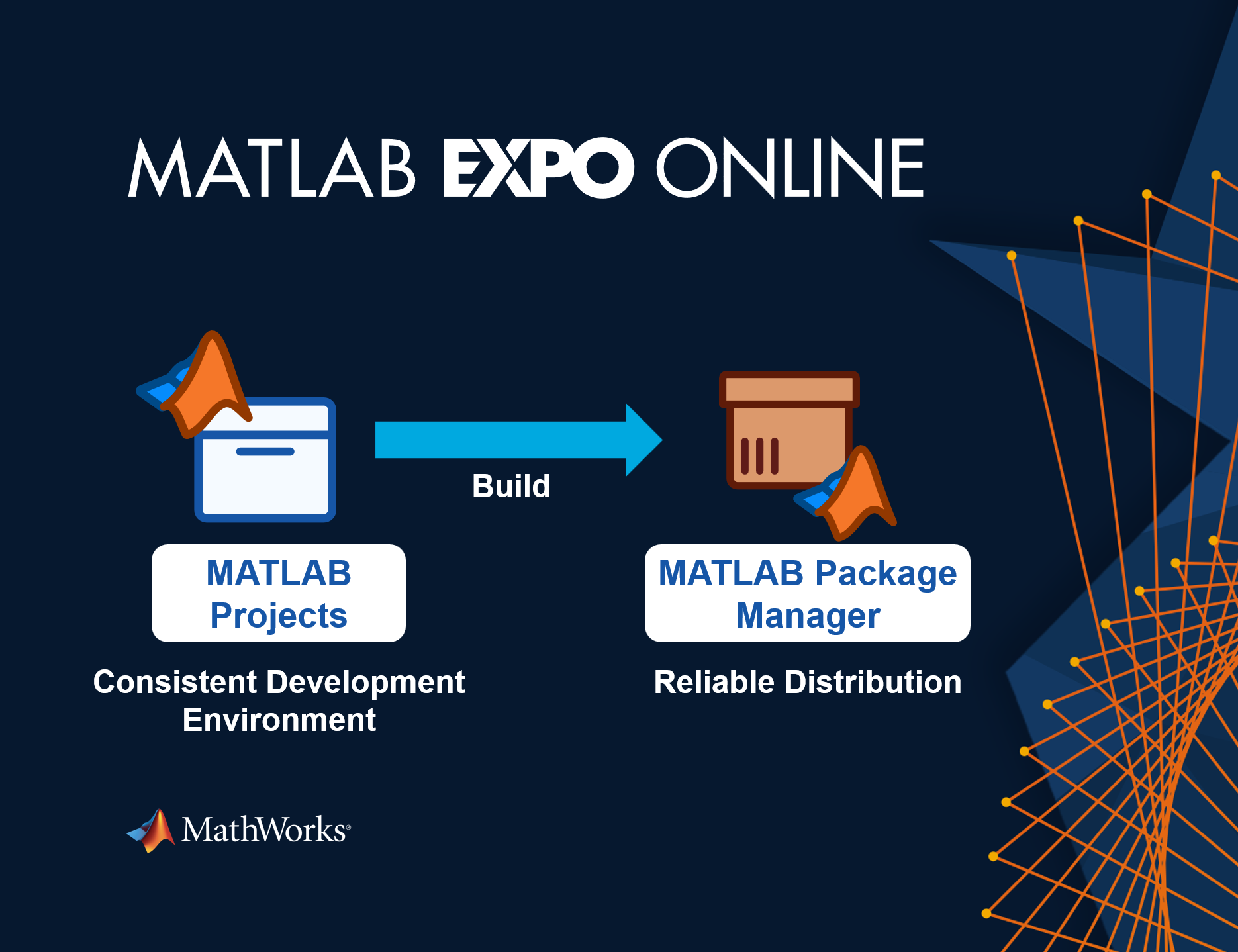
Hi everyone! I am one of the MATLAB Product Managers supporting MATLAB Projects and MATLAB Package Manager. R2026b was a major update for both of these tools, and we are excited to show how you can build software in MATLAB and Simulink using modern software development tools. There is a track session and a workshop that you can attend. Come learn about the simpler matlab.toml file and how your code can finally depend on packages. You can see a preview here:

I have learned that I am never, ever going to use Copilot in Simulink again, and probably never use Copilot in any Microsoft application again either. Two times I asked Copilot for some simple help on how to configure a subsystem block and BOTH TIMES it gave me incorrect information that did not work. After 10 minutes of trying to get accurate information out of Mathworks' own native AI (definitely light on the "I" part), I gave up and when to ChatGPT which immediately gave me the correct answer.
Do better Mathworks. Your bloatware is bad enough, and your rejection of systems engineering standards for your own is also pretty terrible. But your selection of an AI "assistant" is a complete failure.
To celebrate 25 years of MATLAB Central community, we're launching two community contests designed to inspire learning, creativity, and knowledge sharing.
🚀 Now Open: STEM Showcase Contest
Have a great math, science, or engineering concept to share? Create an interactive MATLAB experience that helps others learn, explore, and discover STEM concepts.
Learn more and enter: STEM Showcase Contest
Prizes:
- STEM domain awards: Amazon Gift Card
- Weekly prizes: MathWorks T-shirts or socks
- Exclusive virtual badge
🎮 Coming in November: MATLAB One-Button Game Mini Hack
Can you build a fun game using only one button? Start brainstorming now and get ready for a unique MATLAB Game Mini Hack challenge.
For 25 years, MATLAB Central has been powered by a community that loves learning, building, and sharing knowledge. Whether you're an educator, researcher, engineer, student, or hobbyist, we'd love to see what you create.

Week of October 26, 2026
526 responses
Info zu Discussions
Discussions is a user-focused forum for the conversations that happen outside of any particular product or project.
Get to know your peers while sharing all the tricks you've learned, ideas you've had, or even your latest vacation photos. Discussions is where MATLAB users connect!
Get to know your peers while sharing all the tricks you've learned, ideas you've had, or even your latest vacation photos. Discussions is where MATLAB users connect!
Weitere Community-Bereiche

MATLAB Answers
Sie können Fragen zu MATLAB und Simulink stellen und beantworten.

File Exchange
Laden Sie von Benutzern bereitgestellten Code herunter oder tragen Sie selbst solchen Code bei

Cody
Lösen Sie Problemgruppen, lernen Sie MATLAB kennen und erwerben Sie Abzeichen

Blogs
Erhalten Sie Insider-Wissen zu MATLAB und Simulink

KI-Chat-Spielplatz
Verwenden Sie KI, um den ersten MATLAB-Codeentwurf zu generieren und Fragen zu beantworten!

