Set Up URSim Offline Simulator for RTDE
R2026bUniversal Robots provides a software emulator, URSim, to test and validate motion planning and control algorithms using offline programming and simulation of robot programs. For more information on the features and limitations of the URSim offline simulator, see Universal Robots > Download.
Configure URSim
URSim Offline Simulator can be run on a Linux desktop or on a Linux VM hosted on Windows. To install and set up Linux VM on Windows, refer to the steps mentioned in Set Up Virtual Machine. Alternatively, to quickly get started with the VM setup on Windows by using a pre-configured VMX file, refer to the Windows (64-bit) section in Virtual Machine Installation Instructions.
The functionality of URSim is almost identical to a real cobot connected over the network. This workflow focuses on launching URSim from the corresponding Docker® image, and controlling the cobot over RTDE.
After you set up the Linux desktop or the Linux VM hosted on Windows, follow these steps to connect and launch URSim from the Docker image:
Install and set up Docker in the Linux® environment.
ubuntu@user:~$ sudo apt-get install docker.io
ubuntu@user:~$ sudo apt-get install curl
ubuntu@user:~$ sudo usermod -aG docker $USER
ubuntu@user:~$ newgrp docker
Download the
start_ursim.shshell script from the UR Client Library GitHub repository.Navigate to the corresponding folder and make the shell script executable.
ubuntu@user:~/Downloads$ chmod +x ./start_ursim.sh
Run the shell script to launch URSim, and click the link to open the Docker in the browser.
ubuntu@user:~/Downloads$ ./start_ursim.sh
Power on the cobot in the URSim offline simulator.

Load and Play UR Program
To load and play the UR program, complete these steps:
Open the MATLAB® terminal and access the path where
URServerScript.scriptfile is available, by using this command.installationFilePath = fullfile(codertarget.urseries.internal.getSpPkgRootDir,'resources') cd(installationFilePath)Note
The script is configured by default to disable the gripper actuation for RobotiQ grippers. This facilitates smooth operation with URSim and eliminates the need to download the gripper URCap.
Copy the
URServerScript.scriptfile from Current Folder browser in MATLAB into the following path in the Linux system of URSim. The.ursimfolder is hidden, by default. To view it, click on the menu icon (three horizontal lines or dots) in the file explorer and enable the option to show hidden files.ubuntu@user:~$ cd .ursim/e-series/ur5e/programs
Access URSim in the browser.
Create a new program in URSim.
From the left navigation menu, select Advanced > Script.
Click Robot Program > Script, and select
Filefrom the drop-down list.
The Script Code pane now displays the Edit button, which you can use to select the file.
Click Edit > Open, and choose the
URServerScript.scriptfile that you copied. Click Exit.Save the program.
Start the UR program by clicking Play at the bottom of the window, and then switch to
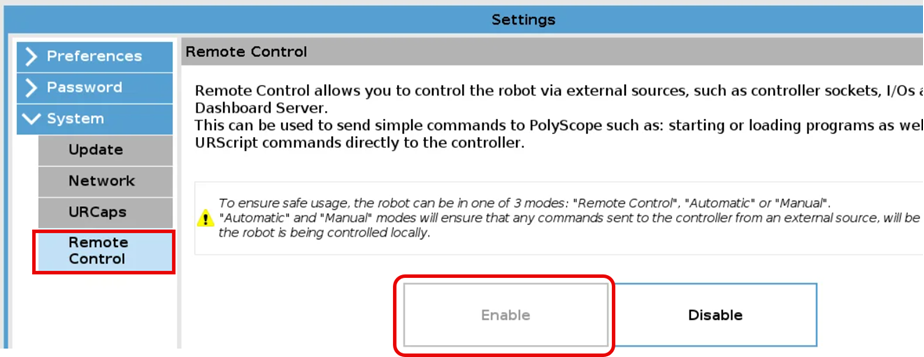
Remote Controlmode in the URSim simulator using these steps:Select Settings from the top right button.
Select System > Remote Control.
Click Enable.
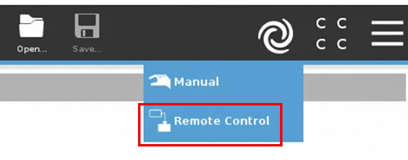
Change the mode of operation to Remote Control.
Setting Up Connectivity Medium as RTDE and Validating Connection
The final step in preparing the URSim simulator involves setting
RTDE as the connectivity medium and verifying a test connection
between MATLAB and the URSim using the Hardware Setup process.
Navigate to the Select connectivity medium window in the Hardware Setup wizard in the , select RTDE, and click Next.
In the Select Interface window, select URSim Simulator, and click Next.

In the Joint Angle Acquisition window, enter the UR Controller IP address in the Robot Address field, and click Get Joint Angles. MATLAB sends a command and verifies the communication with the UR Controller. If the communication is successful, the message -
Joint
                        angles acquired
is displayed. In that case, click Next and follow the remaining steps to complete the Hardware Setup process.
Tip
To obtain the UR Controller IP address on Linux, go to Settings > Network, and click the
 icon corresponding to the network. You can
enter the displayed IPV4 address in the Robot Address
field.
icon corresponding to the network. You can
enter the displayed IPV4 address in the Robot Address
field.
Troubleshooting URSim Setup
If you plan to set up the URSim Offline Simulator on a Linux VM hosted on Windows, and encounter issues while running the
newgrp
                        docker
command, log out from VM and log in again before running the command.If you are facing issues with launching the URSim (using
./start_ursim.sh) or if you are unable to find the copiedURServerScript.scriptfile in the.ursim/e-series/ur5e/programsdirectory , perform Step 1 of Configure URSim to install and set up the Docker again.If you are unable to get joint angles as part of validating the connection using the Hardware Setup process, ensure that the required security services are enabled in the URSim simulator. To do this, refer to the steps mentioned in Enable Services.
After launching URSim Docker container for the first time, relaunching the Docker again by using
./start_ursim.shcommand results in an error. Therefore, it is recommended that you use the browser-based PolyScope access directly, if the container is already launched. If you still face issues with Docker container, do the following:List the Docker containers that are running:
user@user:~/Downloads$ docker ps
Use the container ID to kill the corresponding Docker container:
ursep@ursep:~/Downloads$ docker kill <CONTAINER ID>

