Export to excel question

Ältere Kommentare anzeigen
Hello everyone, I am new to Matlab.
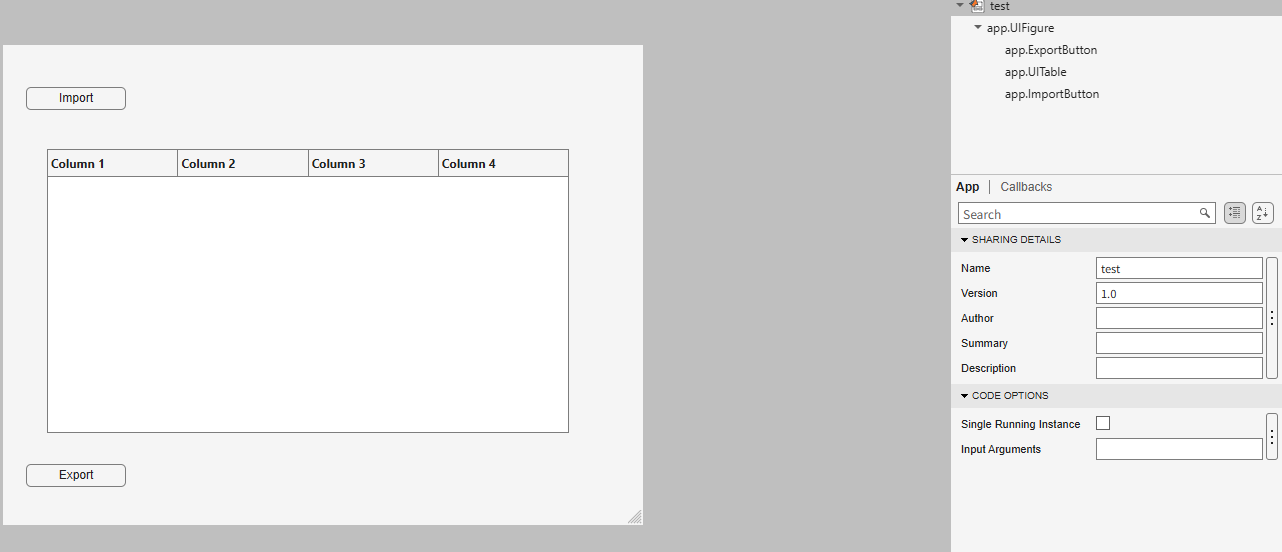
I am trying to create an app to export the 5th column into a new sheet in the imported Excel file when I click Export button.
How can I write code in ExportButtonPushed
classdef test < matlab.apps.AppBase
% Properties that correspond to app components
properties (Access = public)
UIFigure matlab.ui.Figure
ExportButton matlab.ui.control.Button
UITable matlab.ui.control.Table
ImportButton matlab.ui.control.Button
end
% Callbacks that handle component events
methods (Access = private)
% Button pushed function: ImportButton
function ImportButtonPushed(app, event)
[file, location] = uigetfile( ...
{'*.xlsx;*.xlsm', 'Excel files'; '*.txt', 'Text files'; '*.*', 'All files'}, ...
'File Selector');
figure(app.UIFigure)
if isequal(file, 0), return, end
fullPath = fullfile(location, file);
try
[~,~,ext] = fileparts(fullPath);
if any(strcmpi(ext, {'.xlsx','.xlsm','.xls'}))
T = readtable(fullPath, 'Sheet', 1, 'VariableNamingRule', 'preserve');
else
T = readtable(fullPath, 'VariableNamingRule', 'preserve');
end
catch ME
uialert(app.UIFigure, ME.message, 'Read error');
return
end
if width(T) < 5
uialert(app.UIFigure, 'The file needs at least 5 columns.', 'Import error');
return
end
app.UITable.Data = T;
app.UITable.ColumnName = T.Properties.VariableNames;
lengthlist = T{:,5};
end
% Button pushed function: ExportButton
function ExportButtonPushed(app, event)
Antworten (1)

In App Designer apps, the way to keep data visible that are needed for multiple callback functions such as your input table is to create a local (private) global property for it/them. Then refer to them by app.VariableName such as app.T for the table below here...
classdef test < matlab.apps.AppBase
% Properties that correspond to app components
...
% Properties for local data
properties (Access = private)
T % the user's input data
fullPath % input file name fully qualified
end
% Callbacks that handle component events
methods (Access = private)
% Button pushed function: ImportButton
function ImportButtonPushed(app, event)
[file, location] = uigetfile( ...
{'*.xlsx;*.xlsm', 'Excel files'; '*.txt', 'Text files'; '*.*', 'All files'}, ...
'File Selector');
figure(app.UIFigure)
if isequal(file, 0), return, end
app.fullPath = fullfile(location, file); % set global app property
try
app.T = readtable(fullPath,'VariableNamingRule', 'preserve'); % save to app global variable
catch ME
uialert(app.UIFigure, ME.message, 'Read error');
return
end
if width(app.T) < 5
uialert(app.UIFigure, 'The file needs at least 5 columns.', 'Import error');
return
end
app.UITable.Data = app.T;
app.UITable.ColumnName = app.T.Properties.VariableNames;
end
% Button pushed function: ExportButton
function ExportButtonPushed(app, event)
% write the desired file data
try
writetable(app.T(:,5),app.fullPath,'Sheet',2,'WriteVariableNames',1)
catch ME
uialert(app.UIFigure, ME.message, 'writetable error');
return
end
end
Note that T(:,5) is a one-column table including the table name so it comes along for free for documenting the new worksheet. T.(5) would be just the array of the data values as would be T{:,5} so would require adding the variable name separately.
You'll want to incorporate a callback on the possibility the user could edit the uitable directly as well which would simply be to refresh the app.T variable if a cell in the uiTable is changed...
function UITableCellEdit(app, event)
% Update the local table if the UI table is modified...
app.T=app.UITable.Data; % copy the displayed table to real table
end
All this is "air code", so be wary and not surprised to find typos, etc., ...
OBTW, I took out the IF block on the input; the only difference you had was specifying the first sheet of a workbook, but it is a default action anyway so as written was superfluous. Now, if were to allow the user to also select a sheet name/number, then would need, but this code didn't show that facility.
am 30 Okt. 2026 um 8:11
vor etwa 2 Stunden
Community Treasure Hunt
Find the treasures in MATLAB Central and discover how the community can help you!
Start Hunting!
Translated by