Resolve Test Connection Issues During Hardware Setup
R2026bIssue
During the Test Connection step of the PX4® Hardware Setup, you might encounter one of these issues:
No serial ports appear in the Host Serial Port for upload list.
The Hardware Setup window stops responding and displays a busy spinner indefinitely.
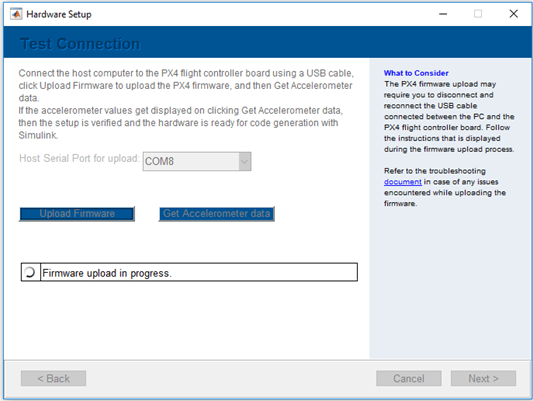
Possible Solutions
Verify Flight Controller Connection
Ensure that the host computer recognizes the flight controller as a connected device.
Check that you have connected the Pixhawk® Series flight controller to the host computer using a USB cable. If the serial port still does not appear in the drop-down list, open Windows® Device Manager and confirm that the device is detected.
Flash PX4 Firmware Using QGroundControl
Ensure that the flight controller has PX4 firmware installed. If Windows Device Manager does not detect the flight controller, the device might have incompatible firmware.
Flash the latest stable release of PX4 firmware if any of these conditions apply:
The flight controller previously used ArduPilot firmware.
The firmware type or version on the flight controller is unknown (for example, a new board).
For instructions on flashing firmware, see Loading Firmware (QGroundControl documentation).
Select the Correct Serial Port
Confirm that the serial port selected in the Test Connection step matches the port of your flight controller. An incorrect port selection causes the Hardware Setup window to stop responding.
To resolve this issue:
Close the Hardware Setup window.
Verify the serial port of your flight controller in Windows Device Manager.
Restart Hardware Setup from the Build Firmware step.
In the Test Connection step, select the correct serial port.
Follow the Reconnect Dialog Sequence
During the Test Connection step, a dialog box instructs you to disconnect and reconnect the flight controller. If you do not follow the sequence in the dialog box, the upload process can time out and the Hardware Setup window can stop responding.
You can verify that a timeout has occurred if this message appears at the MATLAB® command prompt:
If the board does not respond, unplug and re-plug the USB connector.
To resolve this issue, follow the sequence shown in the dialog box:
Disconnect the Pixhawk Series flight controller from the host computer.
Click OK in the dialog box.
Reconnect the Pixhawk Series flight controller to the host computer.

