Push Links to Codebeamer and Jama Connect
R2026bIf you have the Third-Party Tool Connector for Requirements Toolbox™ add-on, you can create links to requirements imported from Codebeamer® and Jama Connect® and then push the links to the third-party tool by using the new Requirements Editor UI. In the third-party tool, you can view the links and navigate back to the link source in MATLAB® or Simulink®.
For more information about importing requirements from Codebeamer and Jama Connect, see Import Requirements from Codebeamer and Jama Connect.
Create Links
To create links to requirements from Codebeamer or Jama Connect, first open the requirement set in the Requirements Editor:
In MATLAB, on the Apps tab, under Verification, Validation, and Test, click Requirements Editor. Alternatively, at the MATLAB Command Window, enter:
slreq.editor
In the Requirements Editor, click Open.
Select the requirement set, then click Open.
To create links to the requirements:
Select a linkable item, such as a line of MATLAB code or a Simulink block.
In the Requirements Editor, select a requirement.
Click Add Link, then select the menu option that corresponds to the selection that you want to link to.
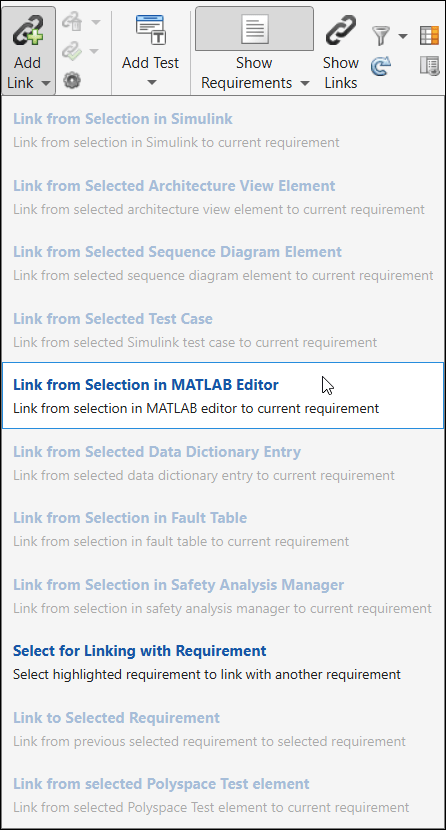
Save the link set by clicking Save > Save All.
For more information about creating links, see Create and Store Links.
Push Links to Third-Party Tool
Open the requirement set and the link set in the new Requirements Editor UI, then push the links to the third-party tool:
Open the new Requirements Editor UI.
Open the requirement set:
Click Open.
In the Open Requirements window, in the left pane, click Browse this PC.
Select the requirement set, then click Open.
Open the link set by clicking Open.
In the Open Requirements window, in the left pane, click Browse this PC. Select the link set, then click Open.
Push the links by selecting Update > Push Traceability Information.
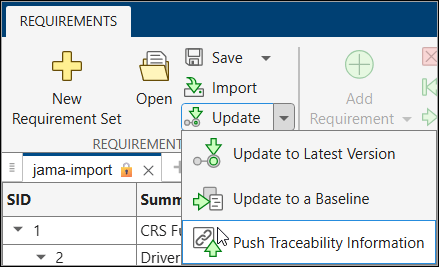
When you push links, the new Requirements Editor UI creates a set or tracker in the third-party tool that contains proxy requirements that represent the link source items. The description of the proxy requirement contains a navigation link to the source item in MATLAB or Simulink. If you add or remove links and then push links again, the new Requirements Editor UI adds and removes proxy requirements from the set or tracker.
Navigate Between Requirements in Third-Party Tools and the Requirements Editor
To navigate to a requirement in the third-party tool from an imported requirement in
the new Requirements Editor UI, select the requirement. Then, in the Property
Inspector pane, in the Properties tab, click the
navigate icon  . The requirement opens in the third-party tool.
Alternatively, you can navigate to a requirement set in the third-party tool by
selecting the tab that contains the requirement set, then clicking the navigate icon
.

To navigate from a requirement in the third-party tool to the link source item in MATLAB or Simulink, in the description of the proxy requirement, click the navigation link that represents the link source item.

