Import Requirements from Codebeamer and Jama Connect
R2026bIf you have the Third-Party Tool Connector for Requirements Toolbox™ add-on, you can import requirements from Codebeamer® and Jama Connect® by using the new Requirements Editor UI. The requirements import as read-only requirements. If the requirements change in the third-party tool, you can update the imported requirements.
For more information about installing the Third-Party Tool Connector for Requirements Toolbox add-on, see Install Third-Party Tool Connector for Requirements Toolbox Add-On.
Tip
If you previously imported a ReqIF™ file created from Codebeamer or Jama
Connect by using the Requirements
Editor app, you can convert the requirement set and then use it in the new
Requirements Editor UI by using the slreq.migrateReqsetLinksets function.
Authenticate Third-Party Tool in MATLAB
To authenticate the third-party tool in MATLAB®:
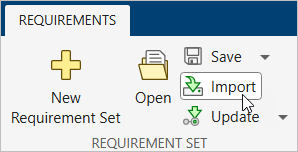
In the new Requirements Editor UI, click Import.
In the Import Requirements window, in the left pane, click Connect to external tools.
Click Sign In next to the tool that you want to authenticate.
Tip
To remain authenticated across MATLAB sessions, select Remember me.
Authenticate using either basic authentication or OpenID Connect:
To authenticate using basic authentication, enter the server URL, username, and password in the corresponding fields, then click Sign In.
To authenticate using OpenID Connect, set Authentication to
OpenID
                              Connect
. Enter the server URL, well-known configuration URL, and client ID, then click Sign In. Complete the authentication in the system browser.
To disconnect a third-party tool, in the Import Requirements window, click Connect to external tools, then click Sign Out next to the tool that you want to disconnect.
Import Requirements
To import requirements:
In the new Requirements Editor UI, click Import.
In the Import Requirements window, in the left pane, click Codebeamer or Jama.
Select a project from the table, then click Select.
Import the requirements. The process depends on the tool you import from and the requirements you want to import:
To import requirements from Codebeamer, select a tracker, then click Select. Then, select a version and click Import.
To import the latest version of a requirement set from Jama Connect, select
LATEST, then click Select. Select the requirement set, then click Import.To import a baseline from Jama Connect, select the baseline, then click Select.

Save the imported requirements by clicking Save.
You can view metadata and requirement properties in the Property Inspector pane. To view metadata, click the tab that contains the requirement set. To view the requirement properties, click a requirement.
Profiles and Stereotypes
When you import requirements, the software creates a profile for the imported requirement set that captures the requirement types and attributes from the third-party tool. The profile:
Contains a stereotype for each requirement type and sets the value for the
Typeproperty of each imported requirementStores third-party requirement attributes as the built-in properties
Summary,Description, andRationaleContains stereotype properties for the remaining requirement attributes
When you import requirements from Codebeamer, each stereotype in the set has the same stereotype properties. When you import requirements from Jama Connect, each stereotype in the set has a unique set of properties.
Navigate to Requirements in Third-Party Tool
To navigate to requirements in Codebeamer or Jama
Connect from the new Requirements Editor UI, select a requirement. In the
Property Inspector, in the Properties tab,
click the navigate icon  .

To navigate to a requirement set in the third-party tool, select the tab that contains
the requirement set, then click the navigate icon .
Update Imported Requirements
To update the imported requirements to the latest version in the third-party tool, select the tab that contains the requirement set. On the toolstrip, in the Requirement Set section, click Update.
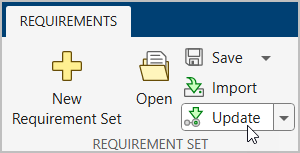
To update the imported requirements to a specific version of the requirement set, select Update > Update to a Baseline.
Note
You can update requirements imported from Jama Connect to a baseline only if you previously imported them from a baseline.

