Observe C Caller Block Exported Global Variables Without Model Modification
R2026bThis example shows how to observe the values of exported global variable used in a C Caller block during simulation, without adding signal lines to the block. These global variables are defined in the external C code integrated by the C Caller block into Simulink®. To observe these variables, the model uses an Observer Port block and an Observer Reference block.
In this example, a C Caller block integrates an external C code that contains a C function representing a bang-bang controller. The C function contains exported global variables that represent controller states. This controller is used in a closed-loop feedback system that controls boiler temperature.
Open the model. The model has two components:
Boiler Plant— Subsystem that simulates temperature changes of the boiler.Controller— C Caller block that calls the C functionBangBangController, which represents a bang-bang controller algorithm.
mdl = 'CCallerObserver.slx';
open_system (mdl);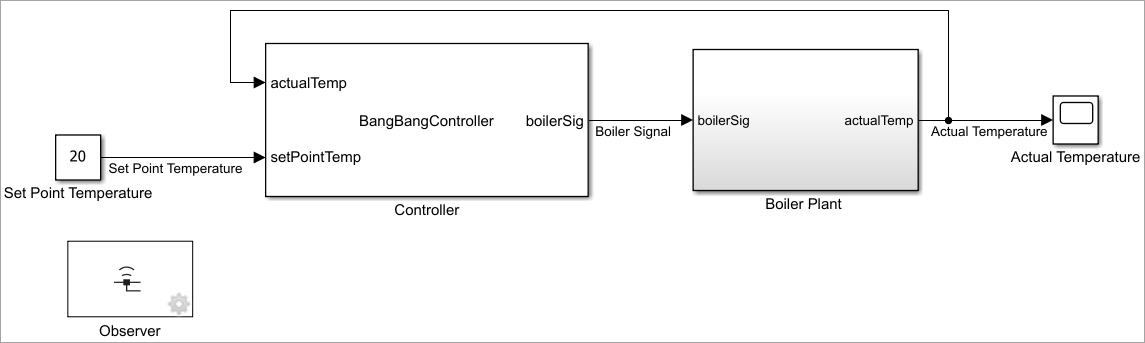
Boiler Plant Subsystem
The subsystem named Boiler represents a mathematical model of a boiler. This subsystem receives a Boolean signal from the Controller that turns the boiler on and off. The actualTemp output of this subsystem represents the actual boiler temperature, which is compared to the set point temperature (20 deg C).
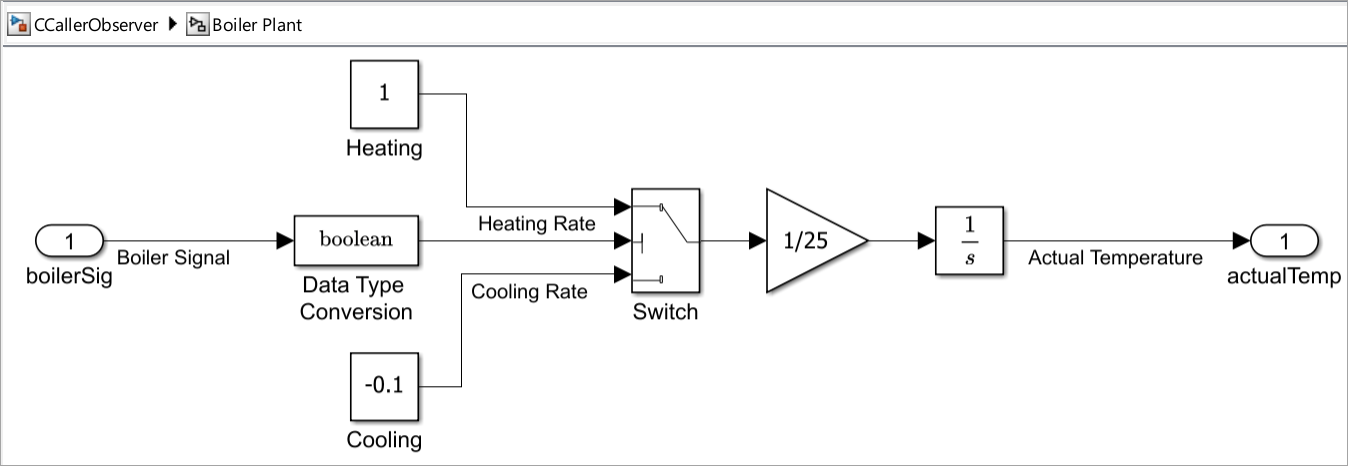
Controller C Caller Block
In this example, the Controller is a C Caller block that calls a C function, BangBangController, which is defined in Controller.c. The bang-bang controller turns the boiler on and off based on the set point and actual temperature. The controller states which are defined by these exported global variables.
setPointTemp— Set point temperature of the boiler. The set point temperature is provided by connecting the C Caller block to the Constant block namedSet Point Temperature.actualTemp— This indicates output temperature of theBoiler Plantsubsystem which changes at every time step of simulation until it reaches the set point temperature. This value is fed back to the C Caller bock.boilerSig— Status of the boiler signal. This value can be set to either1(on) or0(off).currentState— Current state of the controller. This can be set toOFF,ON_HIGH, orON_NORM.previousState— Previous state of the controller. This can be set toOFF,ON_HIGH,ON_NORM, orNone.temporalCounter— Counter that increases by a count of 6 s at every time step of simulation and controls how long the controller is active.
Control Logic
The controller starts in the OFF state. The OFF state remains active for 40 s. At 40 s, the controller checks the boiler temperature. If the temperature indicates cold conditions, the controller turns the boiler on by setting the value of the signal named boilerSig to 1. The cold condition occurs when the actual temperature indicated by actualTemp is less than the set point temperature indicated by setPointTemp.
The boiler remains on for the next 20 s. After 20 s, the boiler turns off, and sets the time counter to 0. This 60 s cycle repeats during the simulation.
Configure Model to Access Global Variables Using Simulink Observers
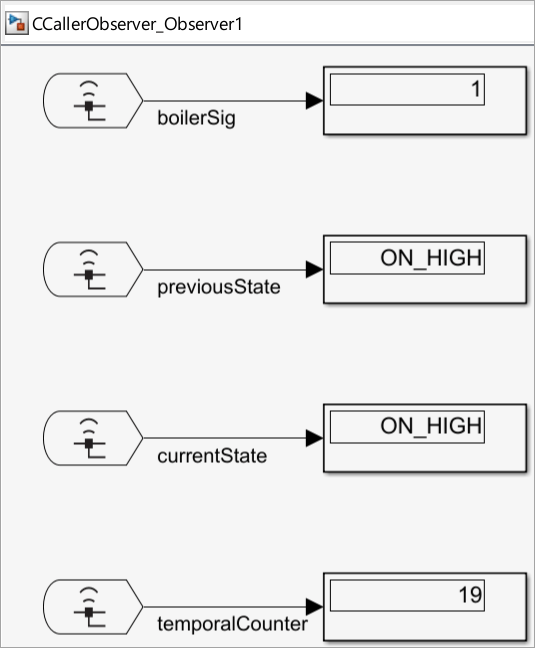
Follow these steps to configure the CCallerObserver model to access and observe the value of global variables from the C code using Observer blocks. In this example, values of the variables boilerSig, currentState, previousState, and temporalCounter are observed.
Start by opening the Tests tab. To do this, on the Apps tab, search for Simulink Test. Alternatively, right-click the model canvas. From the context menu, expand the Select Apps option and click Simulink Test.
Add an Observer block to the model. To do so, navigate to the Observers section in the Tests tab, and select Add Observer Reference > Add Observer Reference block. In this example, an Observer block is already added to the model. You can add another observer block and follow the next steps. This action adds an Observer block named
Observer#nto the model and creates an observer model with a name in the formatmodelName_Observer#n+1, wheremodelNamerefers to the name of your model in which the Observer block is added, and#nis a positive integer indicating its corresponding Observer block.From the observer model, open the Observer block dialog box by clicking Manage Observer in the Observers section of the Tests tab. Alternatively, right-click the model canvas, and from the context menu, select Manage This Observer Reference. To use the Manage Observer or Manage This Observer Reference options for an existing observer model, you must open the observer model by clicking the Observer Reference block in then main model.
View the global variables associated with the block by expanding the Controller variable in the Observable Area pane on the left of the Observer block dialog box. Select a variable and click the
 button. This adds the variable in the Observer pane. Each variable adds one Observer port block to the observer model.
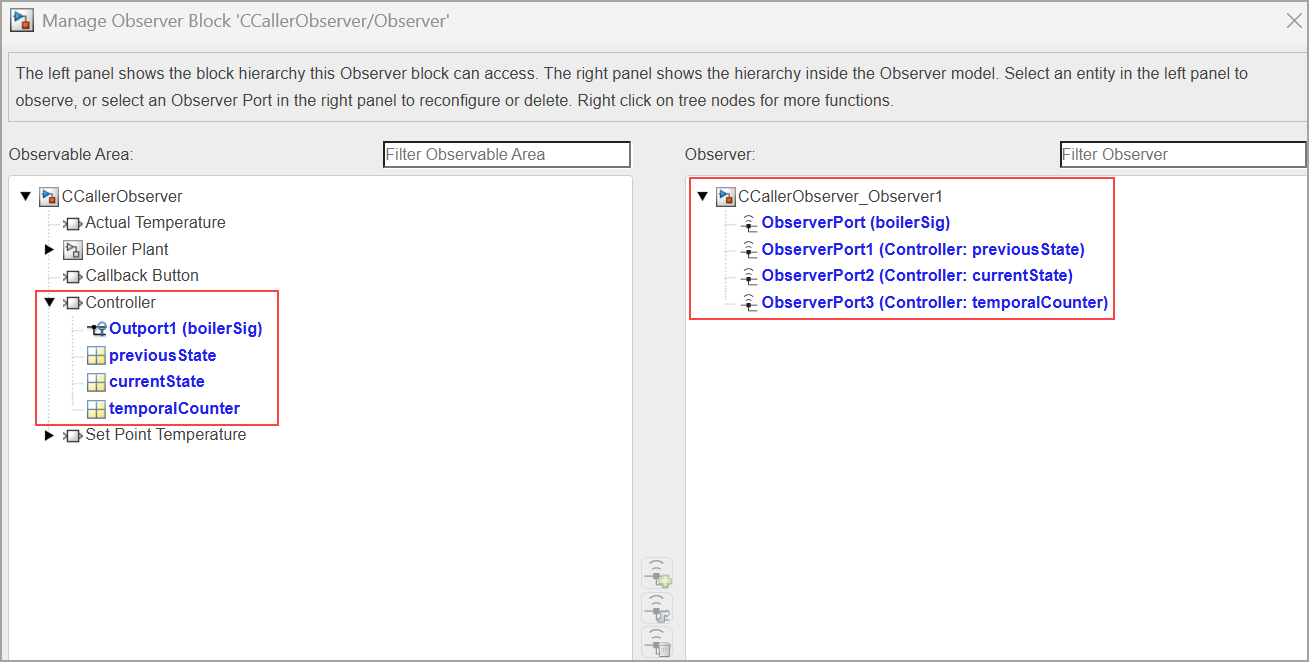
5. In the observer model, add a Display block to each Observer Port block. Use the Display blocks to visualize the global variable values at different time steps of simulation. You can use the attached CCallerObserver_Observer1 model as a reference and compare it with your observer model to ensure that the observer model is configured correctly.
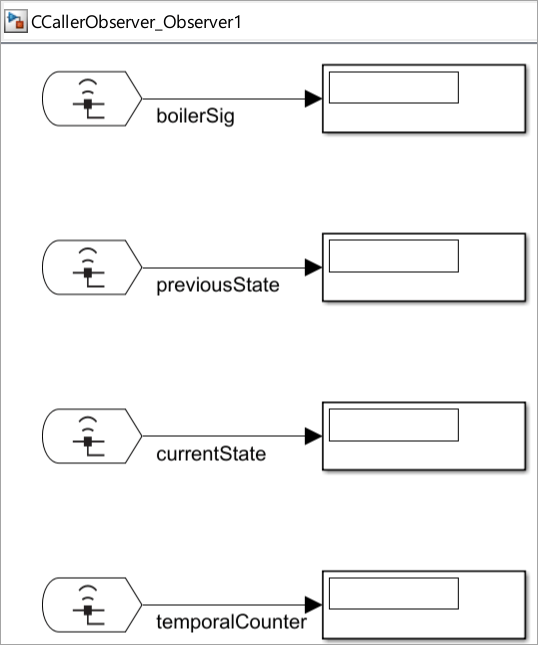
6. To observe the global variables during simulation, do a stepwise simulation. In the CCallerObserver model, on the Simulation tab, in the Simulate section, click the Step Forward button. In this example, the variable values are observed during a heating cycle of the boiler.
7. To save the observer model for further use, on the Simulation tab, click Save.
See Also
C Caller | Observer Port (Simulink Test) | Observer Reference (Simulink Test)

