Share Data Within a Single App Designer App
R2026bWhen you create an app, you can share data between the different components of the app. Using properties is the recommended way to share data across app components because properties are accessible to all functions and callbacks in an app. For example, you can store a value in a property and then update the value using different app components.
If you define an app property, you can access the property value anywhere in your app code using this syntax:
app.Property
Similarly, you can access built-in properties of app UI components using this syntax:
app.Component.Property
For information on sharing data between multiple apps instead, see Share Data Between Multiple App Designer Apps.
Define an App Property
You can choose to define app properties as either private or public depending on how accessible you want the data to be. Use private properties to store data to be shared within the app only. Use public properties to store data to be shared inside and outside of the app (for example, with a script, function, or other app that needs access to the data).
Code View provides a couple ways to create a property:
On the Editor tab, expand the drop-down list from the bottom half of the Property button. Select Private Property or Public Property.

In the Code Browser, click the Properties tab, expand the drop-down list using the
 button, and select
Private Property or Public
Property.
button, and select
Private Property or Public
Property.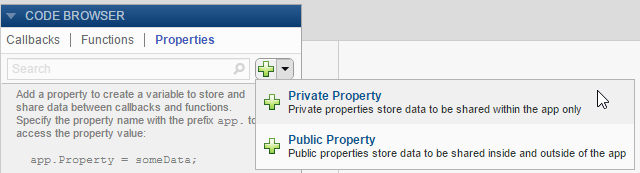
After you select an option to create an app property, App Designer adds a property
definition and a comment to a properties block in the app
code.
properties (Access = private)
    Property % Description
end
The properties block is editable, so you can change the name of
the property and edit the comment to describe the property. For example, this
private property stores a value for average
cost.
properties (Access = private)
    X % Average cost
end
To set a property value when the app starts, you can specify a default value in
the properties block or in the startupFcn
callback. For example, this property has a value of 5 when the app
starts.
properties (Access = private)
    X = 5 % Average cost
end
To restrict the types of values that a property can store, associate a data type
with the property in the property definition. For example, this code requires that
values assigned to the X property must be of a type that is
compatible with double. The X property stores
any assigned values as type
double.
properties (Access = private)
    X double = 5 % Average cost
end
Access a Property
Once you define an app property, you can access and set the property value
anywhere in your app code by using the syntax
app.PropertyName. For example, get
the current value of the X property and then set its value to
10.
y = app.X  % Get the value of X
app.X = 5; % Set the value of X
Public properties can also be accessed outside the app using the same syntax.
App components also have built-in properties. For example, if your app includes a
button component named Button1, you can access the Button object using
app.Button1, and you can access the built-in
Text property of the button using
app.Button1.Text.
Example: Share Plot Data and a Drop-Down List Selection
You can share data within an app by setting the value of an app property using one component and accessing that property from another component. In this example app, a user can set the sample size of plotted data by using an edit field component and then click a button component to plot data using the new sample size.
The right side of the app displays a plot. The left side of the app shows three components: a Sample Size edit field, a Colormap drop-down list, and an Update Plot button.
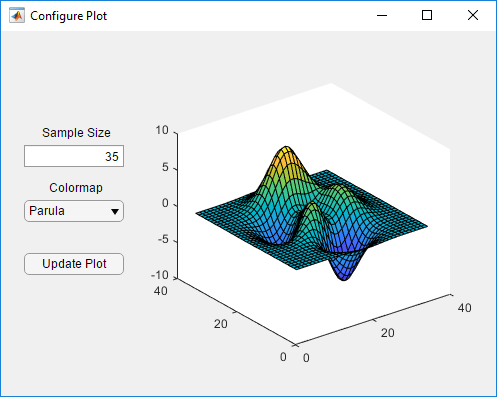
To make data accessible to all components, store the data in an app property. In this example, the app stores plot data in a private property named Z.
classdef ConfigurePlotAppExample < matlab.apps.AppBase
    % ...
    properties (Access = private)
        Z = peaks(35); % Surface data to plot
    end
    % ...
end
You can access the value of an app property from any component or function within the app. In this example, the plotsurface function within the app accesses the value of the Z property when plotting data.
function plotsurface(app)
    % Plot Z
    surf(app.UIAxes,app.Z);
    % Set the colormap
    cmap = app.ColormapDropDown.Value;
    colormap(app.UIAxes,cmap);
end
You can update an app property value in response to an app user interacting with the app. In this example, if an app user changes the sample size, the callback function for the edit field updates the value of Z.
function SampleSizeEditFieldValueChanged(app,event)
    sampleSize = app.SampleSizeEditField.Value;
    % Update the Z property
    app.Z = peaks(sampleSize);
end
If the app user pushes the Update Plot button, its callback function updates the plot with the new value of Z by calling the plotsurface function.
Then, you can update the plot with the new value of Z by calling the plotsurface function from the Update Plot button callback.
function UpdatePlotButtonPushed(app,event)
    plotsurface(app);
end

