Konfigurieren der Authentifizierung für Benutzer einer Campus-Wide License
R2026bKonfigurieren Sie die Authentifizierung, sodass Benutzer auf MathWorks® Produkte und Dienste Ihrer Campus-Wide License zugreifen können. MathWorks bietet zwei Methoden zur Benutzerauthentifizierung: Single-Sign-On (SSO) und E-Mail-Verifikation.
Option 1: Zugriff über SSO (empfohlen)
Mit SSO können Benutzer einer Campus-Wide License mit ihren studentischen Anmeldedaten auf MathWorks Produkte und Dienste zugreifen. SSO bietet die folgenden Vorteile:
Nur ein Passwort, wodurch Benutzer nicht mehrere Passwörter organisieren müssen
Vereinfachter Benutzerzugriff durch weniger Anmeldeanfragen
Schnellere Arbeitsprozesse durch unmittelbaren Zugriff auf Anwendungen und Dienste
Verbesserte Sicherheit dank einem einzigen Authentifizierungspunkt, was die Wiederverwendung von Passwörtern reduziert
Zentralisierte IT-Verwaltung durch zentrale Kontrolle von Benutzerkonten und rollenbasierter Zugriffsbereitstellung
Universitäten können SSO direkt (keine Federation-Mitgliedschaft erforderlich) oder über ihre Mitgliedschaft in der InCommon- oder eduGAIN-Federation implementieren.
Benutzer mit nicht studentischen E-Mail-Adressen außerhalb der mit der Campus-Wide License verknüpften Domänen können SSO nicht verwenden. Diese Benutzer müssen zur Anmeldung die E-Mail-Adresse und das Passwort ihres MathWorks Accounts eingeben. Siehe Option 2: Zugriff über E-Mail-Verifikation.
Anforderungen für SSO
SSO erfordert die Verwendung eines Identitätsanbieters (IdP).
Um das SSO von InCommon oder eduGAIN zu verwenden, muss Ihre Universität ein IdP-Teilnehmer einer Federation sein, die mit InCommon oder eduGAIN verbunden ist.
Um direktes SSO zu verwenden, muss Ihre Universität einen IdP mit SAML 2.0-Unterstützung verwenden.
Beide SSO-Methoden verwenden SAML 2.0 für den Austausch von Metadaten zwischen MathWorks als Dienstanbieter und dem IdP Ihrer Universität.
SSO-Konfigurationsprozess
Unter Umständen wurde SSO bereits beim Onboarding Ihrer Universität konfiguriert. Melden Sie sich bei Ihrem MathWorks Account an, um herauszufinden, ob SSO aktiviert ist. Wenn Sie zum Anmeldebildschirm Ihrer Universität weitergeleitet werden, ist SSO bereits aktiviert. Ist SSO nicht aktiviert, wenden Sie sich an den Support, um Unterstützung beim Konfigurationsprozess zu erhalten.
Der Konfigurationsprozess läuft folgendermaßen ab:
(nur direktes SSO) Tauschen Sie Metadaten-Dateien mit MathWorks aus. Dieser Schritt ist für InCommon- oder eduGAIN-SSO nicht erforderlich, da die Metadaten Ihrer Universität bereits bei der Federation registriert sind.
Integrieren Sie die von MathWorks gesendete Metadaten-Datei in Ihren IdP.
Senden Sie die Metadaten-Datei für Ihren IdP an MathWorks. Wenn Sie die Datei nicht senden können, senden Sie stattdessen die folgenden Informationen:
Entitäts-ID des IdP
Öffentliches Zertifikat des IdP
IdP-Bindingmethode (
HTTP-POSToderHTTP-Redirect)Anmeldungs-URL des IdP
Konfigurieren Sie Ihren IdP darauf, erforderliche Attribute an MathWorks zu übertragen. Sie können das
eduPerson-Schema oder eine ähnliche Alternative befolgen. Um Auswirkungen auf die Benutzeranmeldung zu vermeiden, beschränken oder filtern Sie keine erforderlichen Attribute. Diese Tabelle umfasst die Attribute, die an MathWorks übertragen werden müssen.Attribut Beschreibung Beispiel-Attributnamen Unique ID Eindeutiger Benutzeridentifikator
MathWorks verwendet dieses Attribut, um bei der Anmeldung die Identität des Benutzers zu validieren.
NameIdeduPersonPrincipalName(ePPN)eduPersonTargetedId(ePTID)Affiliation Benutzerzugehörigkeit
Dieses Attribut legt fest, welche Benutzer auf Produkte zugreifen können.
Benutzern mit der Affiliation
Faculty,Staff,Student,EmployeeoderMemberwird Zugriff gewährt.Benutzern mit einer anderen Affiliation, wie beispielsweise
Alumni, wird der Zugriff verwehrt.
AffiliationeduPersonScopedAffiliationEmail Address E-Mail-Adresse des Benutzers
MathWorks verwendet dieses Attribut, um Benutzer mit einem bestehenden MathWorks Account mit der Campus-Wide License zu verknüpfen.
mailemailFirst Name Vorname des Benutzers
In dem Formular, das neue Benutzer beim Erstellen eines MathWorks Accounts ausfüllen, wird das Feld First Name mit dem Wert dieses Attributs ausgefüllt. Wenn Sie dieses Attribut nicht freigeben, müssen neue Benutzer dieses Feld manuell ausfüllen.
firstNamegivenNameLast Name Nachname des Benutzers
In dem Formular, das neue Benutzer beim Erstellen eines MathWorks Accounts ausfüllen, wird das Feld Last Name mit dem Wert dieses Attributs ausgefüllt. Wenn Sie dieses Attribut nicht freigeben, müssen neue Benutzer dieses Feld manuell ausfüllen.
lastNamesnsurnamefamilyNameSenden Sie MathWorks die mit Ihrer Organisation verbundenen E-Mail-Domänen, die die Campus-Wide License verwenden dürfen.
MathWorks aktiviert SSO automatisch für die folgenden E-Mail-Domänen:
E-Mail-Domänen aller Lizenz-Administratoren
Unterdomänen erlaubter E-Mail-Domänen
Nehmen wir beispielsweise an, dass alle Lizenz-Administratoren der Campus-Wide License Teil der E-Mail-Domäne
@university.comsind. Alle Benutzer mit der E-Mail-Domäne@university.comoder@student.university.comkönnen SSO verwenden und sich mit der Lizenz verknüpfen.Um der Campus-Wide License weitere E-Mail-Domänen hinzuzufügen, wenden Sie sich an den Support.
Führen Sie einen SSO-Test mit MathWorks aus, um sicherzustellen, dass SSO korrekt eingerichtet ist.
SSO für neue Benutzer
Nach der Konfiguration von SSO können neue Benutzer auf MathWorks Produkte und Dienste zugreifen.
Der Benutzer startet MATLAB® oder greift auf ein anderes MathWorks Produkt oder einen Dienst zu, der eine Anmeldung erfordert. Er wird aufgefordert, einen MathWorks Account mit seiner studentischen E-Mail-Adresse anzulegen.
MathWorks erkennt die E-Mail-Domäne und leitet den Benutzer auf die Anmeldeseite Ihrer Universität weiter. Der Benutzer meldet sich mit seinen studentischen Anmeldedaten an.
Der Benutzer schließt die Erstellung des MathWorks Accounts ab, indem er die zur SSO-Aktivierung benötigten Informationen eingibt.
Der Benutzer kann nun auf MathWorks Produkte und Dienste zugreifen, einschließlich MATLAB und Online Training Suite.
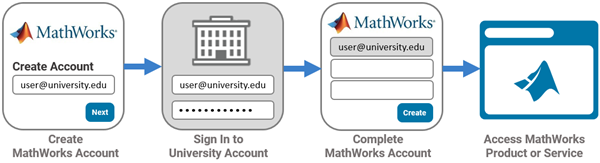
Alternativ können Benutzer das Universitätsportal für die Campus-Wide License aufrufen und auf Sign in to get started klicken. Benutzer müssen sich hierbei ebenfalls mit ihren studentischen Anmeldedaten anmelden und einen MathWorks Account erstellen, die Eingabe ihrer studentischen E-Mail-Adresse ist jedoch nicht erforderlich.
SSO für bestehende Benutzer
Benutzer, die die obenstehende Schritte bereits abgeschlossen haben oder über einen bestehenden MathWorks Account verfügen, der mit ihrer studentischen E-Mail-Adresse verknüpft ist, können sich direkt mit ihren SSO-Anmeldedaten anmelden.
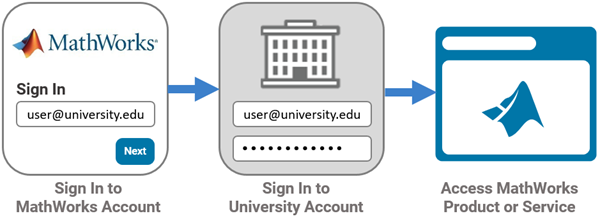
Der Benutzer greift auf MathWorks Produkte oder Dienste zu, die eine Anmeldung benötigen. Der Benutzer meldet sich mit seiner studentischen E-Mail-Adresse an.
MathWorks erkennt die E-Mail-Domäne und leitet den Benutzer auf die Anmeldeseite Ihrer Universität weiter. Der Benutzer meldet sich mit seinen studentischen Anmeldedaten an.
Der Benutzer kann nun auf MathWorks Produkte oder Dienste zugreifen.
Option 2: Zugriff über E-Mail-Verifikation
Wenn Ihre Universität kein SSO unterstützt, können Sie den Zugriff ermöglichen, indem der Benutzer einen MathWorks Account erstellt, wofür der Benutzer seine E-Mail-Adresse verifizieren muss. Wenn diese E-Mail-Adresse mit einer Universitätsdomäne im Rahmen der Campus-Wide License übereinstimmt, wird der Benutzer mit der Campus-Wide License verknüpft und kann mit der Nutzung von MATLAB beginnen.
Benutzer könnten regelmäßig gebeten werden, ihre E-Mail-Adresse zu verifizieren, um ihre Berechtigung für die Lizenz zu überprüfen. Für höhere Sicherheit können Benutzer zudem optional eine Zweistufige Verifizierung nutzen.

