Block Processing Large Images
R2026bWhen images are too large to fit in memory, such as satellite imagery or whole-slide pathology images, standard processing workflows fail. Block processing lets you divide these images into manageable pieces, process each piece independently, and write results directly to disk without loading the full image. For an overview of strategies for working with blocked images, see Block Processing: An Overview.
The blockedImage object represents an image as a collection of discrete blocks. You can then use the apply function to process each block independently. The result is a new blockedImage object that you can process further or write to a file on disk.
This example shows how to process a large image in blocks using a blockedImage object. The example creates a binary mask that retains only circles connected to other circles, and discards isolated circles.
Process the Image in Full
The following full-image workflow serves as a reference so you can compare results with the block-based approach. This example uses a small image coloredChips.png so you can compare block-processed results against a full-image reference. In practice, this same workflow scales to images of hundreds of gigabytes that cannot be loaded into memory.
filename = "coloredChips.png";
im = imread(filename);
imageshow(im)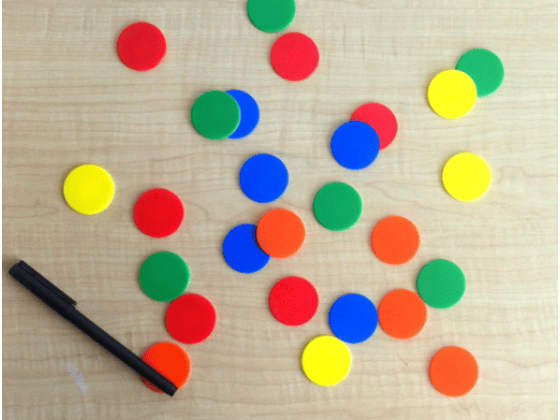
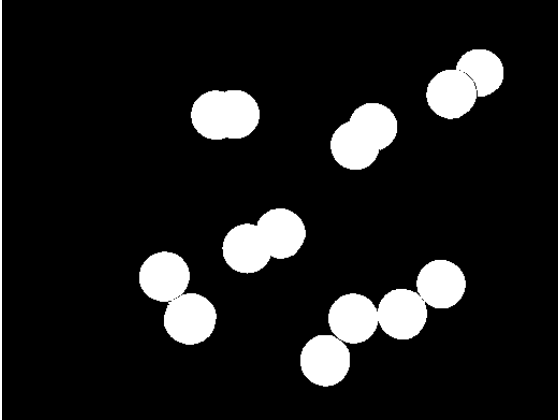
To create a mask that retains circle clusters, follow three steps:
Convert the image to HSV color space and extract the saturation channel. The saturation channel provides a color-versus-gray separation that captures all the colored circles regardless of hue, unlike thresholding a single RGB channel or converting to grayscale, which misses low-contrast colors like yellow.
Binarize the saturation channel using
imbinarizewith a threshold of 0.5 to separate colorful pixels from the neutral background.Remove connected components smaller than 2300 pixels using
bwareaopen. This threshold is slightly larger than the area of a single circle, sobwareaopenremoves isolated circles and retains clusters of overlapping circles.
Finally, display the image using imageshow.
imhsv = rgb2hsv(im);
imsat = imhsv(:,:,2);
imbin = imbinarize(imsat,0.5);
immask = bwareaopen(imbin,2300);
imageshow(immask);
Create a blockedImage Object with a Specified Block Size
Now try the same task using block processing. You do not have to read the file completely into memory using imread. Instead, create a blockedImage object using the file name as input. blockedImage reads in one block at a time, making this workflow ideal for very large images. The blockedImage object has built-in support for common image formats.
Use the following workflow: create a blockedImage object, define a function that processes a single block, and then use apply to process the image block-by-block, and write the results to disk.
This example uses a block size of [100 100] to illustrate boundary artifacts. In practice, larger block sizes often improve performance because they reduce the overhead associated with loading and processing individual blocks. This is especially true for file-to-file workflows where accessing the disk incurs a significant performance cost. Appropriate block sizes depend on available system resources and the processing workflow.
blocksize = [100 100];
bim = blockedImage(filename,BlockSize=blocksize);
Define the Block Processing Function
Define a function that processes a single block. The function converts the block to HSV, binarizes the saturation channel with the same threshold as the full-image workflow, and removes connected components smaller than 2300 pixels,a threshold slightly larger than the area of a single circle.
function blockmask = maskCluster(bs)
blockhsv = rgb2hsv(bs.Data);
blocksat = blockhsv(:,:,2);
blockbin = imbinarize(blocksat,0.5);
blockmask = bwareaopen(blockbin,2300);
end
Process and Display the Image
Process the image in blocks using the apply function. To display blocked images, use imageshow.
bimmask = apply(bim,@maskCluster);
imageshow(bimmask)
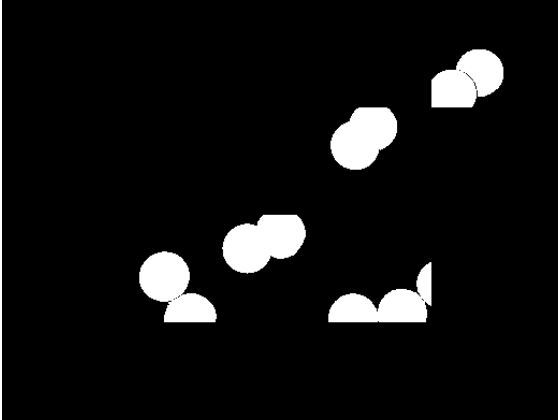
The result contains noticeable artifacts at block boundaries. When you process blocks independently, pixels at block boundaries do not have information about neighboring pixels in adjacent blocks. Circles that span multiple blocks appear smaller to each individual block, and bwareaopen incorrectly removes them.
Process in Blocks with a Border
To fix this, use the apply name-value argument BorderSize to include overlapping pixels from adjacent blocks. The appropriate border size depends on the operation. In this example, set the border size to at least the radius of the largest object that might be split between blocks. The circles in this image have a radius of approximately 30 pixels, so a border of [50 50] is large enough to fully capture any circle whose center is inside the block.
bordersize = [50 50];
bimborder = apply(bim,@maskCluster,BorderSize=bordersize);
imageshow(bimborder)
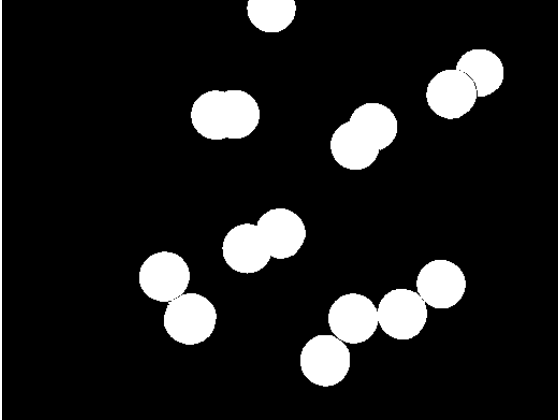
The result improves, but the block-processed output incorrectly retains an isolated circle at the image boundary. By default, apply pads out-of-bounds border regions by reflecting image values, which makes the boundary circle appear connected to its own reflection.
Process with Border and Zero Padding
Set the PadMethod name-value argument to 0 to pad with zeros instead.
bimpadding = apply(bim,@maskCluster,BorderSize=bordersize,PadMethod=0);
imageshow(bimpadding);
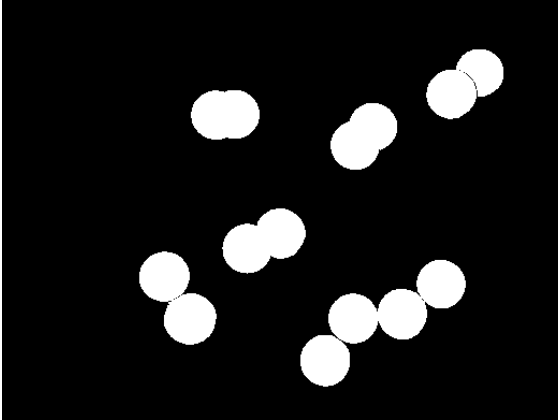
The result now closely matches the original in-memory result.
Write to a File on Disk
Use the write function to save the result to disk. The write function supports multiple output formats, including TIFF, JPEG 2000, HDF5, and folders of individual block files. When the destination is a folder, write stores each block as a separate binary file that you can read back as a blockedImage.
write(bimpadding,"clustermask")Alternatively, you can specify the output location at the time of processing by using the OutputLocation name-value argument of the apply function. This approach writes each block directly to the specified directory during processing, which is useful for long-running operations or parallel processing.
See Also
blockedImage | applyimageshow

