Generate C/C++ Tests from Requirements
R2026bIf you have a requirements set created in the Requirements Editor and you link functions in your C/C++ source code to the requirements, you can generate tests for those functions. You can generate either a starter test and fill in the inputs and assessments manually, or you can generate a functional test using Polyspace® Copilot based on the requirement text.
This topic outlines the steps for generating C/C++ tests from requirements in the Requirements Editor and verifying requirements by running the generated tests.
Example Files
To follow the steps in this tutorial, load a demo project in the Polyspace Platform user interface:
On the Start Page pane in the Polyspace Platform user interface, in the Examples section, click the link Create and run functional tests.
This action loads the example project,
Demo_C_PS_Test.psprjx, on the Projects pane.On the toolstrip, select Parse Code.
In this tutorial, you generate a test for the function checkAgainstSpeedLimit(uint32_t, uint32_t) from a requirement.
Link C/C++ Function in Source to Requirement
Link the function checkAgainstSpeedLimit(uint32_t, uint32_t) to a requirement in the Requirements Editor. To create this link:
On the Polyspace Platform toolstrip, select Requirements Editor to open the Requirements Editor interface.
Double-click
checkAgainstSpeedLimitin the project to open the function definition. Select the function name in the function definition.Right-click a requirement in the requirements set in the Requirements Editor interface and select Link from selected Polyspace Test element.
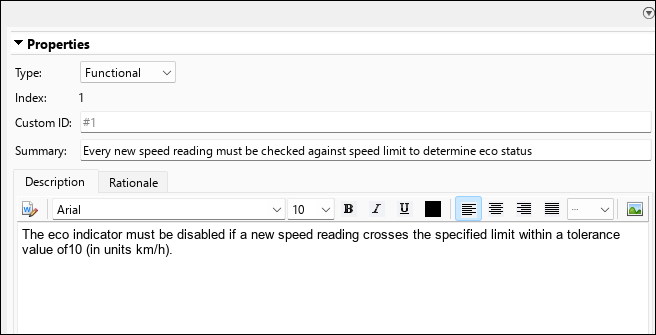
After you create the link, the Implemented column becomes green for the linked requirement, indicating that the requirement has a source implementation link.

When you select the requirement, the Links section on the Properties pane shows that the requirement is implemented by the function.
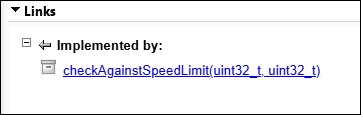
For more information on linking sources and tests to requirements, see Link C/C++ Sources and Tests to Requirements in Requirements Toolbox (Polyspace Test).
Generate Starter Test from Requirement
After linking the function to a requirement, you can generate a starter test directly from the requirement:
In the Requirements Editor, select the linked requirement.
Select Add Test > Generate a starter test for the selected requirement.
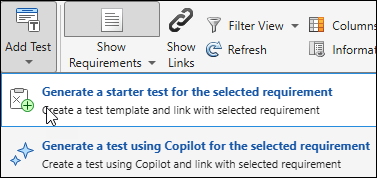
This action creates a starter test. The Verified column, which was previously empty, is now orange.

The Links section shows a Verified by entry followed by the test name.
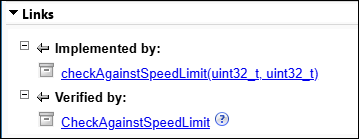
In the Polyspace Platform user interface, you see the newly added test with a default name
Testin the default suitepst_default_suite.Rename the test, and add input and assessment values as usual. Generating a starter test from the Requirements Editor interface has the same result as right-clicking a function in the Polyspace Platform user interface and selecting Add Test Case.
For more information on naming tests and adding inputs and assessments, see Write C/C++ Unit Tests in Polyspace Platform User Interface (Polyspace Test).
Generate Copilot Test from Requirement
Before generating a test using Polyspace Copilot, ensure that you have test generation using Polyspace Copilot set up and working in the Polyspace Platform user interface. For setup steps, see Generate Functional Tests Using Polyspace Copilot (Polyspace Test).
To generate a test using Polyspace Copilot from a requirement:
In the Requirements Editor, select the linked requirement.
Select Add Test > Generate a test using Copilot for the selected requirement.
A message appears stating
Test generation started in Polyspace Copilot Chat.Follow the progress of test generation in the Polyspace Copilot Chat window in the Polyspace Platform user interface.
Once the test generation completes, you see a test in the default suite
pst_default_suitethat is ready to run. The Verified column, which was previously empty, is now orange.The Links section shows a Verified by entry followed by the test name.
Review the generated tests before use, and ensure that the tests exercise the functional behavior that you want to qualify.
Polyspace Copilot attempts to generate a test that verifies the requirement without any additional input from you. However, the generated tests might contain errors or incorrect code and might not correctly exercise the source code that implements the requirement.
To run the test from the requirement, right-click the requirement and select Run Tests.
After a successful run, the Verified column is green. For information on running tests from requirements, see Link C/C++ Sources and Tests to Requirements in Requirements Toolbox (Polyspace Test).
See Also
Apps
Topics
- Link C/C++ Sources and Tests to Requirements in Requirements Toolbox (Polyspace Test)
- Generate Functional Tests Using Polyspace Copilot (Polyspace Test)

