Visual Studio Code: Install Polyspace as You Code Extension
R2026bThe Polyspace® as You Code™ extension in the Visual Studio Code IDE allows you to run Polyspace on the file that you are currently viewing and see analysis results such as bugs and coding standard violations. You must install the Polyspace as You Code analysis engine to run the analysis. The extension allows you to use this analysis engine from Visual Studio Code and show results produced by the Polyspace analysis.
You can install the extension in one of two ways:
You only install the analysis engine with the MathWorks® installer. Install the extension by using the Visual Studio Code extension installer (VSIX) file at a later time. The VSIX file is available only after you run the installer.
Install the extension from the Visual Studio Code Marketplace. You can update your extension from within Visual Studio Code as long as your Polyspace license is for R2024b or more recent. Installing the extension from the marketplace does not install the analysis engine, which you need to install separately using the Polyspace installer.
Note
The Polyspace as You Code extension is disabled when you open a folder in Restricted Mode. To enable the extension, mark the folder as trusted. See Workspace Trust.
Interactive Installation
To install the extension interactively:
In the Visual Studio Code IDE, select View > Extensions.
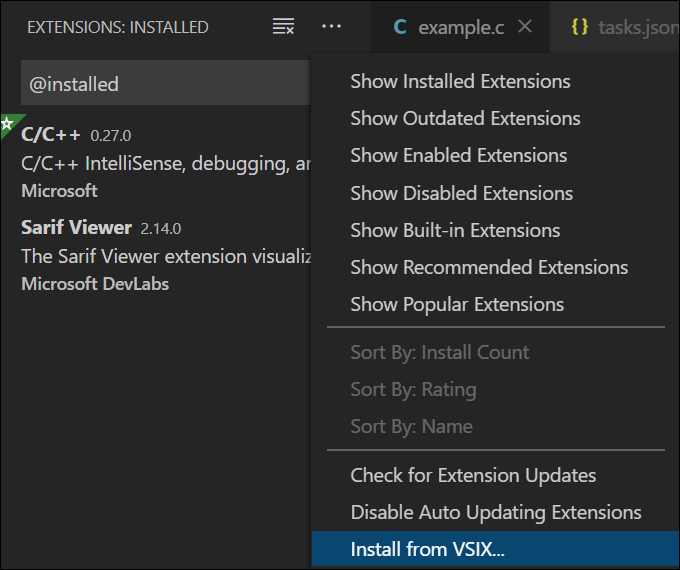
On the Extensions pane, click the three dots on the upper right and select Install from VSIX.
Navigate to the
VSIXfile in the folderpolyspaceroot\polyspace\plugin\visual_studio_codeHere,
polyspacerootC:\Program Files\Polyspace\R2026b.
After installation, you can see the extension in the Extensions pane.
To uninstall the extension, on the Extensions pane, click the
Manage button  for the Polyspace
as You Code extension and select Uninstall.
for the Polyspace
as You Code extension and select Uninstall.
The Polyspace as You Code extension is also available on the Visual Studio Code Marketplace. If you download the extension from the Marketplace, you still need to run the MathWorks installer to install the Polyspace analysis engine before you can start using the extension.
Command-Line Installation
You can also install the extension using the VSIX file at the command line. To install the extension, in a command window, enter:
code --install-extension polyspaceroot\polyspace\plugin\visual_studio_code\polyspace_as_you_code.vsix
code --uninstall-extension polyspaceroot\polyspace\plugin\visual_studio_code\polyspace_as_you_code.vsix
Confirm Installation of Extension
To confirm that the Polyspace as You Code extension is installed in Visual Studio Code, check the Installed section in the Extensions view.
To open this view, in Visual Studio Code, select View > Extensions or click the Extensions button  in the activity bar on the left and look for
Polyspace
as You Code in the list of installed extensions.
in the activity bar on the left and look for
Polyspace
as You Code in the list of installed extensions.

