Hauptinhalt

Total Power Factor

R2026b

Measure total power factor from voltage and current signals

Since R2026b

Libraries:
Power Converter Control with Motor Control Blockset / Measurement

Description

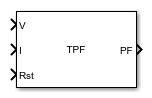
The Total Power Factor block measures the total power factor from voltage and current input signals. Use this block to evaluate the ratio of real power to apparent power in systems where harmonic distortion is present.

TPF = P/S, where:

  • Active power (P) — Real power consumed by the circuit.

    P=∑k=1∞VkIkcos(ϕk)

  • Apparent power (S) — The apparent power of a sinusoidal AC circuit is calculated as the product of its RMS values for voltage and current.

    S=∑k=1∞Vk2∑k=1∞Ik2

Ports

Input

expand all

Voltage input signal, specified as a scalar. Connect the voltage waveform of the system whose power factor you want to measure.

Data Types: single | double

Current input signal, specified as a scalar. Connect the current waveform of the system whose power factor you want to measure.

Data Types: single | double

Fundamental frequency of the input signals in Hz, specified as a positive scalar.

Dependencies

To enable this port, set Fundamental input frequency type to Input port.

Data Types: single | double

Reset trigger signal, specified as a scalar. A rising edge on this port resets the internal measurement window.

Data Types: single | double | Boolean

Output

expand all

Total power factor measurement, returned as a scalar. The value ranges from 0 to 1, where 1 indicates purely resistive load with no harmonic distortion.

Data Types: single | double

Parameters

expand all

To edit block parameters interactively, use the Property Inspector. From the Simulink® Toolstrip, on the Simulation tab, in the Prepare gallery, select Property Inspector.

Simulation discrete sample time, specified in seconds. This value determines how often the block executes and updates the measurement output. Set this to match the fixed-step solver step size of your model. A smaller value increases measurement resolution but adds computational cost.

Programmatic Use

To set the block parameter value programmatically, use the set_param function.

Parameter: BlkSampleTime
Values: "50e-6" (default) | positive scalar in quotes
Data Types: char | string

Example: set_param(gcb,"BlkSampleTime","100e-6")

Select the source of the fundamental frequency value. If you select Specify via dialog, you specify the frequency using the Fundamental frequency value (Hz), f₁ parameter. If you select Input port, the block accepts the fundamental frequency from the f1 input port.

Programmatic Use

To set the block parameter value programmatically, use the set_param function.

Parameter: InputFrequencyType
Values: "Specify via dialog" (default) | "Input port"

Example: set_param(gcb,"InputFrequencyType","Input port")

Fundamental frequency of the input signals in Hz, specified as a positive scalar. The block uses this frequency to define the measurement window for computing the ratio of active power to apparent power. For a 50 Hz grid, set this to 50; for a 60 Hz grid, set this to 60.

Dependencies

This parameter is visible when Fundamental input frequency type is set to Specify via dialog.

Programmatic Use

To set the block parameter value programmatically, use the set_param function.

Parameter: FundamentalFrequency
Values: "50" (default) | positive scalar in quotes
Data Types: char | string

Example: set_param(gcb,"FundamentalFrequency","60")

Minimum expected frequency in Hz, specified as a positive scalar. The block uses this value to allocate the internal buffer that stores samples for one measurement window. A lower frequency requires more buffer memory because the measurement window spans more samples. Set this to the lowest frequency your application needs to measure accurately.

Dependencies

This parameter is visible when Fundamental input frequency type is set to Input port.

Programmatic Use

To set the block parameter value programmatically, use the set_param function.

Parameter: MinimumFrequency
Values: "50" (default) | positive scalar in quotes
Data Types: char | string

Example: set_param(gcb,"MinimumFrequency","45")

Extended Capabilities

expand all

C/C++ Code Generation
Generate C and C++ code using Simulink® Coder™.

Version History

Introduced in R2026b