View Video or Image Sequences Using Custom Viewer
R2026bThis example shows how to use VideoViewer, a custom video playback tool, to interactively view video files and image sequences with timeline controls and playback buttons. VideoViewer is a UI component built using the App Designer. You can also embed the component in a UI figure, process frames by assigning a callback, and dynamically display the processed data.
Create a VideoViewer UI component and assign it to a variable to configure its properties.
comp = VideoViewer
comp =
  VideoViewer with properties:

           FileName: ""
      ImageSequence: []
          FrameRate: 20
              Frame: []
              Index: 1
    FrameChangedFcn: ''
           Position: [1 1 828 652]

  Show all properties
The component consists of a central viewer area that uses a viewer2d and an imageshow object. The component updates only the frame data for efficient playback. Use this component to play, pause, step through, and navigate frames with a timeline slider, playback speed control, and frame-rate control. The component supports video file input and numeric array input for images.
The VideoViewer component has these configurable properties:
FileName— Video file path, specified as a string scalar or character vectorImageSequence— Sequence of image frames, specified as a numeric or logical arrayFrameRate— Playback frame rate for image sequences, in frames per secondFrameChangedFcn— Callback that executes when the displayed frame changes
You can specify these properties as name-value arguments during construction or use dot notation after construction. Frame and Index are read-only properties. The FrameChangedFcn callback uses the Frame and Index properties to access the displayed frame.
Load and Display Image Sequence
Read an image sequence into an array and assign the array to the ImageSequence property.
imageSequence = cat(3,imread("AT3_1m4_01.tif"), ...
    imread("AT3_1m4_02.tif"), ...
    imread("AT3_1m4_03.tif"), ...
    imread("AT3_1m4_04.tif"), ...
    imread("AT3_1m4_05.tif"), ...
    imread("AT3_1m4_06.tif"), ...
    imread("AT3_1m4_07.tif"), ...
    imread("AT3_1m4_08.tif"), ...
    imread("AT3_1m4_09.tif"), ...
    imread("AT3_1m4_10.tif"));
comp.ImageSequence = imageSequence;
Update Frame Rate for Image Sequence
Change the playback timing by setting the FrameRate property. This updates playback pacing for the image sequences. The FrameRate property affects image sequence playback only. Video files always play at their native frame rate.
comp.FrameRate = 1
Load and Display Video
You can also load a video file by specifying the FileName property. The video plays at its native frame rate. The FileName and ImageSequence properties are mutually exclusive. When you set one property, the component clears the other and displays data from the most recently assigned source.
comp.FileName = "atrium.mp4";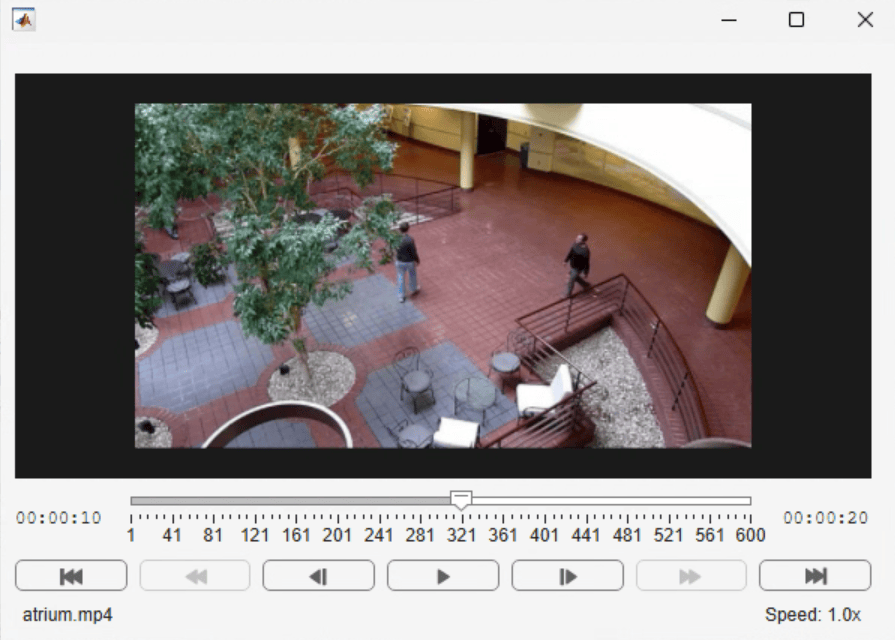
Extract and Display Frame
To read a specific frame, pause playback or navigate to the frame of interest.
currentFrame = comp.Frame;
frameNumber = comp.Index;
vg = viewer2d(Title="Frame number = " + frameNumber);
imageshow(currentFrame,Parent=vg);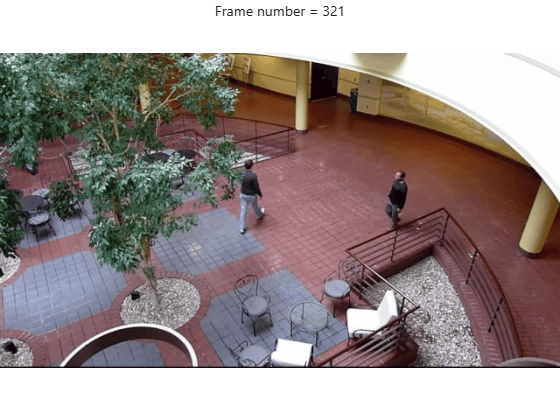
Embed Component in UI Figure for Processing Frames
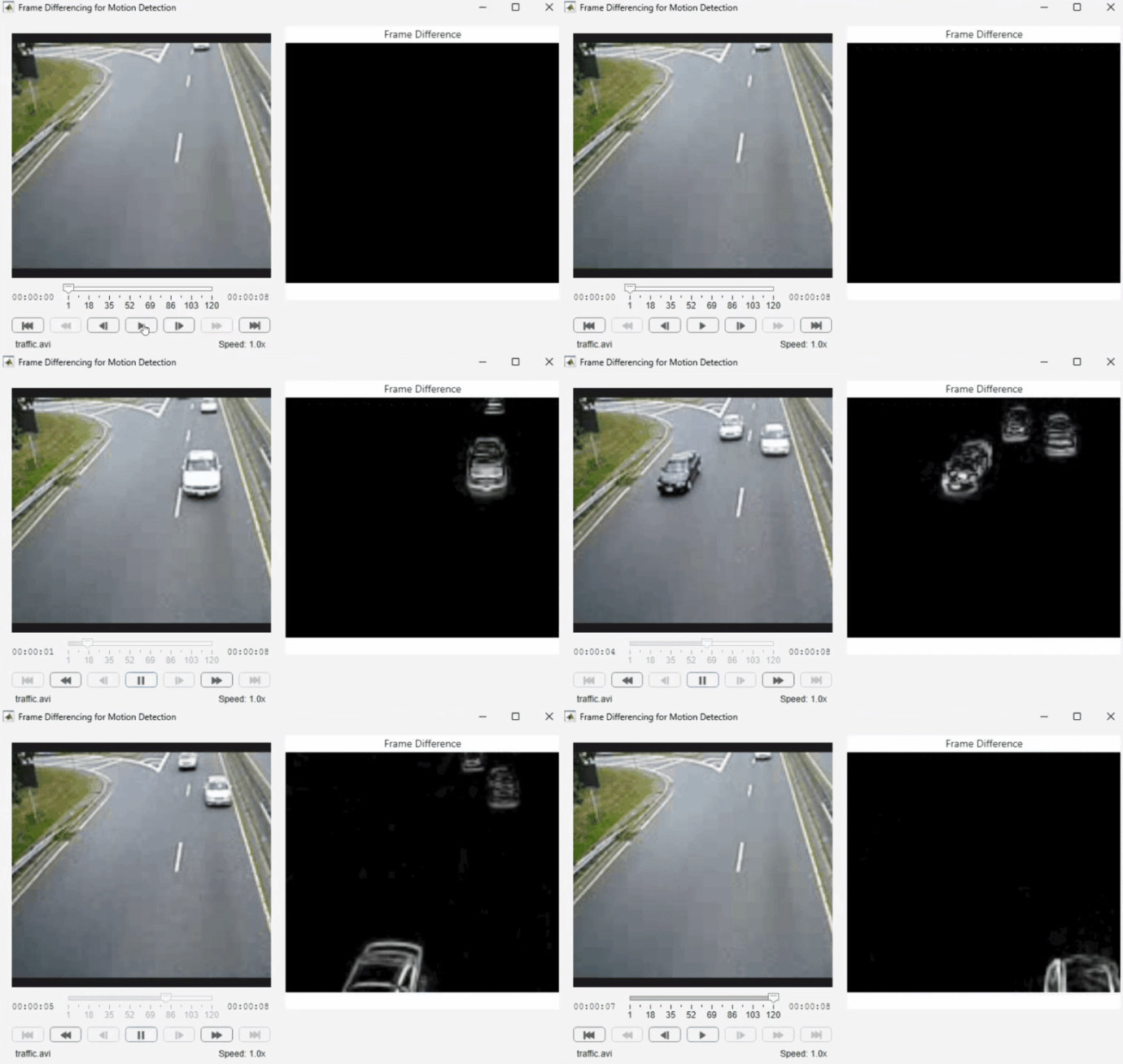
To create a custom visualization workflow, embed the VideoViewer component in a UI figure alongside other views. This example creates a side-by-side layout with the VideoViewer on the left and a viewer to display the frame difference result on the right.
Create a UI figure with a two-column grid layout.
fig = uifigure(Name="Frame Differencing for Motion Detection",Position=[100 100 1200 600]);
gl = uigridlayout(fig,[1 2],RowHeight={'1x'},ColumnWidth={'1x','1x'});
Create a VideoViewer component and load a video file. Embed the component in the UI figure by specifying the grid layout as the parent.
comp = VideoViewer(FileName="traffic.avi",Parent=gl);To use an image sequence, specify the ImageSequence property.
comp = VideoViewer(ImageSequence=imageSequence,Parent=gl);
Create a viewer in the right column for the processed output.
rightGrid = uigridlayout(gl, [1 1], Padding=[0 80 0 0]);
segViewer = viewer2d(Parent=rightGrid,Title="Frame Difference");
Call helperFrameDiff to compute the difference between two consecutive frames. The helper function defines an updateDisplay callback and assigns it to the FrameChangedFcn property. The VideoViewer component invokes this callback whenever the displayed frame changes. The callback computes the local standard deviation of consecutive frames, displays the interframe difference, and reveals the regions of motion.
helperFrameDiff(comp,segViewer)
Customize Component in App Designer
You can modify the VideoViewer UI component by opening it in App Designer. The App Designer provides two views: Design View, which displays the component layout, and Code View, which contains the source code of the component.
Use Design View to adjust the layout, add new UI elements, or rearrange existing controls.
Use Code View to inspect and modify the component implementation code.
The component is stored as a .mlapp file, and you can export the component implementation to a MATLAB code file (.m). Open the VideoViewer UI component in App Designer by running this command in the Command Window:
appdesigner("VideoViewer")

