Fixed-Point Data Types in MATLAB and Simulink
R2026bIn embedded systems and digital hardware, you often need to represent precise values—like thermometer readings accurate to 1/100th of a degree Celsius—using a limited number of bits. Representing such values in fixed-point saves memory by storing values as integers and provides faster calculations than floating-point operations by using efficient integer arithmetic.
You can use Fixed-Point Designer™ to store and interpret fixed-point data types in MATLAB® and Simulink® and define your ideal data type.
Fixed-Point Designer software also supports floating-point types including half-precision and single-precision. To learn more about floating point data types, see Floating-Point Numbers.
Binary Representation
In MATLAB and Simulink, you work with real-world numbers: decimal values that are directly representative of the numbers in your data. In digital hardware, however, numbers are stored as binary words. A binary word is a fixed-length sequence of bits (1s and 0s), and the word length is the number of bits in a binary word. Hardware components and software functions must interpret this sequence of 1s and 0s as real-world values.
For example, consider this 8-bit binary word.
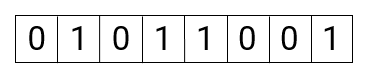
In binary, each bit represents a power of two. For an 8-bit binary word, the rightmost bit represents 20, and the leftmost bit represents 27.
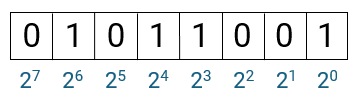
For every bit that is represented by a 1, the corresponding power of two is added to the real-world value.
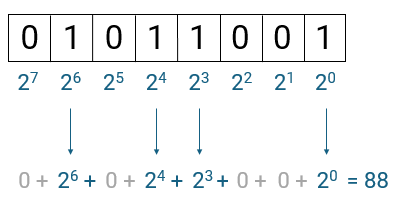
The real-world value interpreted from this binary word is 88. This value is also known as the stored integer, which is the value of the binary word interpreted without any scaling. This is the value that is stored in computer memory. However, the real-world value that is represented by this binary word and stored integer can change depending on the data type and scaling. In the data type shown here - an 8 bit word length with no scaling - only integers can be represented. To represent a value with a decimal part using the same binary word, you must change the interpretation using a different data type and scaling.
Binary-Point Scaling
Scaling changes the interpretation of the binary word. You can scale fixed-point data types by moving the binary point or by multiplying the integer value by a slope and adding a bias. This section uses binary-point scaling to illustrate fixed-point interpretation. For more information on scaling methods, see Scaling, Range, and Precision of Fixed-Point Data Types.
In binary-point scaling, applying a fixed-point data type adjusts which values are assigned to a bit in a binary word based on the placement of a binary point. The binary point separates the integer part of the binary word from the fractional part, as this image of an 8-bit binary word shows.
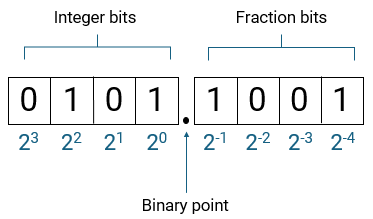
The four bits to the left of the binary point are the integer bits and the four bits to the right of the binary point are the fractional bits. The number of fractional bits is called the fraction length. The first integer bit to the left of the binary point is the smallest integer value, 20. The first bit to the right of the binary point is the largest fractional value, 2–1.
If you interpret the value of the binary word using this binary-point scaling, the interpreted value changes.
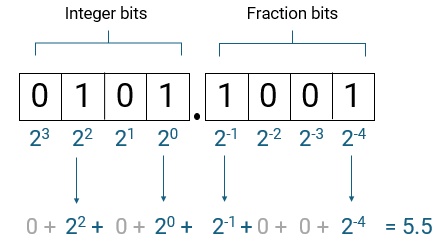
By changing the location of the binary point, you change the interpreted value from the stored integer 88 to 5.5. Note that 88 × 2–4 = 5.5. Moving the binary point 4 bits to the left is the equivalent of multiplying the stored integer value by 2–4. This is true in general for binary point scaling: the stored integer is scaled by 2–fraction length.
Fraction Length and Precision
Fraction length is the number of bits in the fractional part of the binary word, or the equivalent of selecting the placement of the binary point. Fraction length determines the precision with which you can represent values for a data type. Using the example of an 8-bit word with 4 bits of fraction length, the precision is 2–4. Starting from the value 5.5, the next largest value that can be represented is 5.5 + 2–4 = 5.5625. You cannot represent values that fall between 5.5 and 5.5625 using an 8-bit word with 4-bit fraction length.
Each value that can be represented is associated with a stored integer. You can also calculate the next largest representable value using the next largest integer: 5.5 + 2–4 = (88 + 1) × 2–4 = 89 × 2–4.
To represent a value between these two values, you must increase the fraction length. You might also need to increase the total number of bits in the binary word to achieve values that are as the same size but more precise. Increasing precision can provide greater accuracy, while reducing precision can improve computation speed and memory used.
Signedness
Signedness refers to whether a data type is signed, which enables positive or negative values, or unsigned, which enables only positive values. If a data type is signed, the range of the data type has the same number of representable values as an equivalent unsigned type, but the values are both negative and positive, and are centered around zero. The range of an unsigned type starts from zero and is increasingly positive.
This table shows the range of values that a signed 8-bit word with 4 fraction bits can represent.
| Signed 8-bit word with 4 fraction bits | Value | Calculation |
| Representable minimum | –8.0 | –23 |
| Representable maximum | 7.9375 | 23 – 2–4 |
| Precision | 0.0625 | 2–4 |
This table shows the range of values that an unsigned 8-bit word with 4 fraction bits can represent.
| Unsigned 8-bit word with 4 fraction bits | Value | Calculation |
| Representable minimum | 0 | None |
| Representable maximum | 15.9375 | 23 + (23 – 2–4) |
| Precision | 0.0625 | 2–4 |
Specify Fixed-Point Data Types in MATLAB and Simulink
When you create fixed-point data in MATLAB or Simulink, you specify the word length, fraction length, and signedness.
For example, to create a binary-point scaled fixed-point data type using the
numerictype object, you would specify
numerictype(signedness,word length,fraction length)
Create Fixed-Point Data in MATLAB using numerictype and fi
To create a fixed-point data type in MATLAB, use the numerictype object. For example, this
command creates a default numerictype object,
T.
T = numerictype

T =


          DataTypeMode: Fixed-point: binary point scaling
            Signedness: Signed
            WordLength: 16
        FractionLength: 15
Construct a signed 8-bit numeric type with a fraction length of 4.
T = numerictype(1,8,4)

T =


          DataTypeMode: Fixed-point: binary point scaling
            Signedness: Signed
            WordLength: 8
        FractionLength: 4
To construct a numeric object that assigns a numerictype property
to a number or a variable, use the fi object.
For example, create a fixed-point numeric object with the value 5 and the
numerictype
T.
a = fi(5,T)

a =

     5

          DataTypeMode: Fixed-point: binary point scaling
            Signedness: Signed
            WordLength: 8
        FractionLength: 4
numerictype properties can also be specified when constructing
the fi object using the syntax fi(value, signedness,
wordlength, fractionlength).
You can experiment with the effects of increased and decreased precision by
adjusting the word length and fraction length. To see the effects of limited
precision, create a fi object with the value 0.1 fraction length
3.
fi(0.1, 0, 8, 3)

ans =

    0.1250

          DataTypeMode: Fixed-point: binary point scaling
            Signedness: Unsigned
            WordLength: 8
FractionLength: 3Specify Fixed-Point Data Types in Simulink with fixdt
When working in Simulink, you can specify fixed-point data types using the
fixdt function. The fixdt function
creates a Simulink.NumericType object which describes a fixed-point
or floating-point data type in Simulink.
You can use fixdt in the Block Parameters dialog box for any
block that supports fixed-point data types. For example, in the Data Type
Conversion block, under the Signal Attributes tab,
you can specify Output data type.
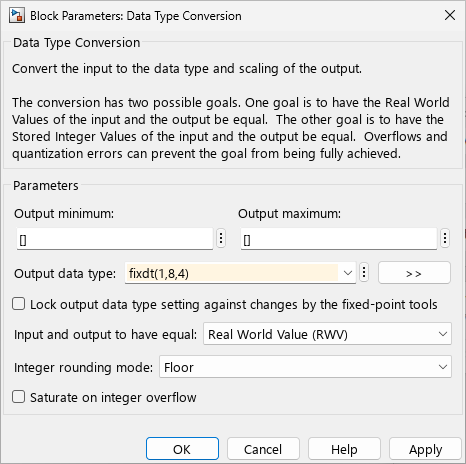
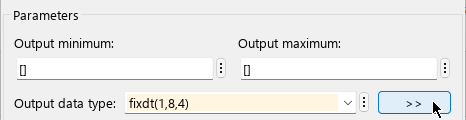
You can further analyze the data type you specify by clicking the Show
data type assistant button  .
.
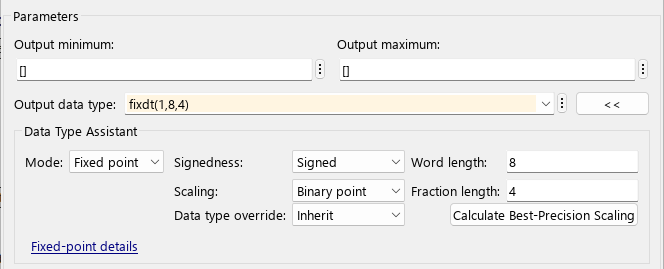
The Data Type Assistant shows you more details about your data type and provides options such as best-precision scaling. For more information about the available options, see Specify Fixed-Point Data Types with the Data Type Assistant. You can click the Fixed-point details link to expand further details about the data type including the maximum and minimum values that can be represented by the data type and the precision.
See Also
fi | numerictype | fixdt | Simulink.NumericType

