Add Vehicle in SUMO Scenario Using Cosimulation with Simulink
Add a vehicle to a SUMO™ scenario during cosimulation with Simulink®.
To run this example you must:
Download and install the Automated Driving Toolbox™ Interface for Eclipse SUMO Traffic Simulator.
Download and install SUMO Version 1.20.0 on your system. The Automated Driving Toolbox Interface for Eclipse SUMO Traffic Simulator supports cosimulation with SUMO Version 1.20.0 on Windows® and Linux® platforms.
Open Model
Open the model. The model uses Server and Client blocks that configure and synchronize simulation between SUMO and Simulink.
open_system("AddVehicleinSumoScenario.slx");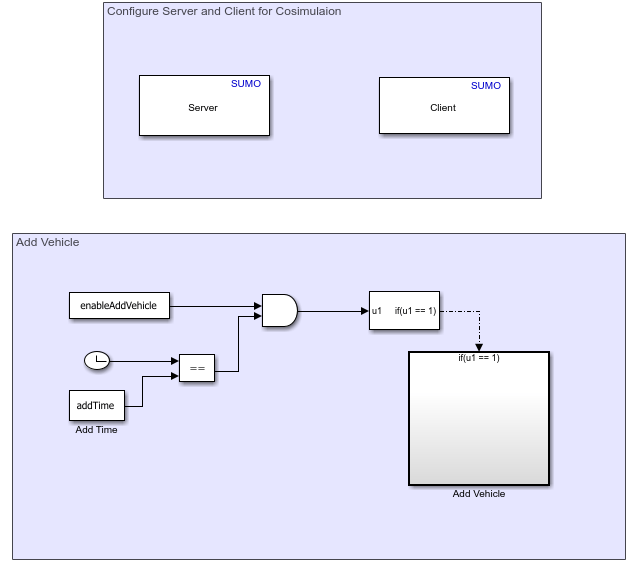
Configure Server and Client for Cosimulation
Double-click the Server block to open its block mask. The SUMO configuration file parameter, specifies the path to a SUMO configuration file, which must have the .sumocfg extension. This example specifies the path to the testConfig.sumocfg file, located at C:\SUMO\MyProject, on a Windows® machine. If you are not using a Windows machine, or have installed SUMO to a directory other than the default, you must manually specify this parameter. The Port parameter specifies the number of the port available on the SUMO server application for communication with clients.
Double-click the Client block to open its block mask. The Address and Port parameters specify IP address and port number of the SUMO server, respectively, to which the client connects. The port number you specify for the client must match the port number of the server. If you are connecting multiple clients to a single server, you can use the Client order parameter to set the priority of each client.
Add Vehicle
This model adds a vehicle to the SUMO scenario at a simulation time of 2 seconds. The Add Time Constant block points to the local addTime variable, which has a value of 2, while another Constant block in the model points to the local enableAddVehicle variable, which has a value of logical 1.
The Clock block outputs the current simulation time. When the simulation time reaches 2 seconds, matching the value of the Add Time block, the Relational Operator block outputs a logical 1. Because both the Relational Operator block and the Constant block referencing enableAddVehicle output logical 1 to the Logical Operator block set to AND, the Logical Operator block also outputs 1, starting the Add Vehicle subsystem.
Open the Add Vehicle subsystem.
open_system('AddVehicleinSumoScenario/Add Vehicle');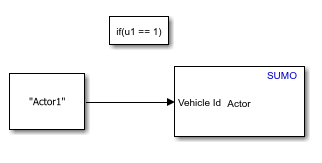
The subsystem contains an Actor block that adds a vehicle with the ID "Actor1" to a lane in the SUMO scenario. You can select the Use Route ID and Use Line ID parameters of the Actor block to enable its Route ID and Line ID parameters, respectively, and specify a particular route or line for the vehicle to follow.
If you want to add a vehicle at a specific position in the road network, change the Spawning method parameter to Position and set the location using the Initial position parameter, instead.
Perform cosimulation
To begin cosimulating, on the Simulink Toolstrip, select Run, which launches the SUMO application interface and begins simulating the scenario, defined in the SUMO configuration file. You can visualize the simulation in the SUMO interface. Alternatively, you can simulate the model programmatically by using the sim command.
sim("AddVehicleinSumoScenario.slx");Update Simulation Settings
This model uses the default simulation stop time of 10 seconds. If the SUMO simulation runs too fast, you can slow down the simulation by using simulation pacing. On the Simulink Toolstrip, select Run > Simulation Pacing. In the Simulation Pacing Options dialog box, select the Enable pacing to slow down simulation, and decrease the value of Simulation time per wall clock second to a value slightly less than 1, such as 0.8 seconds. Then, run the model again.

