Configure AUTOSAR Adaptive Service Interface Properties
R2026bUse the AUTOSAR Dictionary to configure AUTOSAR Adaptive Service Interfaces, component properties, AUTOSAR package paths, XML options, and other AUTOSAR properties for an AUTOSAR Adaptive software component. You also use these tools and editors to configure AUTOSAR Adaptive software components:
Service Mappings Editor — Configure port-to-service mappings and service specifications for AUTOSAR adaptive ports.
Property Inspector — Configure detailed service specification properties for ports, such as queue capacity, timeouts, and sample time.
Architectural Data Editor and Interface Editor (System Composer) — Define port interfaces and C++ namespaces in the Architectural Data section of a linked data dictionary.
For more information about AUTOSAR Adaptive software components in Simulink®, see Model AUTOSAR Adaptive Software Components.
AUTOSAR Adaptive Elements Configuration Workflow
To configure AUTOSAR Adaptive software component service properties in Simulink:
Open a model for which the AUTOSAR system target file
autosar_adaptive.tlcis selected.Open the AUTOSAR Component Designer app. The model opens in the AUTOSAR Adaptive software component perspective. This perspective displays the model with an explicit software component boundary that separates the model algorithm from the required services of the software component.
If you have not yet mapped the model to an AUTOSAR Adaptive software component, the AUTOSAR Component Quick Start opens when you open the AUTOSAR Component Designer app. Work through the quick-start procedure and click Finish. For more information, see Create Mapped AUTOSAR Component with Quick Start.

Define port interfaces in the Architectural Data section of a linked data dictionary. Use the Interface Editor (System Composer) to create interfaces and assign them to ports, and the Architectural Data Editor to configure C++ namespaces and other code generation properties.
Use the Service Mappings Editor to configure required services for data ports, function ports, parameters, and measurement services.
To view or configure AUTOSAR elements and properties, open the AUTOSAR Dictionary. On the AUTOSAR tab, select AUTOSAR Dictionary. You can add elements, remove elements, or select elements to view and modify their properties. Use the Filter Contents box (where available) to selectively display some elements while omitting others in the current view.

To validate your AUTOSAR software component service mappings and properties, click the validate button
 in the Service Mappings Editor. If the editor reports errors,
address them, and then retry validation.
in the Service Mappings Editor. If the editor reports errors,
address them, and then retry validation.
For more information about modeling and configuring AUTOSAR Adaptive persistent services, see Model AUTOSAR Adaptive Persistent Memory.
Configure AUTOSAR Adaptive Service Interface Event Properties
Use the AUTOSAR Dictionary to configure properties of AUTOSAR Adaptive Service Interface events. In the AUTOSAR Dictionary, expand Service Interfaces, expand a Service Interface, and then select Events.

The events view lists Service Interface events and their properties. For each event, you can configure these properties:
SwCalibrationAccess — Set to
ReadOnly,ReadWrite, orNotAccessibleto control calibration and measurement tool access for the event.DisplayFormat — Enter an ANSI C
printfformat specifier string to control how calibration tools display the event value (for example,%2.1d).
Configure AUTOSAR Adaptive Service Interface Method Properties
Use the AUTOSAR Dictionary to configure argument properties for AUTOSAR Adaptive Service Interface methods. In the AUTOSAR Dictionary, expand the Service Interfaces node, and then expand its Methods node. Under the Methods node, expand an operation and select Arguments.
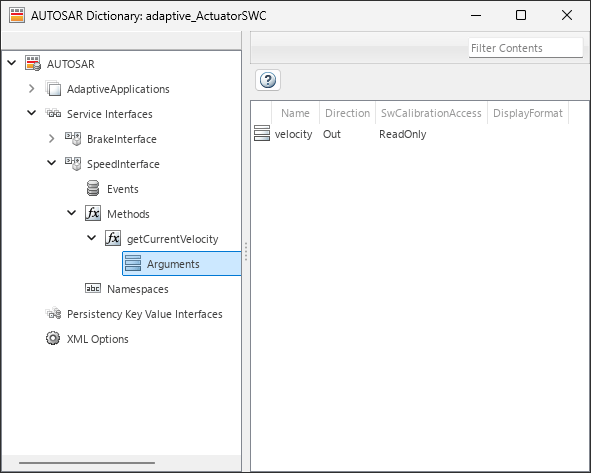
For each operation argument of a method, you can configure these properties:
Name — Specify the name of the argument.
Direction — Set to
InorOutto specify whether the argument is an input or output argument of the method.SwCalibrationAccess — Set to
ReadOnly,ReadWrite, orNotAccessibleto control calibration and measurement tool access for the event.DisplayFormat — Enter an ANSI C
printfformat specifier string to control how the event value is displayed in calibration tools (for example,%2.1d).
View AUTOSAR Adaptive Service Interface Namespaces
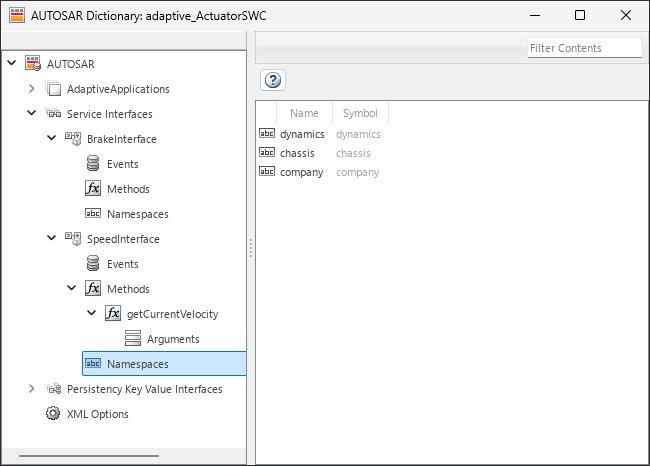
Use the AUTOSAR Dictionary to view AUTOSAR Adaptive Service Interface namespaces. To configure namespaces for AUTOSAR Adaptive interfaces, see Configure C++ Namespaces for AUTOSAR Adaptive Interfaces and Data Types.
Before R2026b: Use the AUTOSAR Dictionary to add and configure Service Interfaces. Use the Code Mappings editor to explicitly map AUTOSAR Adaptive Service Interfaces to Simulink modeling elements.

